
Tutorial: Module Customizing (Level 1)
Information
The following workflow provides an overview of the basic knowledge about PLANTA's own configuration tool (PLANTA customizer) for creating and adjusting the user interface of PLANTA project.
The Project Tutorial provides basic technical knowledge of PLANTA project.
The screenshots used in this tutorial are mere examples of functions and their layout may deviate from the actual layout in the program.
Requirements
Basic requirements for carrying out this workflow are a substantial knowledge of the PLANTA software as well as of its structure, operation, and operating principles. For information on this, please refer to the Introduction and Operation help area.
General Customizing Information
Data Structure
- PLANTA project records are edited in data fields of the modules.
- A module (MOD) consists of data areas.
- A data area (DA)
- corresponds to a data table (DT).
- consists of data fields (DF).
- A data field corresponds to a data item (DI).
- A data item belongs to a data table.
- The data items of a data table form a record.
Module details
- A module
- must have at least one data area assigned to it.
- can have any number of data areas.
- A data area
- can be used multiple times, i.e. be assigned to several modules.
- must have at least one data item assigned to it as a data field.
- can have any number of data items assigned to it as data fields..
Representation of the database in the module
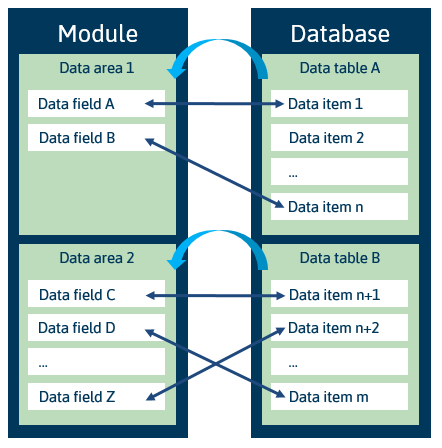
Create Module
Objective
To create a basic module
Procedure
Log in with user P20.
The Modules module is opened.
The cursor is automatically placed in the MOD data field.
Enter a module title (e.g. Test Module) in the Module field.
ENTER
A new module ID number is generated automatically.
Save.
Result:


Tipp: Create a data area using the copy function
Alternatively, a module can also be created by copying a module that already exists. As a result, you generate a 1:1 copy of the source module.
Enter the ID number of the module you want to copy in the the Copy from data field (e.g. 0099JB for the Project Core Data module).
After you have pressed ENTER, a new module number is generated in the MOD data field.
Enter a new title in the Module data field.
Save.
When you save, all the parameters of the source module as well as its subobjects (submodules, data areas, module variants) are copied to the new module.
Create Data Area
Objective
To create a data area for the newly created Test Module module.
Procedure
Right-click in the area of the new Test Module module in the Modules module.
Select Insert → Data area assignment from the context menu.
A blank data area record will be inserted.
Click on the No title link in the Data area field.
The Data Areas module will be opened.
Click on the 000 link in the Data Areas module next to the Data table field or click on the 000 link in the DT field in the Modules module.
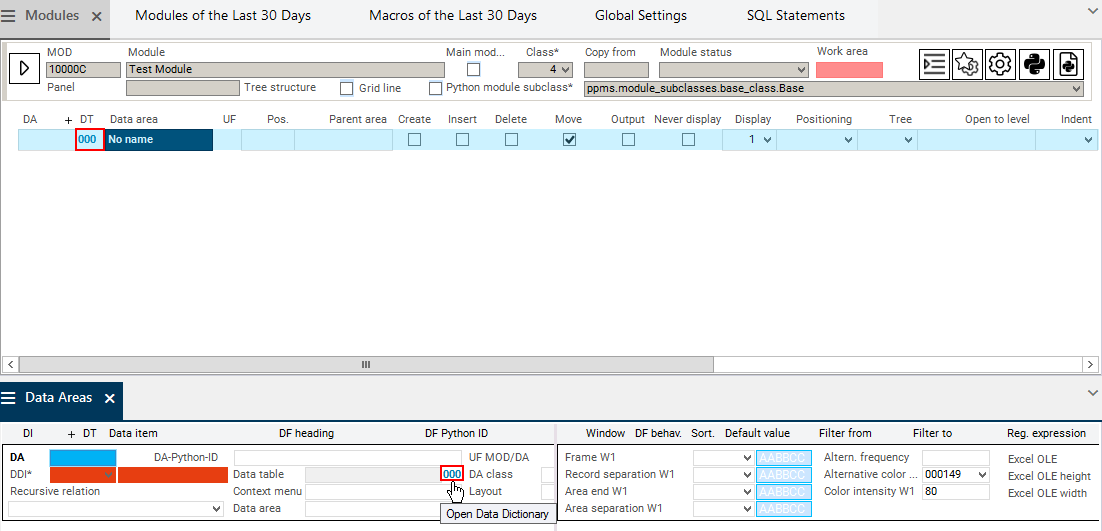
The Data Dictionary module is opened.
For the Project data table, enter value 461 in the DT data field or select the data table 461 from the listbox.
All data items of data table 461 Project are displayed.
By clicking on a column heading, you can sort by that column.
Copy the ID number of the Project ID data item to the DDI data field in the Data Areas module by using Drag&Drop copy.
A new data area ID is created automatically.
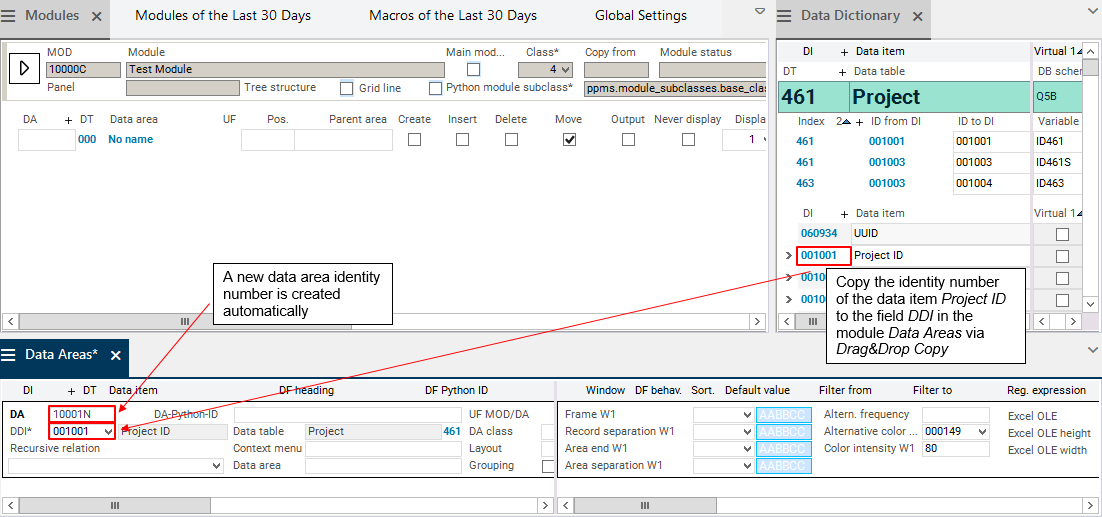
Save.
Assign Data Fields to a Data Area
Objective
To assign data fields to the newly created data area
Procedure
Insert a subordinate record for the data fields in the Data Areas module by right-clicking and selecting Insert → Data field.
Copy the ID number (001001) of the Project ID data item to the inserted data field by using Drag&Drop copy or select it via the listbox in the DI field.
Activate the Project ID data item by clicking on it and insert seven more data fields by right-clicking or clicking on the

Insert button in the toolbar.
Use Drag&Drop copy to copy the ID number of the following data items from DT461 Project in the Data Dictionary module to the DI field or select it via the listbox on the DI field.
041317 Project
000690 Project name
023220 Type ID
001020 Requested end
001042 Status ID
001014 Code ID
001062 Manager ID
The listbox contains all the data items from the data table to which the DDI also belongs.
Save.
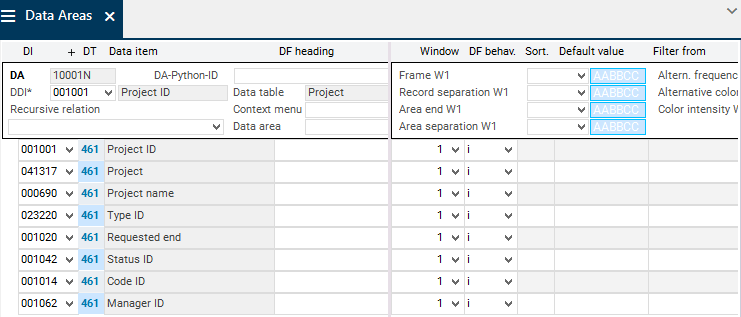
Details
PLANTA project distinguishes between functional ID and technical ID.
They are both generated automatically when a project, proposal, idea, or program is created and are equal at that point.
The functional ID is visible in various modules and can be changed if required for certain reasons.
The technical ID must not be changed. It is not visible in the module and remains unchanged even if the functional ID is changed.
The technical ID is data item 001001 Project ID, the functional ID is data item 041317 Project.
Tipp: Create a data area using context menu command
Click on the 000 link in the DT field in the Modules module.
The Data Dictionary module is opened.
The listbox in the DT field contains all data tables of the PLANTA database.
For the Project data table, enter 461 as a value in the DT field or select data table 461 from the listbox.
All data items of DT461 Project are displayed.
To sort by columns, click on the heading of the column by which you want to sort.
Mark the data items that are to be included in the data area.
Right-click on one of the data items and select the Include Data Items in Data Area context menu command.
As a result, only marked data items are copied.
The Select Data Area module is opened automatically.
A new data area is created automatically.
If instances of the Data Areas module are still open, they will be read and inserted automatically.
If the data items are to be added to another already existing data area, a new record can be created in Window 1 by pressing F4.
Afterwards, enter the ID of the required data area in the DA field.
The value in the DDI field is automatically set to the ID from DI of the corresponding data table.
The data items which have been selected before are displayed in window 2.
Click on the Include data item in data area button.
The data items are included in the data area.
Save.
Assign Data Area to Module
Objective
To assign the newly created data area to the Test Module module.
Procedure
Copy the ID number of the data area you have just created to the DA field in the Modules module.
Determine the data area position within the module by manually entering value 1 in the Pos. field.
If no data area position is defined and the module is started, the following message will be displayed: Module-area assignments not found.
Save.

Caution
A data area must not be assigned to a module twice.
Ignoring this rule can lead to problems.
Module test
Click on the

Start module button to the left of the module number in the Modules module.
The module is opened but no data is displayed. To display data:
Click on the

Filter criteria menu item button in the toolbar.
The Filter criteria module is opened.
Click on the Filter button.
All projects, plans, ideas, and requests that exist in the database are displayed with the assigned data fields.
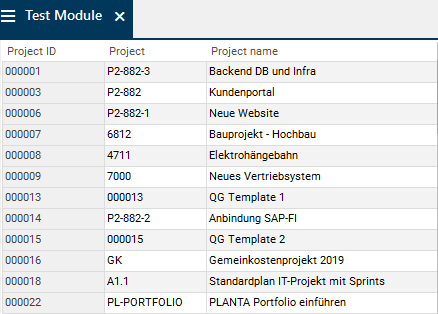
Note
When the newly created Test Module module is opened, it is displayed as a submodule in the Customizing panel. In order to open the module in its own panel, activate the Main module parameter.

See also: Customizing of Panels |
Create Macro
Objective
When you open the module, all projects are to be searched automatically.
Procedure
Click on the

Edit python macro button in the Modules module.
The Python Macros module is opened.
If the module has both a Python macro and a conventional macro, only the Python macro takes effect.
Copy the following macro template via the Insert template button:
#MacroTemplate

mod_obj = ppms.get_target_module()

def on_load():
    pass

def on_initial_focus():
    mod_obj.menu(11)

def on_focus():
    pass

def on_reset():
    on_initial_focus()

def on_before_mv_switch(old_mv, new_mv):
    pass

def on_after_mv_switch(old_mv, new_mv):
    pass
Delete the first line (#MacroTemplate).
The template contains the
mod_obj.menu(11)command in the on_initial_focus Python function. This command refers to menu item 11 Insert, i.e. a blank project record is inserted when the module is opened. A project number can be entered in the record.Since the Filter (menu item 12) function is to be executed instead of the Insert function when the module is opened in the macro,
mod_obj.menu(11)must be replaced bymod_obj.menu(12).Save via CTRL + S or by clicking on the

menu item button.
Module test
When you open the module the next time, all projects, plans, ideas, and requests are searched and displayed.
If you only want to search particular projects, you have to set the filter criteria accordingly.
Notes
The Python macros can also be edited in an editor which can be opened via the

Edit Python macro in editor button.
The editor is opened and the above mentioned macro can be copied in and edited.
Caution: In the
py_editorglobal setting , the correct editor must be set, otherwise the following error messages will be displayed when you click on the button:Please define an editor! or
Error executing python script: The system cannot find the specified file.
See also: Python API |
Edit Data Area
Information
Data areas are edited in the Data Areas module.
The Data Areas module can be opened in the following way:
Click on the link on the Data area field of the required data area.
Right-click on the required data area assignment and select the Edit data area command.
In the user menu, open the Data Areas module and enter the required data area number in the DA field.
Set Filter Criteria
Objective
To only have projects displayed when opening the Test Module module (project type = 0)
Procedure
Open the Project data area.
For the Type ID data field in the Filter from parameter, enter 0 as a value for Project.
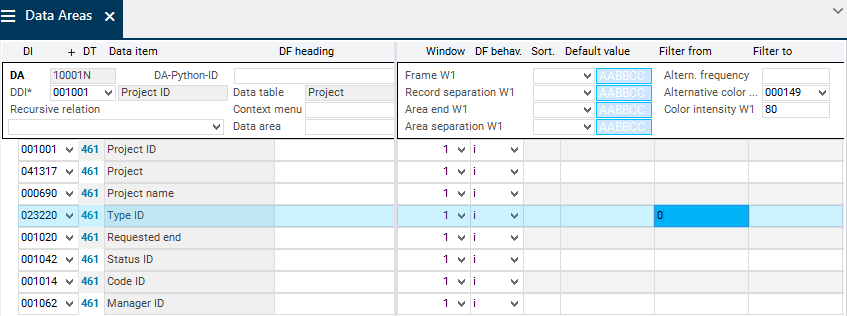
Save.
Module test
After you restart the Test Module module, only projects are displayed.
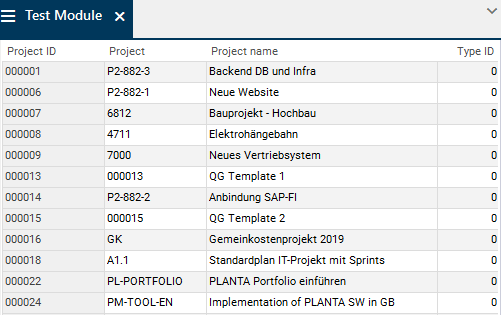
See also: Filter |
Set Sorting Criteria
Objective
To sort projects by project name
Procedure
Open the Project data area.
Enter 1 as a value for the Project name data field in the Sort parameter.
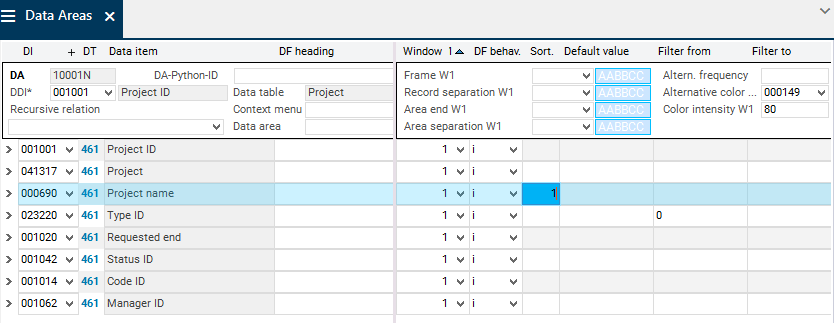
Save.
Module test
After you restart the Test Module module, the projects are sorted by the project name in ascending order.
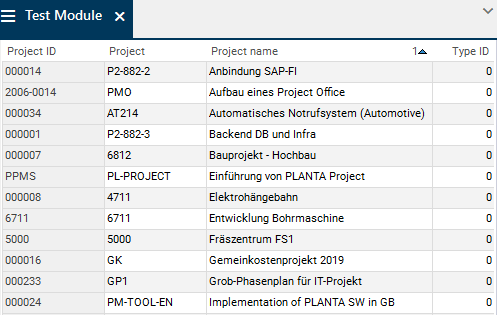
Tip
Alternatively, you can set the sorting directly in the module.
Hide Column
Objective
In the future, the technical project ID is to be used for background filtering only.
The data field is therefore to be hidden in the module.
Procedure
Open the Project data area.
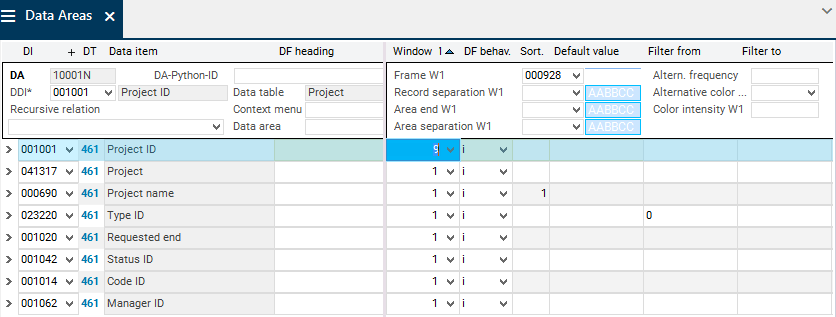
Select 9 in the Window field as a value for the new Project ID data field.
The checkboxes in the Filter criteria and DF options fields are deactivated automatically.
Save.
Module test
Restart the Test Module module.
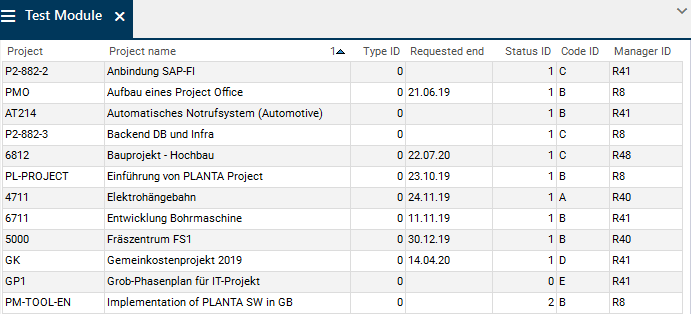
The technical project ID is no longer displayed.
Customize Frame
Objective
Every record of the Project data area is to be framed.
Procedure
Open the Project data area.
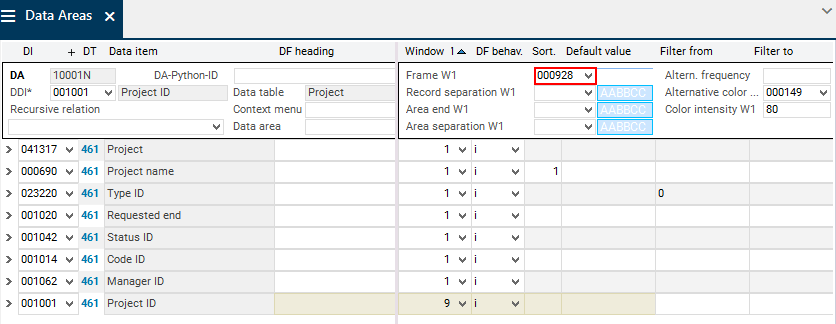
In the Symbol Frame W1 field, enter the requested frame symbol, e.g. 000928.
Save.
Module test
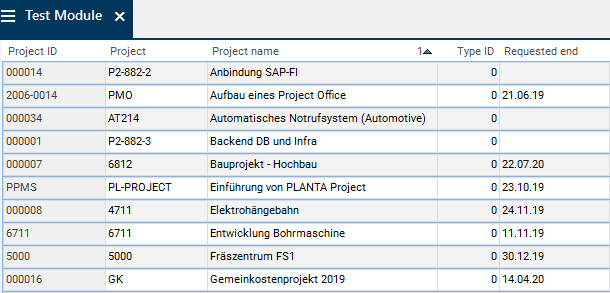
After restart, a blue frame is displayed around every record of the Project data area.
Design Data Area as a Form
Objective
In the Test Module module, project data is no longer to be displayed in a table but in a form.
For this purpose, the Highlight and Alternating frequency options must be deactivated for the data area first.
Deactivate options
Display the Highlight parameter via the right mouse button in the data area assignment headings area Modules module.
Deactivate the checkbox.

Save.
Hide the checkbox again.
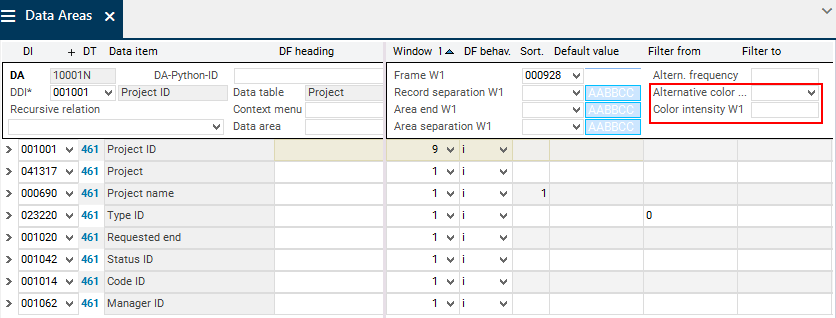
Open the Project data area and delete the values in the Altern. color W1 and Color intensity W1 fields.
Save.
Information
In order to simplify the following steps, only one project (e.g. project 4811) is searched.
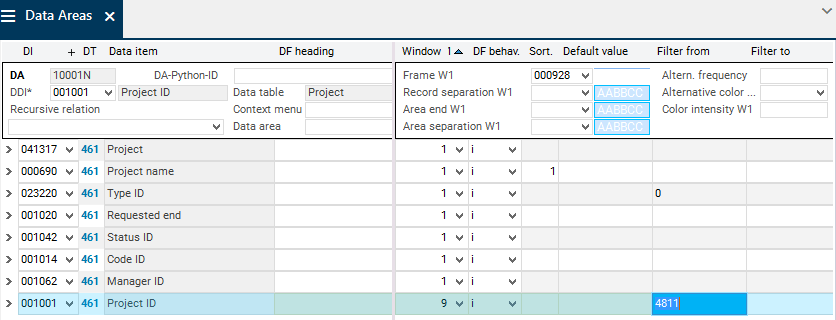
Enter the project ID, here 4811, in the Project data area for the Project ID data field in the Filter from field and save.
Design Data Area as a Form
Open the Test Module module by clicking on the
Start module button.
Activate the customizing mode via Form Editor → Customizing Mode or via the

button.
Click in the data area which you want to become a form.
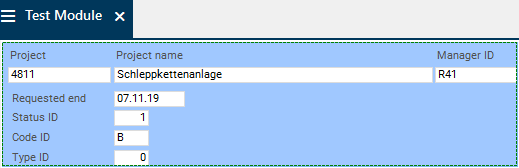
When you right-click and select Form, the data area becomes a form.
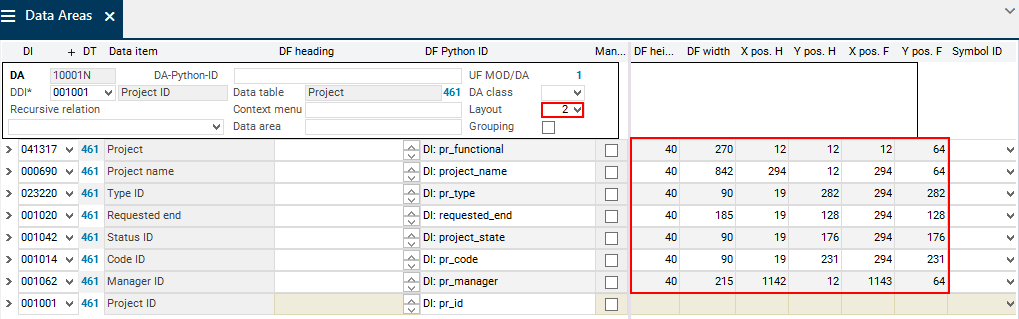
The X/Y positions are set automatically according to the horizontal automatic layout for all fields.
In forms, the symbol in the Symbol Frame W1 field determines not only the frame but also the background color of the data area.

You can use the form editor functions to individually adjust these positions
You can save these settings via Tools → Save module customizing or by clicking on the

Save module customizing button in the toolbar and confirming the Do you want to save modifications in the base module variant? message.
Notes
The tab sequences depend on the sequence of data field records in the Data Areas module.
The X/Y positions, data field widths, heights, and headings can be edited manually in the Data Areas module; the corresponding parameters can be found in the Layout module variant.
Define Data Field Behavior
Checkboxes
Objective
To add a checkbox field with input option in the Test Module module
Procedure
Open the Project data area.
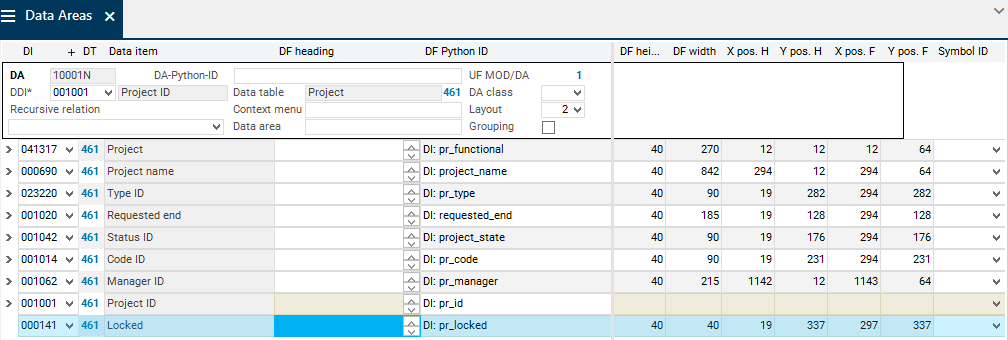
Select a new data item (with Column type = Yes/No) from DT461 Project, e.g. 000141 Locked, and add it to the data area.
In the DF behavior field, value i2 is automatically entered which means that the checkbox is an input checkbox.
If the checkbox is to be an output checkbox, select value o2 from the listbox.
Define the X/Y positions (Y pos. H, X pos. H, Y pos. F, X pos. F) and the data field heights and widths (DF height and DF width).
Save.
Note
Data items with Column type = Yes/No are automatically checkboxes.
Module test
After restarting the module, the Locked checkbox field is visible in the module form.
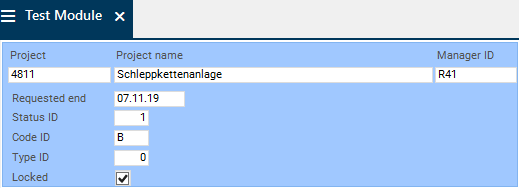
If required, the position of the checkbox can now be changed via the customizing mode again.
Listbox
Objective
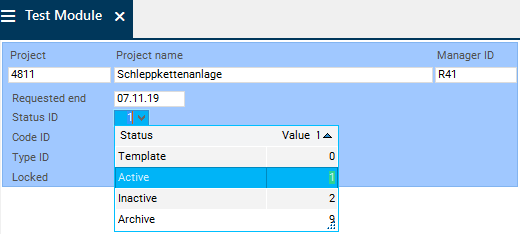
In the Test Module module, a listbox is to be assigned to the Status ID field.
Procedure
Open the Project data area.
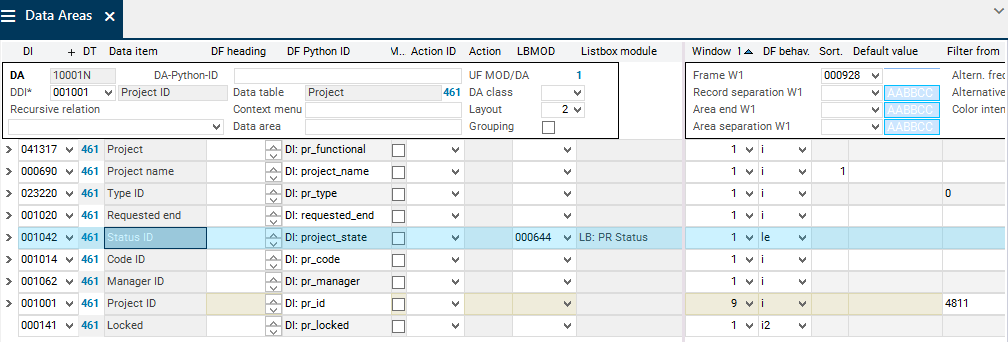
Enter the listbox ID (e.g. 000644 LB: Project status) for the Status ID data field in the LBMOD parameter.
In the DF behavior parameter, enter value le or select it from the listbox.
By selecting values le or li, you define whether the listbox is implicit or explicit.
The listbox is only displayed in the data field if the DF behavior parameter is filled with one of the values mentioned above.
Save.
Module test
After you restart the module, the listbox is displayed in the required data field and can now be used.
See also: Listboxes, Listbox Customizing |
Traffic Lights
Objective
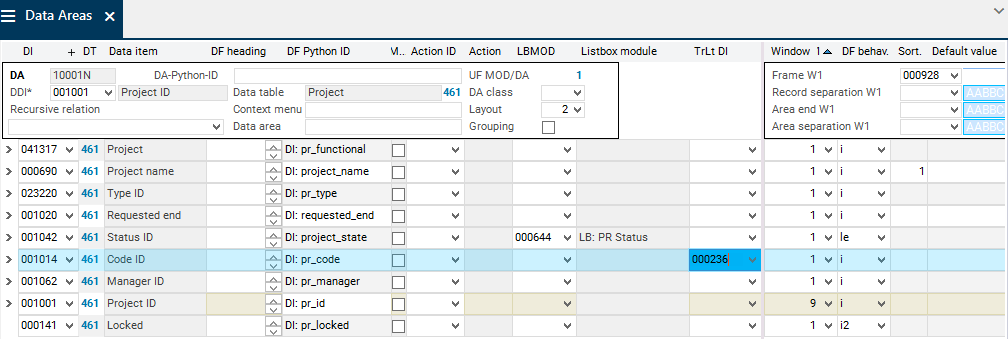
The Code ID data field in the Test Module module is to be displayed in another color depending on the project code (= traffic light function).
Procedure
Open the Project data area.
For the Code ID data field in the Traffic light DI parameter,
select a traffic light DI from the listbox, e.g 000236
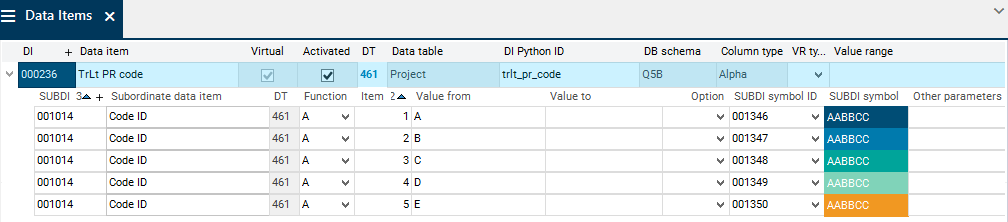
or assign a traffic light DI if an individual one has been customized.
Save.
Notes
The data field to which the traffic light is assigned, and the traffic light DI itself, must originate from the same table. This must be considered when an existing or a newly customized traffic light DI is assigned.
Traffic lights can be assigned to all normal (including background) or projected data fields.
Traffic lights cannot be assigned to bars as the bar design already includes a type of traffic light function as part of its own construction. Traffic lights can, however, be used on auxiliary bar fields.
When all data fields in the data area (i.e. the entire record in the module) are highlighted in color, the traffic light needs to be set in all data fields.
Module test
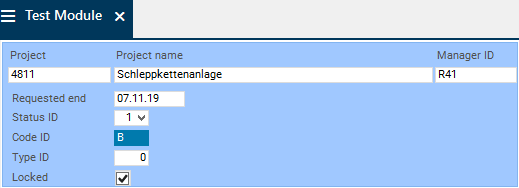
After you restart the module, the traffic light function is displayed on the Code ID data field.
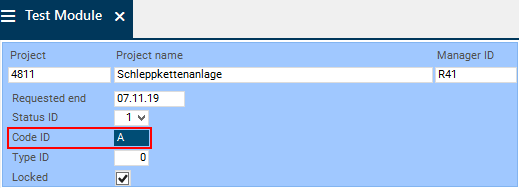
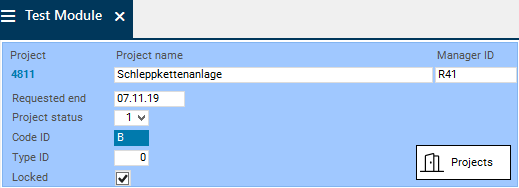
To test the traffic light, you can also enter another project code in the Code ID field (e.g. “B”).
If an invalid value is entered (e.g. "b"), the field will be displayed without traffic light.
See also: Traffic Light Fields, Traffic Light Customizing |
Define Actions
Information
Via actions, you can, a.o., open macros or modules.
Below, two actions are described.
See also: Customizing of Actions |
Buttons
Objectives
In the Test Module module, a button is to be inserted.
Via this button, a module, e.g. the Projects module, is to be opened.
Procedure
Open the Project data area.
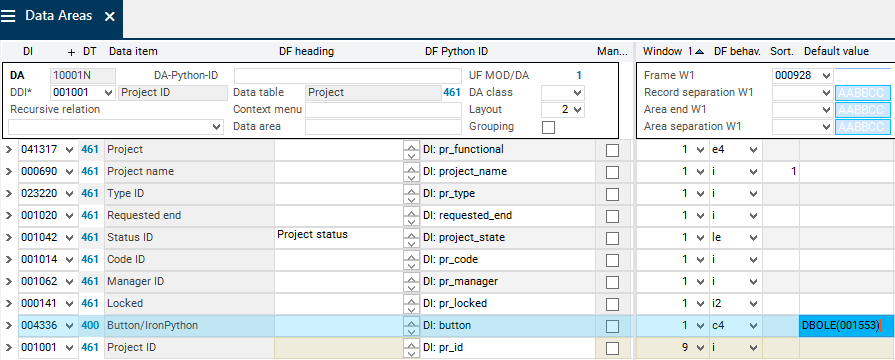
Insert a new record and assign data item 004336 Button/IronPython.
Enter the module number of the Projects module (0099G2) in the Action ID parameter.
Value c4 is automatically selected in the DF behavior parameter.
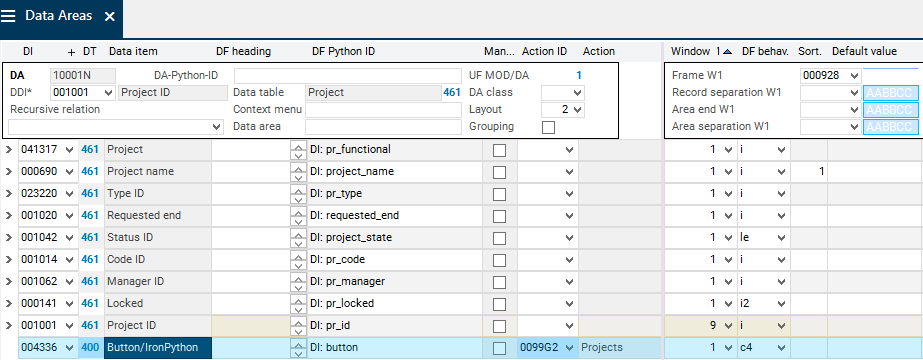
Set the Window parameter = 9.
Activate the DF options checkbox in order for the field to be displayable in customizing mode .
Save.
Open the module.
Activate the customizing mode via Form Editor → Customizing Mode or via the
button.
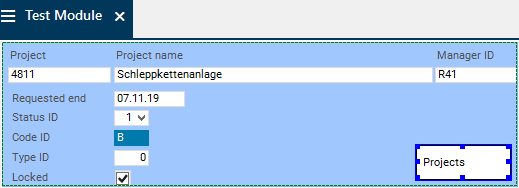
At the position at which the button is to be inserted, right-click and select Data Fields → Projects from the context menu.
Adjust height and width of the button.
Select Tools → Save module customizing in the menu bar or click on the
button.
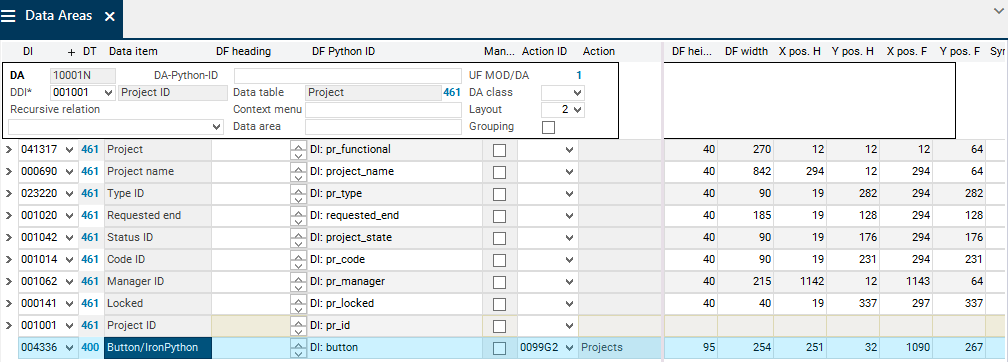
The X/Y positions (Y pos. H, X pos. H, Y pos. F, X pos. F) and the data field heights and widths (DF height and DF width) are now also displayed in the Data Areas module.
Links
Objectives
In the Test Module module, the Project data field is to be defined and displayed as a link.
Via this link, a module in which the project data is displayed, e.g. Dashboard, is to be opened.
Procedure
Open the Project data area.
Define the Project data field as a link. To do so:
Select value e4 in the DF behavior parameter.
Enter a macro number in the Action ID parameter, e.g. 009A0W Open Planning Object. The module is opened via the macro. This macro defines which data is to be displayed in the module.
If you enter the ID of the module to be opened in the Action ID parameter (here: 0099JT), the module will be opened but no data will be displayed.
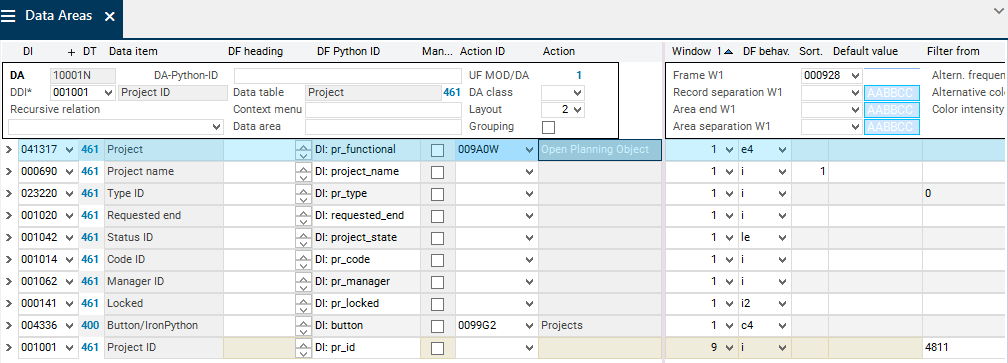
Define the Project data field as a link.
Switch to the Layout module variant and enter value 001807 in the Symbol ID parameter.
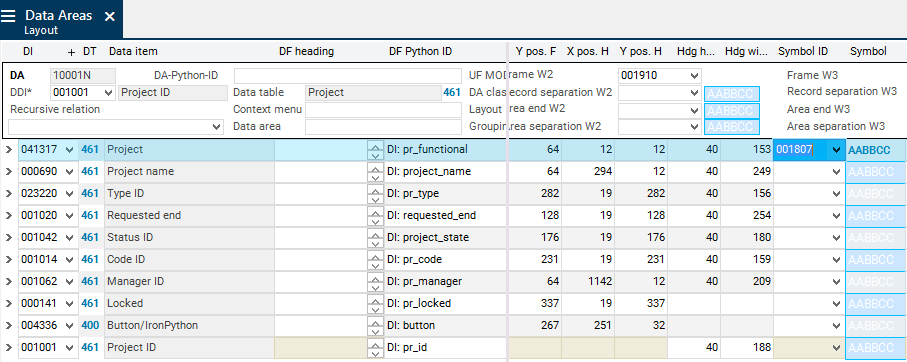
Switch back to the base module variant.
In the Tooltip parameter, enter the text which is to be displayed in the tooltip of the link.
Save.
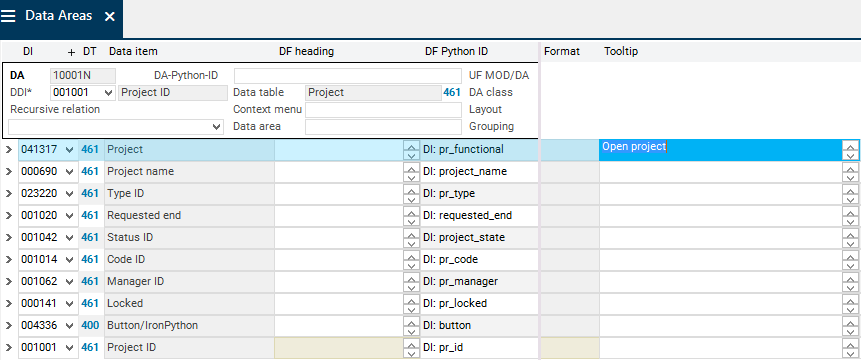
Module test
After you restart the module, the Project data field is defined and displayed as a link.
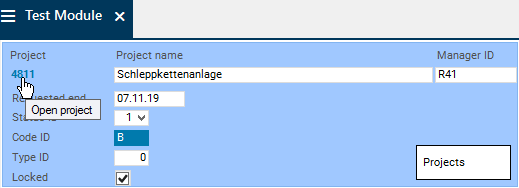
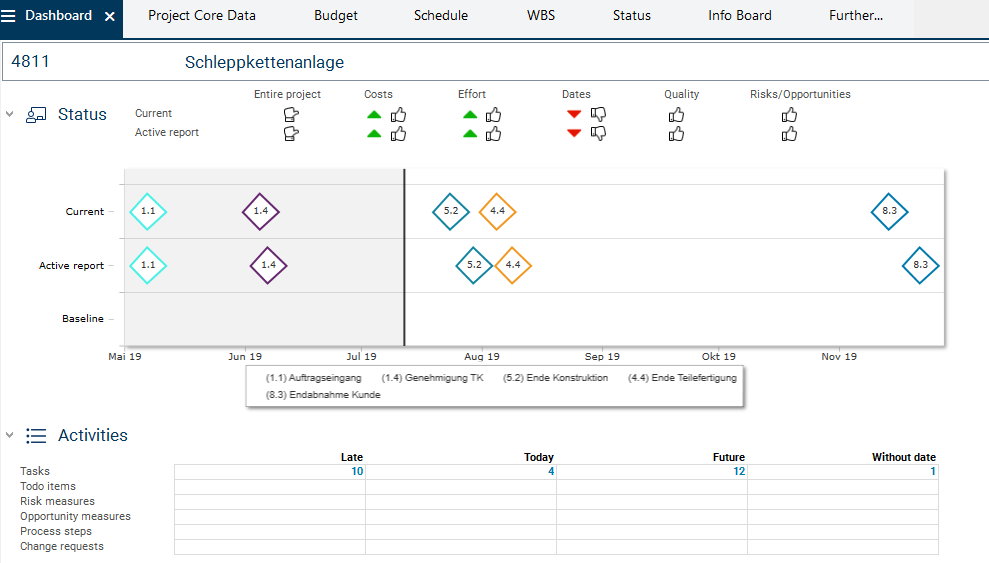
Click on the Open project link.
The Dashboard module is opened and the project data is displayed.
See also: Link Data Fields |
Individual Data Field Headings
Objective
In the Test Module module the Status ID field is to be renamed.
Information
It is possible to use individual titles for data fields in each data area.
They are displayed in all modules in which the corresponding data area is used.
Procedure
Open the Project data area.
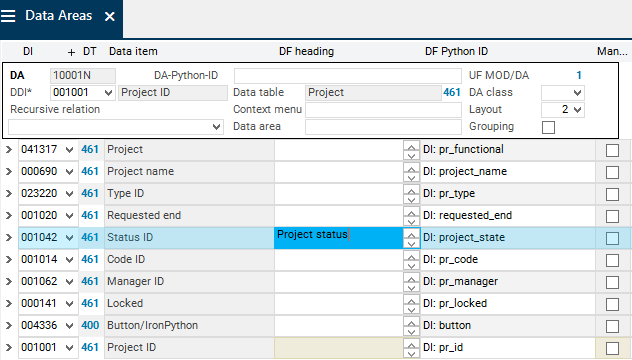
Enter a new heading (e.g. Project status) in the DF heading parameter for the Status ID data field.
Save.
Module test
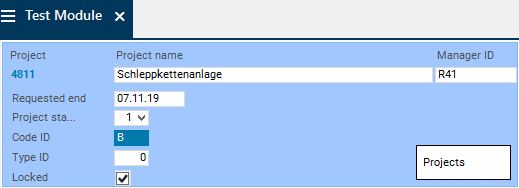
Restart the Test Module module.
Instead of Status, Project status is displayed as title.
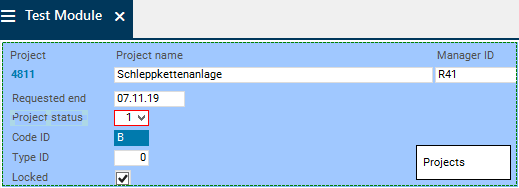
Since the field now requires more space, you have to switch to customizing mode and adjust the size.
Save the changes via the
Save module customizing button.
Embed OLE Objects
Embed Variable OLE Objects
Objective
In the Test Module module, an OLE is to be displayed on the button.
Procedure
Select the requested OLE object in the OLEs module and note down the ID.
Open the Project data area.
In the Project data area for DI004336 Button/IronPython in the Standard value parameter, enter the prefix DBOLE and the ID of the chosen OLE object in brackets, e.g.: DBOLE(001553).
Save.
Module test
After you restart the module, the selected OLE object will be displayed on the button.
See also: (en) OLE Objects |
Excursus: Embedding Variable OLE Objects
Objective
In certain fields, different OLE objects are to be displayed depending on the field values.
Procedure
Create an OLE data item of class 13 and define a value range for this data item.
Open the required data area.
Assign the OLE data item at the corresponding position.
Set DF behavior = a and
define the DF width
Save.
Add an Additional Data Area to the Module
Objective
Another data area, in which tasks are to be displayed, is to be assigned to the Test Module module.
Procedure
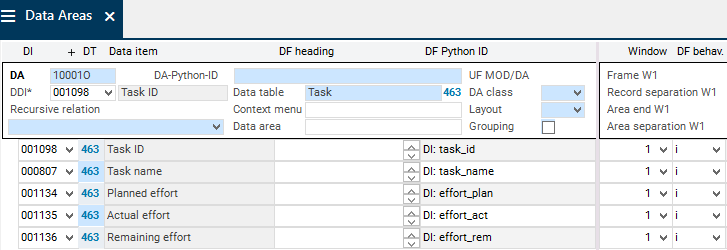
Create a new data area with the following data fields from DT463 Task:
DDI = 001098 Task ID
Data fields:
001098 Task ID
000807 Task name
001134 Planned effort
001135 Actual effort
001136 Remaining effort
Save.
Open the Modules module and enter the ID number of the Test Module module.
Insert a blank record for the new data area:
Click on the existing data area and then click on the
Insert button in the toolbar.
Or right-click on the existing data area and select Insert → Data area assignment.
Enter the number of the newly created data area in the DA field.
Enter value 2 in the Pos. parameter.
Save.

Notes
If the module is now opened, project 4811 will be displayed in the project area and the tasks of all projects will be shown in the task area.
The data areas must be structured so that only tasks of project 4811 are displayed in the task area.
Structure Data Areas
Objective
To have data of the Task data area displayed below the corresponding project
Procedure
At the moment, both areas are at the same level. They are to be structured in such a way that the new Task data area is subordinated to the Project data area.
To do so, drag the Task data area to the Project data area by using SHIFT + holding down the left mouse button and then release the mouse button. As a result, the Task area is subordinated to the Project area. In the Tasks area, value 1 is automatically entered in the Parent area field.
Save.

Note
You can also structure data areas by filling the Parent area parameter manually.
To do so, enter the Pos. of the higher level data area in the Parent area parameter of the data area that is to be subordinated.
Module test
Restart the Test Module module.
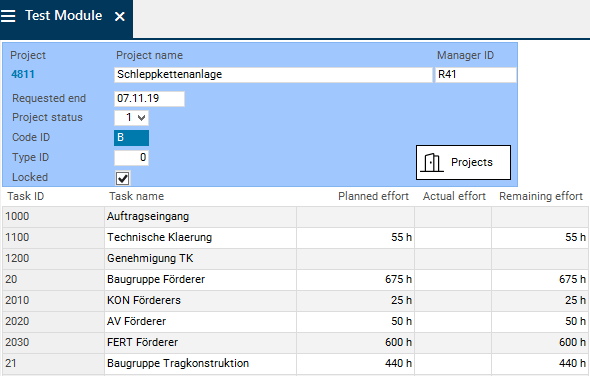
The Task area is displayed below the project form.
Data displayed in the Task data area belongs to the corresponding project.
Notes
Data areas can only be structured in a meaningful manner if they are connected via relations. This can either be achieved via a relation in the data table or via the Relation to recursive child area or Relation to parent area data fields.
If the data areas are structured incorrectly (i.e. the Pos. and Parent area parameters have been set incorrectly), the following message is usually displayed when you open the module: MCU: Unable to create search path..
If a module is technically correct, but incorrectly constructed with regard to application logic, the module provides incorrect data.
Example: If the Parent area parameter is not filled, all tasks (of all projects) will be displayed at the same level below the Project data area.
Show Tree Structure
Objective
In the Test Module module, the tasks of the project are to be displayed in a tree structure.
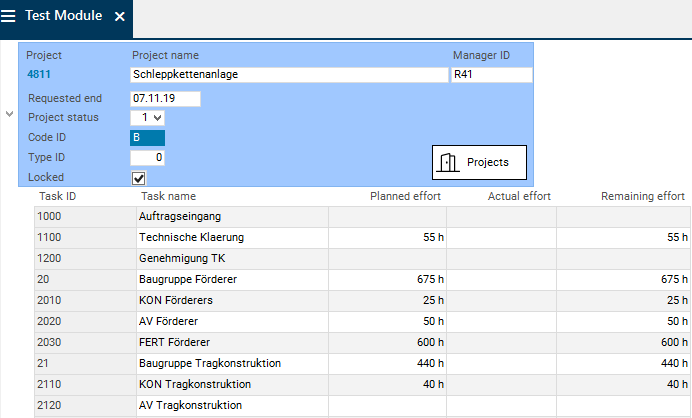
Due to the tree structure, tasks are indented below the project. As a result, the hierarchy (tasks are subordinated to the project) is visible.
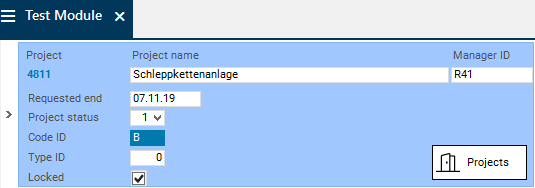
Additionally, the arrow symbol is displayed in the project data area and can be used to display or hide the tasks.
Procedure
In the Tree field in the Modules module on the module data area assignment level for the Task and Project data areas, select in which window you want the arrow symbol to be displayed (here: 1).
Activate the Tree structure parameter.
Save.

Module test
Restart the Test Module module.
In the Project data area, the arrow symbol is displayed and can be used to display or hide the tasks.
The project tasks are indented below the project.
Note
Tree structures for data areas with activated Next to parent area parameter and across several windows must be avoided in customizing as this leads to an incorrect display.
Split Data Fields Across Several Windows
Objective
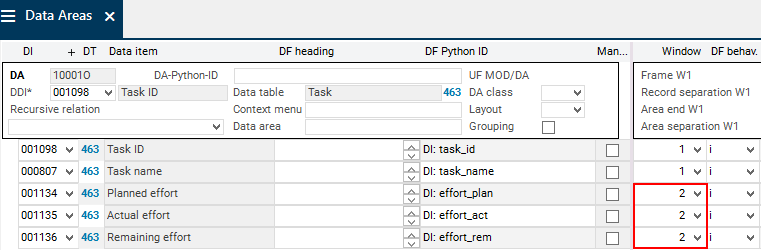
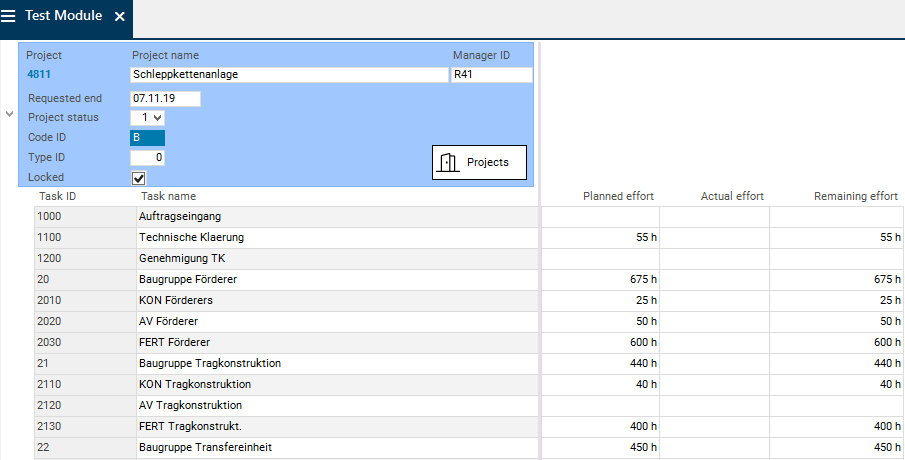
In the Test Module module, the task effort data fields are to be displayed in window 2.
Procedure
Open the Task data area.
For the Planned effort, Actual effort, and Remaining effort data fields, select value 2 in the Window field.
Save.
Close the Data Areas module.
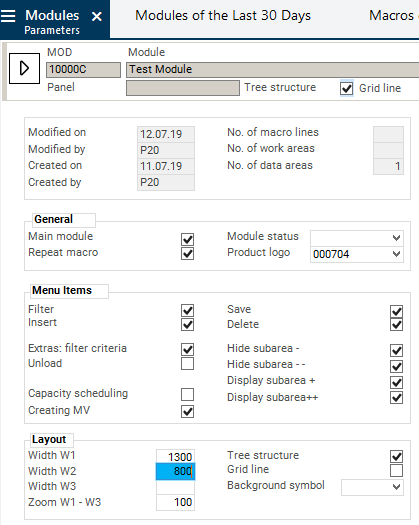
In the Modules module, select the Parameter module variant.
In the Width W2 field, enter a width for window 2, e.g. 800.
Save.
Note
In the user module, the window width can be optimized subsequently and saved via the
Save module customizing menu item.
Module test
Restart the Test Module module.
The task effort data fields are displayed in window 2.
Customize Invisible Fields for Displaying
Objective
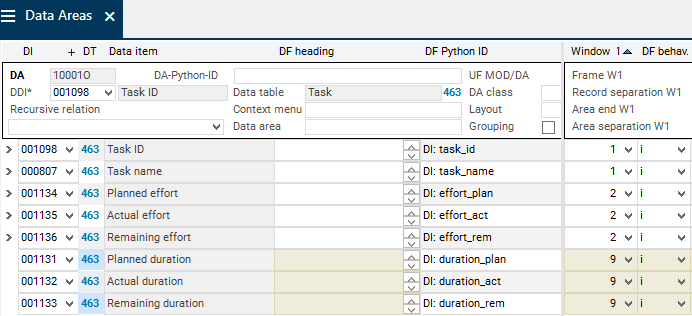
In the Test Module module, duration fields are to be assigned to the Task data area that is to be hidden when the module is opened but can be unhidden if necessary.
Procedure
Open the Task data area.
Assign data items to the data area from DT463 Task:
001131 Planned duration
001132 Actual duration
001133 Remaining duration
For the new data fields, select value 9 in the Window field.
Activate the DF options checkbox for the new data fields.
Save.
Module test
Restart the Test Module module.
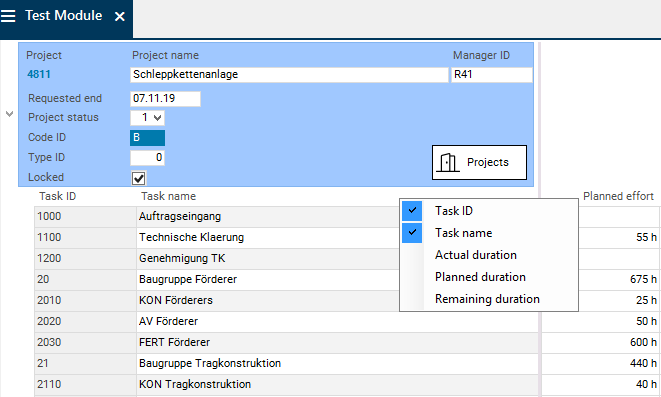
The new duration fields are hidden in the module.
They can be unhidden if necessary. To do so,
right-click on the heading of the requested (data field) column
set a checkmark next to the respective entry in the context menu. Here, checkmarks are set next to all three duration data fields.
The new columns (data fields) are inserted to the left of the column from which the context menu was opened.
Enable Creation, Insertion, and Deletion of Records in the Module
Objective
To enable the creation, insertion, and deletion for the Task data area in the Test Module module.
Procedure
Set the following parameters in the Task data area in the Modules module:
The Insert context menu is generated automatically and contains the following two parts:
The fixed Insert entry and
the table name (the decisive factor here is from which data table the DDI originates) of the data area(s); the second part may contain the following subparts:
The first section is always identical, regardless of the data area from which the context menu is opened. Here, the data area(s) of the highest level for which insertion is allowed are displayed.
Whether the second section will be displayed and which areas will be shown there depends on whether insertion is allowed for focused data areas and/or its child data areas.
The text displayed in the second subpart of the context menu (table name) can be edited by means of an entry in the Context menu text data field in the Data Areas module.
Delete =
Save.

Example of the context menu
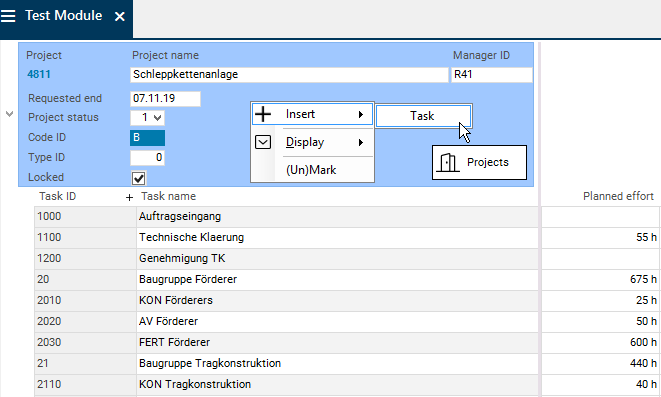
For the Project data area, the context menu looks as follows (the DDI originates from DT461 Project and the data area contains a Task subarea for which the Insert and Create parameters are activated): Insert → Task.
Module test
Restart the Test Module module.
Insert a new task via the Insert → Task context menu.
Allocate a name for the task.
Save.
Mark the task and delete it again via the
 menu item button).
Assign Module to Work Area
Objective
The Test Module module is to be assigned to a work area.
Information
According to PLANTA project rights controlling, modules are not directly assigned to a user. This assignment is done via the assignment of a module to a work area, which is then assigned to a role, which is finally assigned to a user.
Procedure
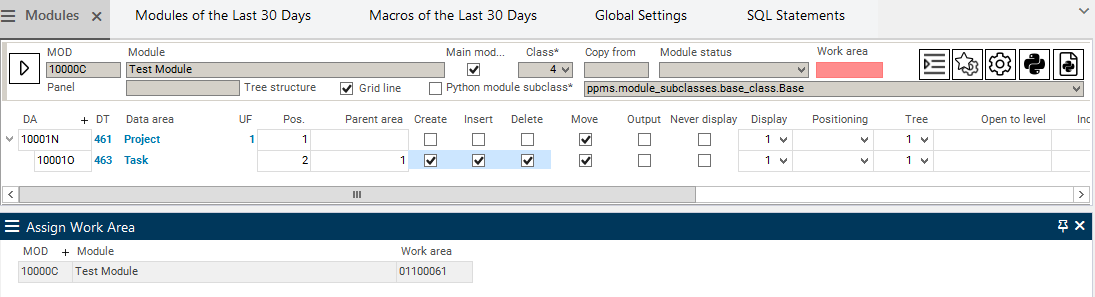
In the Modules module, right-click and select Assign Module to Work Area.
The Assign Work Area module is opened.
Select the required work area in the Assign Work Area module (here: 01100061 Planning) from the listbox on the Work area field.
Save.
Note
After reloading, you can see how many work areas the module is already assigned to in the in the No. of work areas field in the Modules module. On this field, a traffic light is stored which signalizes whether the module has already been assigned to a work area (green) or has not yet been assigned (red).
By clicking on the link in the field or by selecting the Use module variant you switch to the module variant of the same name. There, the work areas and roles the module is assigned to are displayed.
Test assignment
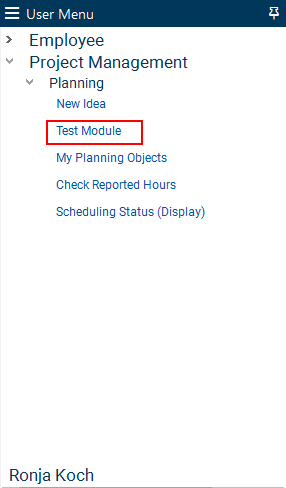
Log in with the user the requested work area is assigned to via a role assignment (here: R8).
The Test Module module is visible in the user menu in the requested work area and can be opened.
Assign Submodule to Panel
Objective
To assign another module as a submodule to the panel in which the Test Module module is the main module.
Procedure
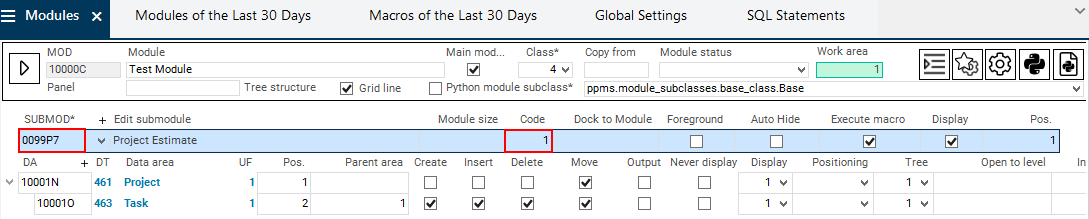
In the Modules module, insert a record for a submodule by right-clicking and selecting Insert → Submodule.
Enter the ID of the module which is to be added to the panel in the SUBMOD field, e.g. module 0099P7 Project Estimate.
Enter 1 as a value in the Code field.
Save.
Test assignment
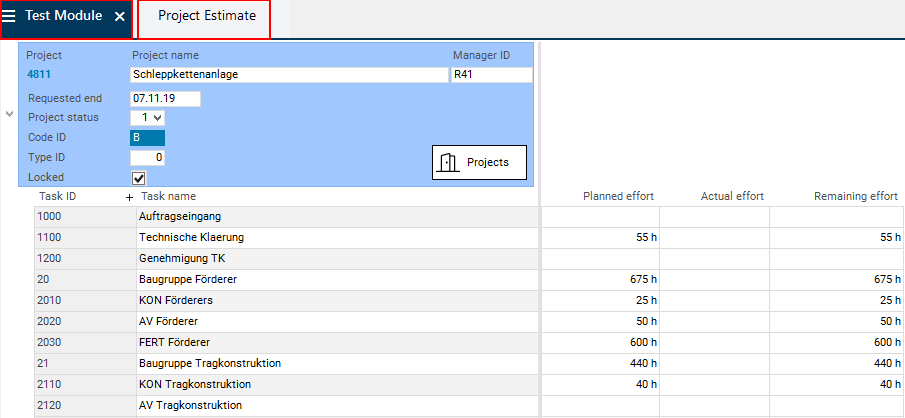
Log in with the user which has access to the Test Module module (here: R8).
Open the Test Module module.
The panel with the Test Module main module and the Projects submodule is opened.
See also: Customizing of Panels |
Excursus: Delete
Caution
Please take note of the descriptions below, however, do not carry out the procedure if you intend to proceed with the Customizing Tutorials for Level 2 and 3, since the procedure of these tutorials is based on the module created here.
Delete a Data Area Assignment
Procedure
Open the Modules module.
In the MOD data field, enter the module ID number of the module to be edited.
Mark the requested data area via CTRL + click.
Click on the
menu item button in the toolbar.Only the data area assignment will be deleted, the data area itself will be retained. If it is not assigned to a module it is displayed in the Data Areas Without Assignments module and can be deleted either there or in the Data Areas module.
Notes
Before deleting a data area assignment, you must check whether the position of the data area is assigned to one or more subsequent data area(s) as a parent area.
After deleting a data area assignment, you should adjust the Pos. and Parent area data fields accordingly.
Delete a Data Area
Procedure
Open the Modules module.
Enter the module ID number of the module to which the data area to be deleted is assigned in the MOD data field.
Open the link on the Data area name to open the data area in the Data Areas module.
Mark the data area in the Data Areas module using CTRL + click.
Click on the
menu item button in the toolbar.
The data area and all of its module assignments are deleted.
Notes
Before deleting a data area, you must check whether the position of the data area is assigned to one or more subsequent data area(s) as a parent area.
After deleting a data area, you should adjust the Pos. and Parent area data fields accordingly.
Delete a Module
Procedure
Open the Modules module.
Enter the module ID of the module to be deleted in the MOD data field.
Mark the module via CTRL + click on the module title.
Click on the
menu item button in the toolbar.The module and its data area and submodule assignments are deleted.
The data areas and submodules themselves will be retained.
Module Customizing (Level 2)
Information
In Module Customizing Tutorial (Level 2), further customizing options are explained, e.g.
Customizing of bar plans and bar plan functions
Embedding date listboxes by using the CalenderControl function
Customizing of links
etc.