
Search in module
Information
There is an option to search for the occurrence of a particular character string in the data of a selected/opened module. The data display will remain unchanged at first, the searched character string will be highlighted. This option will be described in this topic.
Another option is to restrict the data displayed in the module in line with particular specifications. The process is called filtering and is described here.
Procedure
Activate the module in which you want to perform the search.
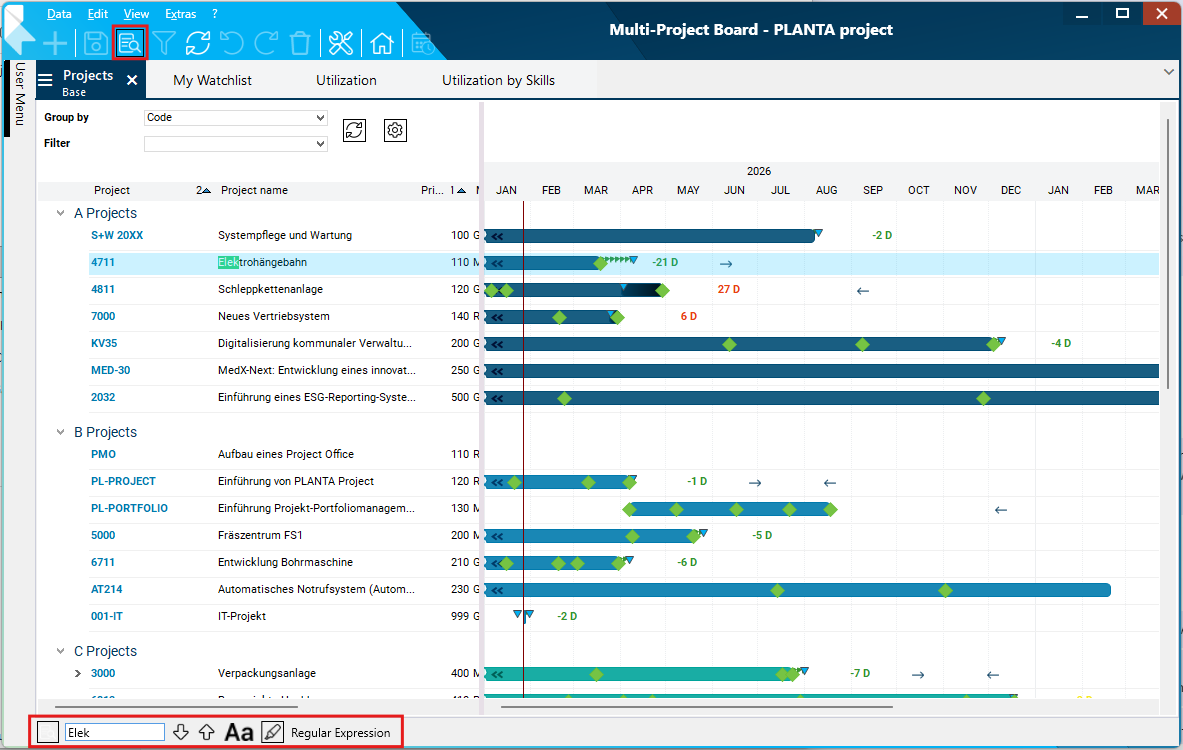
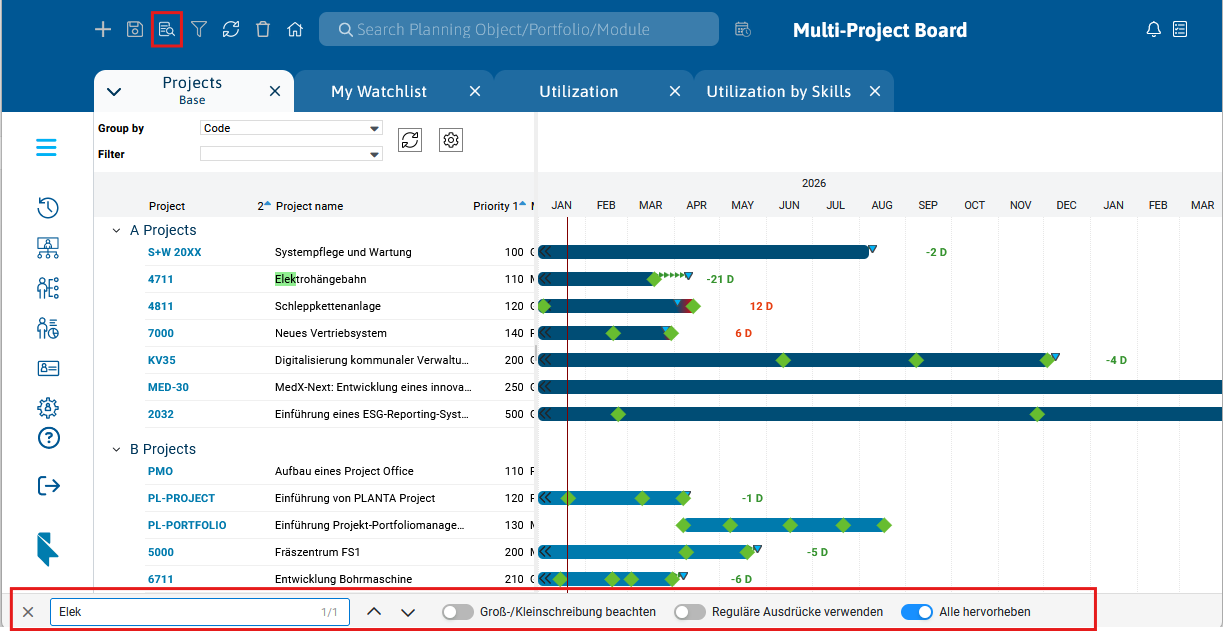
Have the search bar displayed at the bottom of the screen via:
Data →Search in module or
via the CTRL + F key combination.
enter the required search string inSearch:
It will automatically be scrolled to the first character string which coincides with the search value and the string will be highlighted in green.
If you cannot see the match, it may be in the hidden part of a data field (the field is too short).
You can navigate to further matches:
Desktop Client view
Web Client view
Details
The search bar is module-related, i.e. if another module is activated, it will not be visible in the newly opened module. If the module to which the search bar belongs is reactivated, it is displayed again.
If you click into the corresponding module, you can focus theSearch field by pressing CTRL + the F key.
If there is an entry in the input field, it will be marked.
If the Search field is focused, you can close the search bar by pressing the ESC key.
Other functions:
Case sensitivity button (ALT + G)
- Defines whether case sensitivity is to be considered.
Highlight button (ALT + H)
- Defines whether all hits are to be highlighted in yellow.
Use regular expressions button (ALT + R)
- Defines that the search term is analyzed as regular expression.
Notes
Every time you enter a new character in the search string, the entire string will be searched.
As soon as no more matches are found for the current string, the search field will be colored red, telling you that any further input of characters will be pointless.
Text on buttons is excluded from the search.
After changing a previously found field, the search takes the update into account and jumps correctly to the next hit when you pressdown orup.