Objective
-
This tutorial is intended to show first-time users how to structure tasks in PLANTA project.
Please note:
-
The screen shots used in this tutorial are mere examples of functions and may differ from the actual layout in the program.
Procedure
-
Log in with user R41.
-
Open the Schedule module.
-
The following query is displayed: Adopt a schedule?
-
Answer the query with No.
-
-
Open the context menu by right-clicking on the project line and select the Insert → Task entry.
-
Enter a name for the task in the Task name field.
-
Save.
-
-
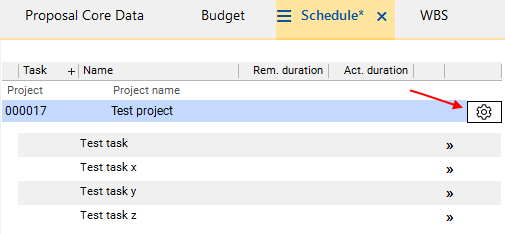
Insert further tasks as shown in the image below.
-
Click on the

-
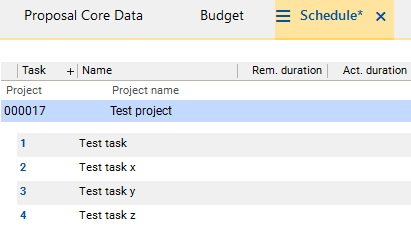
Result: The WBS code is assigned to the tasks and is displayed in the Task column. Since the tasks have not been structured yet, this is only done by ascending numbering.
-
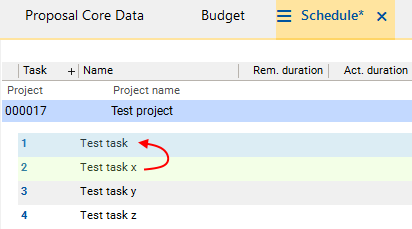
Task x is to be subordinated to Test task.
-
For this purpose, drag Test task x on to Test task with the left mouse button while holding SHIFT.
-
As a result, Test task x (source task) is visualized green and Test task (target task) is visualized blue.
-
Release the left mouse button as soon as the cursor is on Test task. Test task x is moved below Test task.
-
-
Test task y is to be subordinated to Test task as well and is to be positioned below Test task x.
-
For this purpose, drag Task y on to Task x by pressing SHIFT and holding down the left mouse button.
-
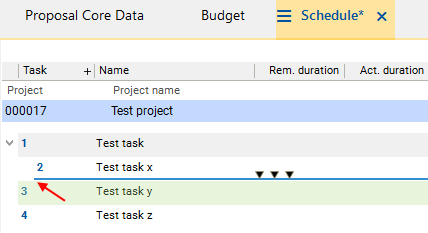
A dark blue line is displayed. Pay attention to the line's position. It is to be positioned at the bottom of Test task x and its starting point is to be equal to the starting point of Test task x.
-
-
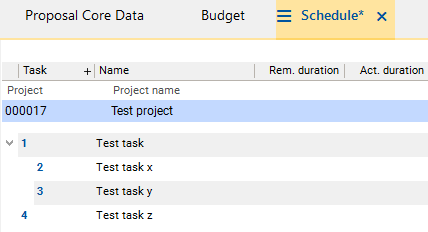
Result:
-
Test task x is now subordinate to Test task.
-
Test task y is also subordinate to Test task and has been positioned below Test task x.
-
-
Save and click on the

Calculate schedule button in the toolbar.
-
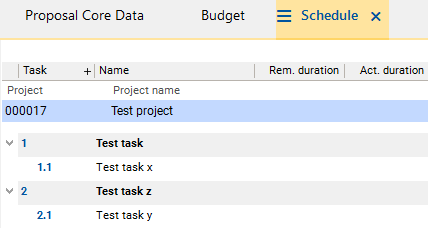
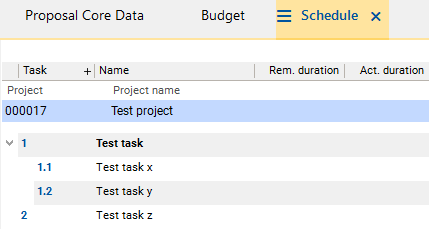
As a result, the WBS code is refreshed in accordance with the predefined structure.
-
The parent Test task is marked bold and therefore visualized as a summary task.
-
A summary task is a task in the structured schedule consisting of sub-tasks which are summarized here. Information on the summary task, such as duration and dates, is determined automatically from the sub-tasks.
-
-
-
Switch to the WBS module by clicking on the tab of the same name in the Project panel.
-
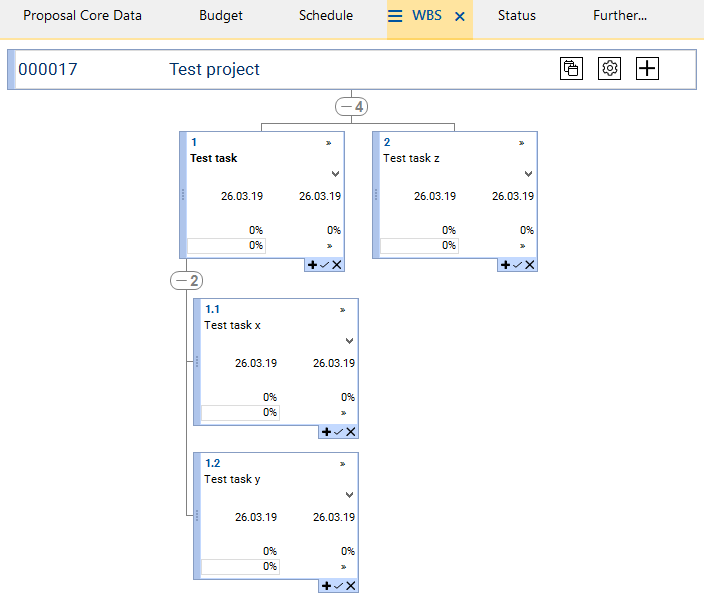
Here, the structure created in the Schedule module is displayed graphically.
-
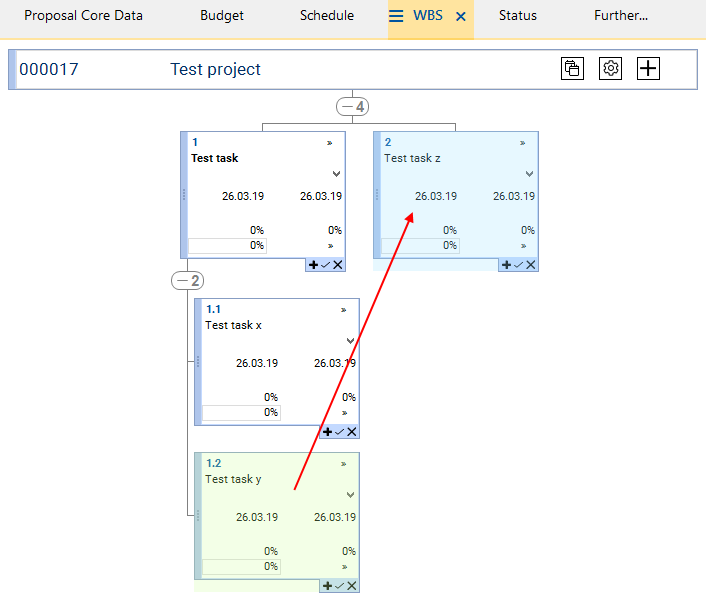
The structure is to be changed: Test task y is to be subordinated to Test task z.
-
For this purpose, position the cursor on the left margin of Test task y: A hand symbol is displayed.
-
Hold down the left mouse button and drag the box to the box of Test task z. Release the left mouse button over this box.
-
-
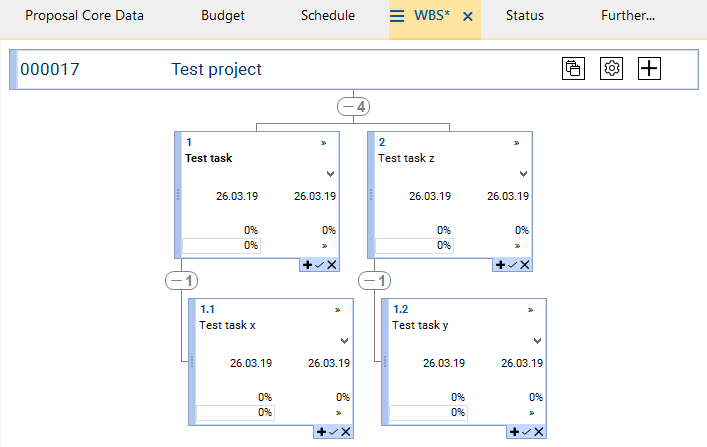
Result: Test task y is now subordinate to Test task z. However, the old WBS code is still displayed.
-
In order to update the WBS code, click on the

-
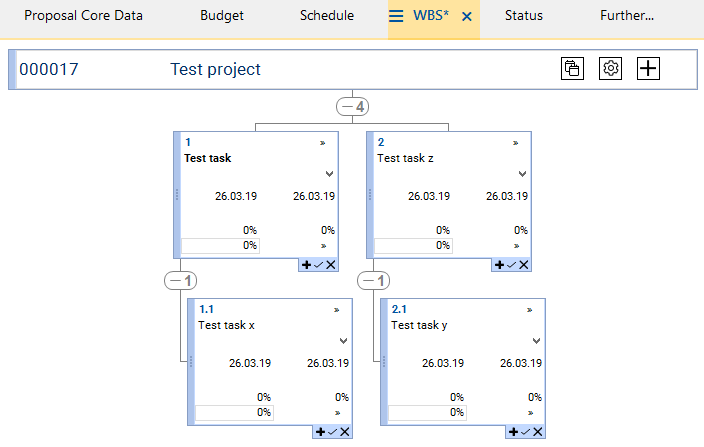
Result: The code has been changed according to the structure.
-
Return to the Schedule module in the Project panel. Click on the Update/reset and