Introduction
Information
-
This tutorial addresses first-time users who are to learn to use the program and its functions on the basis of typical use cases.
Please note:
-
All exercises are based on the PLANTA demo data. This data must be installed beforehand.
-
The screen shots used in this tutorial are mere examples of functions and may differ from the actual layout in the program.
There are also videos on the subject of time recording.
The Employee Board in PLANTA project
Information
-
Each PLANTA project user has the Employee Board link in his/her user menu.
-
Via this menu item, the Employee Board panel is opened which summarizes modules that are relevant to all PLANTA project users regardless of their particular role, e.g. the Time Recording module or the My Activities module.
-
The following examples are based on PLANTA demo user R1, whose only role is that of a Project Team Member and who has no modification rights for the project.
My Activities
Initial situation
-
Employee Daniela Mueller starts PLANTA project with her user code R1 and wants to get information on the activities planned for her today and to complete them.
Procedure
-
Log in to PLANTA project with user R1 (no password).
-
The Employee Board of employee R1, Daniela Mueller, is opened and the Time Recording module is automatically focused.
-
Click on the My Activities tab to switch to the module of the same name.
-
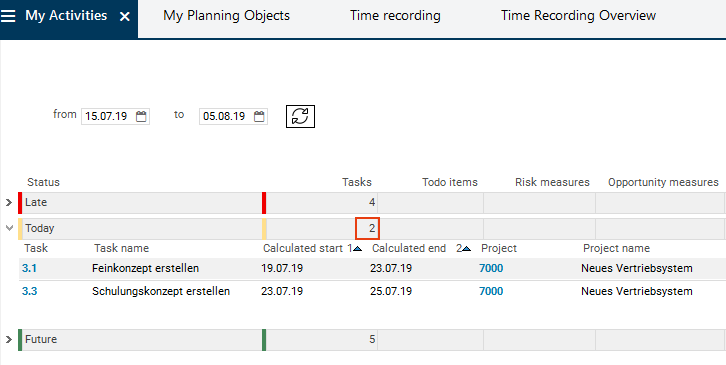
In this module, all activities to be completed (to do) by Daniela Mueller (planned tasks, todo items, risks, opportunities, and process steps) are grouped by date status (Late, Today, Future, Without date).
-
In the Tasks column in the Today status group, Daniela Mueller sees the entry "2". This means that today she is scheduled for 2 tasks.
-
Recording of Hours Worked
Initial situation
-
Daniela Mueller wants to record the time she has already spent on the completion of task 3.1.
Note
-
The time recording variant is the standard variant preset in PLANTA project: Hours worked are recorded per day directly below the time scale and the "Hours to be worked" and "Record presence" functions are deactivated.
-
For further information on this time recording variant and links to the description of other time recording variants, see here.
-
Procedure
-
In her employee board, Daniela Mueller clicks on the Time Recording tab.
-
In the left window, all projects and - if you unfold them - all tasks are displayed for which the employee is scheduled.
-
-
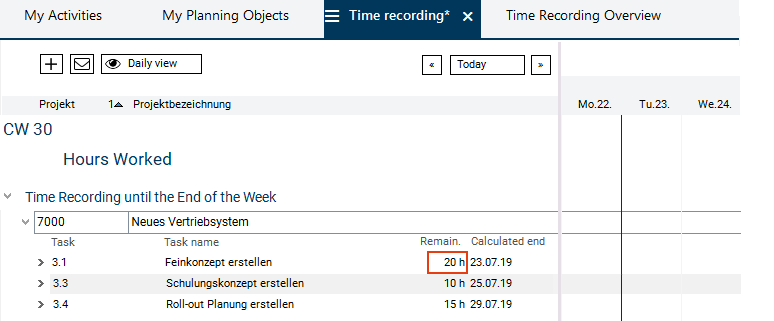
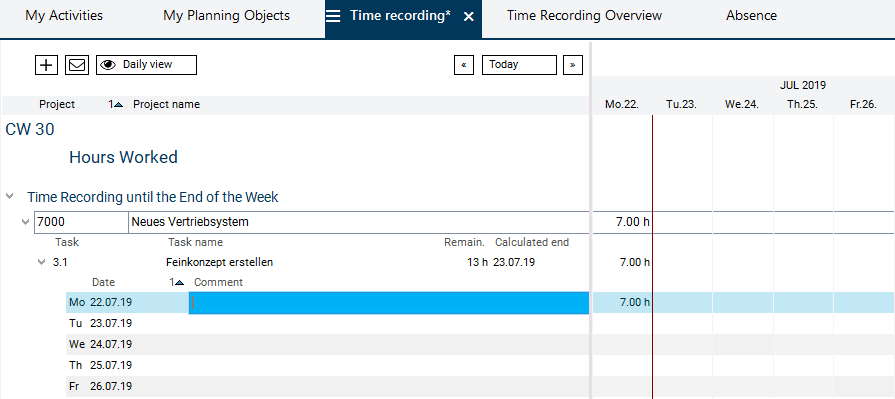
She expands the record of project 7000 where she finds the record of task 3.1 to which she wants to report her working time.
-
Since Mrs. Mueller has not yet recorded hours on task 3.1., the entire effort planned for her (20h) is displayed in the Remaining field. After the recording of hours worked, this value will be reduced by the number of recorded hours.
-
-
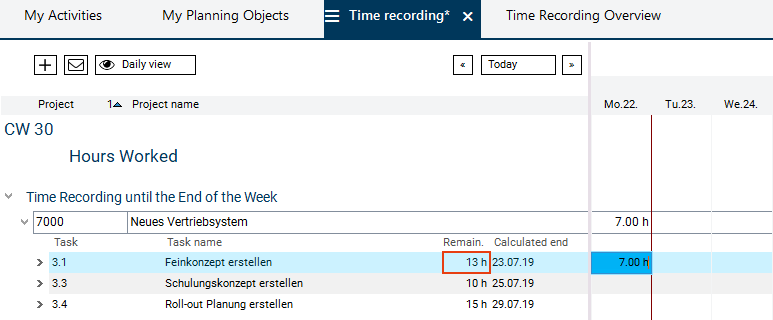
In the right window, in the record of task 3.1, she clicks on the field below today's date. She enters the number of hours she has spent on task 3.1, e.g. 7h, and saves.
-
The Rem. effort value is automatically updated when hours worked are entered. Daniela Mueller can see that there are 13 hours left.
-
-
When she unfolds task 3.1, she can add a comment to her recorded hours worked in the corresponding load record.
Details
-
If the project manager refreshes the schedule of project 7000 afterwards, she will see the hours worked recorded by Daniela Mueller.
Submit Forecast for Increased Effort
Initial situation
-
While she was working on the task, Daniela Mueller has encountered several problems. Now, she is afraid that the completion will require a higher effort. She wants to inform the project manager about this additional effort.
Procedure
-
In the header area of the Time Recording module, Daniela Mueller clicks on the

Send forecast button.
-
The Send Forecast module is opened.
-
In the record of the task 3.1 of project 7000, in the Forecast field, she enters the estimated remaining effort and saves.
-
-
She clicks on the


-
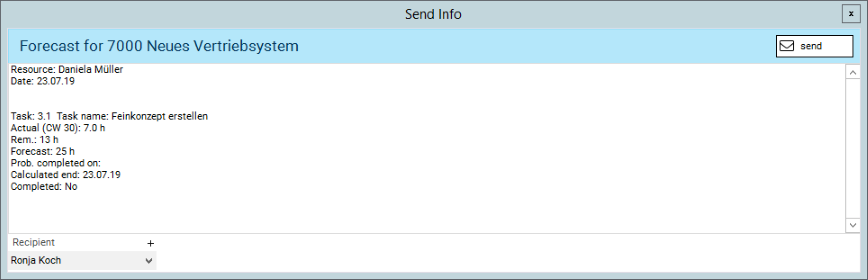
The Send Info module is opened which contains an automatically created message.
-
The message contains the following data: resource (sender), actual, remaining and forecast values for effort, and the calculated end date.
-
The project manager of the project is automatically entered as recipient (here: Ronja Koch).
-
-
Click on the Send button.
-
Project manager Ronja Koch will receive this message via email.
-
Other time recording options
-
The Time Recording module can also be opened from the My Activities module by right-clicking on the required activity and selecting the corresponding context menu command.
-
If an employee has worked on a task to which he or she was not initially assigned, the employee has to select the respective task manually in order to report working time to it. To do so, he/she clicks on the Add other projects/tasks button in the Time Recording module.
Weekly Calendar
Task
-
Daniela Mueller wants to get information about her schedule for the entire week.
Procedure
-
She clicks on the Weekly Calendar tab.
-
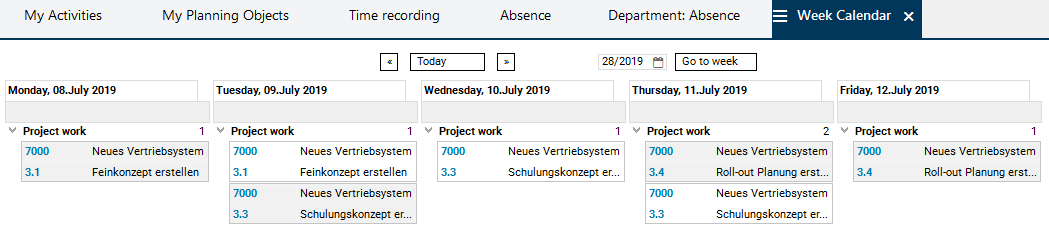
In this module, she can view all of her pending activities per weekday for the current week.
-
If she wants to consult the schedule for another week, she can simply switch to the required week via the button above the weekday names.
-
Each activity is displayed in its own box below the corresponding day.
-
On the activity ID numbers, there are links which lead to the corresponding editing modules (e.g. the Task module for tasks), where you can enter the completion status or edit other data, if necessary.
-
Furthermore, in the field directly below the weekday name, Daniela Mueller can tell by the color of the field whether she is on vacation or absent for another reason (orange = vacation, green = absence).
Plan Vacation and Absence
Initial situation
-
Daniela Mueller wants to go on vacation for four days between August 19th and 22nd. However, she does not want to go on vacation before the afternoon of August 19th, since she has an important phone conference in the morning. Furthermore, she has a training on August 23th. Before she asks her project manager to approve her vacation, she wants to know whether other colleagues have already planned their vacation in the same period.
Procedure
-
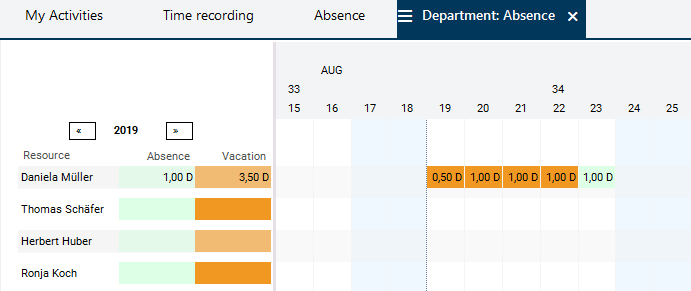
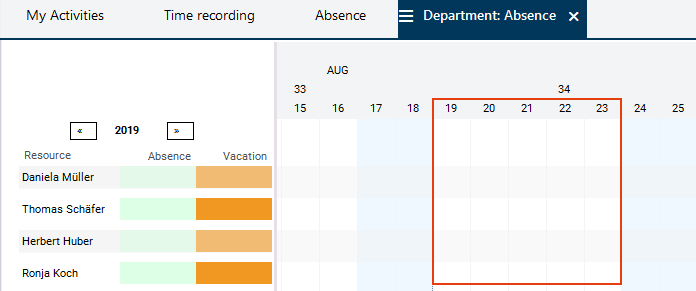
For this purpose, she activates the Department: Absence tab.
-
Here, all employees of her department are listed. In the corresponding employee record below the scale, the already planned absence or vacation times are displayed in the form of orange or green boxes.
-
Daniela Mueller sees that there are no entries in the period for which her vacation is scheduled.
-
She therefore asks the project manager to approve her vacation.
Initial situation
-
Subsequently, Daniela Mueller wants to enter her vacation in PLANTA project so that other colleagues can consider it in their own planning.
Procedure
-
For this purpose, she activates the Absence tab.
-
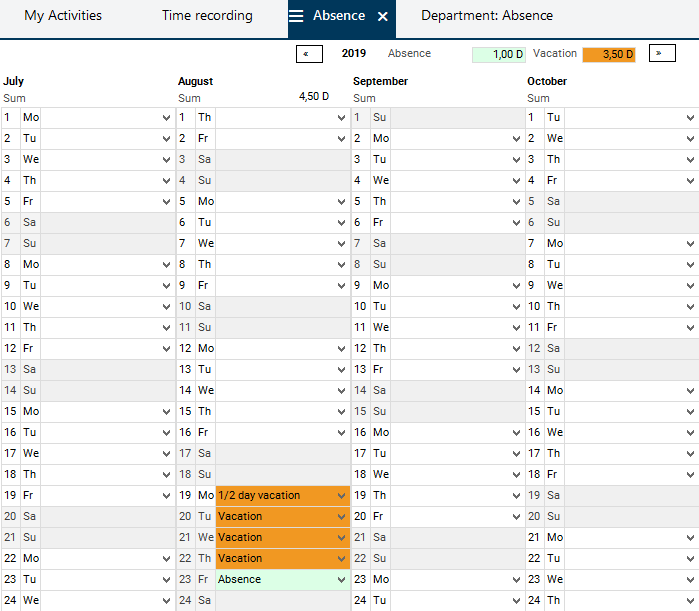
Here, the entire year calendar is displayed.
-
In each day field, there is a listbox which contains absence types and absence reasons.
-
For August 19th, Daniela Mueller selects the 1/2 day of vacation entry, for the three following days she selects the Vacation entry, and for August 23rd she selects the Training entry from the listbox.
-
As a result, each one of these fields is colored accordingly.
-
In the record above the calendar, the total number of entered vacation and absence days is output.
Details
-
As soon as Daniela Mueller has saved the entries, her vacation or absence days will be displayed in the Department: Absence and Weekly Calendar modules.