
Information
-
In the Dashboard panel, users can see all cards to which they are assigned and manage them using filter and search widgets and personal lists.
-
The panel contains three views:
-
Dashboard: Users can use filter and search widgets to search the cards to which they are assigned.
-
Pinboard: On the pinboard, the user can create a personal overview of the cards to which he/she is assigned.
-
Overview: Offers an overview of the cards to which the user was assigned.
-
-
By default, the Dashboard view is opened.
-
If needed, the default view can be changed.
-
Access path
-
Menu → Dashboard
-
Press the D key.
Change View
-
On the right of the Home Bar click the Change View button.
-
Select a view.
Change default view
-
On the right of the Home Bar click the Change View button.
-
Click on next to the view.
-
The selected default view is marked with .
Dashboard
Menu → Dashboard
Information
-
Users can display the cards they were assigned to sorted by boards and other criteria, using filter and search widgets.
-
Via the Change View button, the Overview and Dashboard Panel | id (43 en)DashboardPanel Pinnwand views can be opened.
Structure
Dashboard panel with a search and a filter widget and an open card.
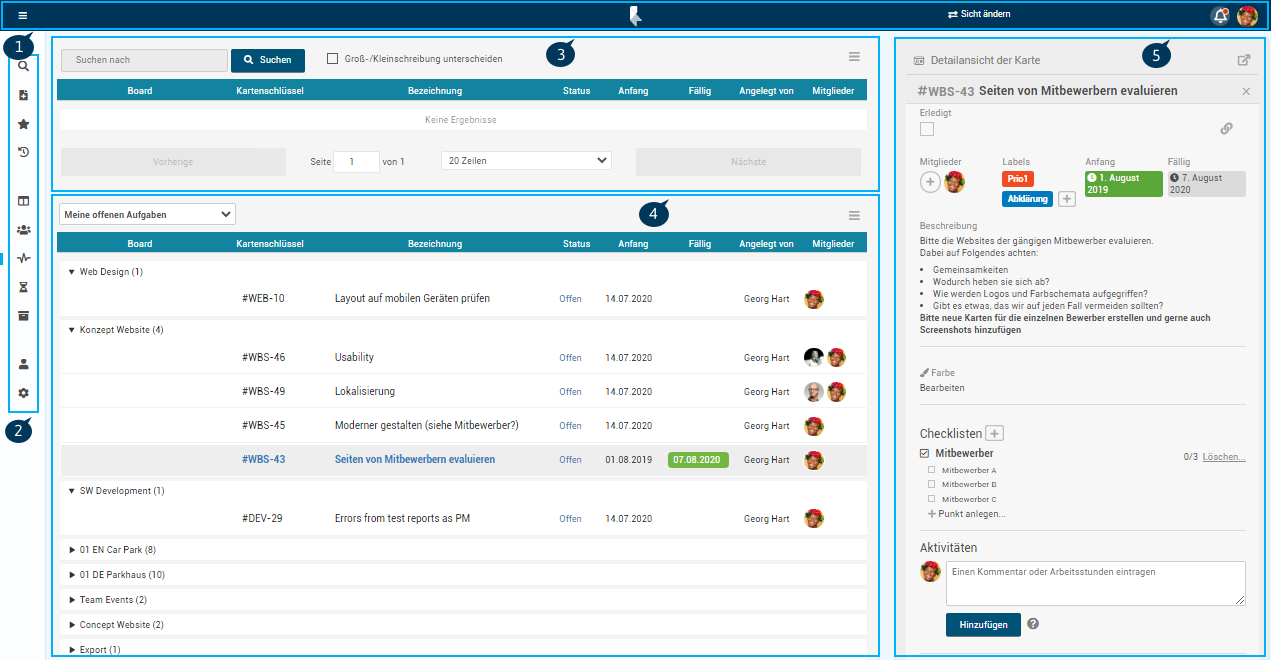
Details
- Home Bar with the Change View option (1)
- Menu (2)
- Search Widget (3)
- Filter Widget (4)
- Detail view of the card selected in the widget (5)
Widgets
Menu → Dashboard
Information
-
Using a filter widget, the user can filter the cards he/she was assigned to by various criteria.
-
Using a search widget, the user can search for a search term in the cards he/she was assigned to.
Details
-
New widgets are always added at the bottom.
-
Cards can be opened directly within the Dashboard panel.
-
By clicking in the right upper corner of the detail view of the card, the card can be opened on the board it belongs to.
-
-
Via the widget menu and the Remove Widget option, a widget can be deleted.
-
By clicking Collapse All or Expand All, all listed projects and boards can be collapsed or expanded.
-
By default, the cards are grouped below their respective projects and boards.
-
By clicking

-
Results
-
In a table, the filtered cards are displayed with the following data:
-
Title of the project the card belongs to
-
Title of the board the card belongs to
-
Card key
-
Card title
-
Status of the card (empty or for completed)
-
Start date
-
Due date
-
Card creator
-
Card members
-
Labels
-
-
By clicking the headings of the table, the results can be sorted by the columns.
-
By clicking the three dots in the headings, columns can be hidden or displayed.
Procedure
Pinboard
Menu → Dashboard → Change View → Pinboard
Information
-
On the pinboard, the user can create a personal overview of the cards to which he/she is assigned.
Details
-
The view is divided into two areas:
-
On the left, all the assigned cards which have not been marked as Completed are displayed sorted by boards.
-
The cards are sorted by due dates, but can be rearranged within their boards using Drag&Drop.
-
In the Browse Files field, a search term can be entered to filter the cards.
-
If completed cards are to be displayed as well, the Completed Tasks button can be activated in the home bar.
-
-
On the right, the cards can be arranged into individual lists.
-
Edit pinboard
-
Menu → Dashboard → Change View → Pinboard
-
Click Add List.
-
Enter a list title.
-
Click Save.
-
Move the selected cards from the left area to the list in the right area using Drag&Drop.
-
Since the cards are moved, they are now not being displayed in the left Tasks area anymore.
-
-
The moving can be reversed.
-
To do so, move the card from the right area back to the left area using Drag&Drop.
-
The card is automatically moved to the board it belonged to.
-
-
When the list is deleted, the cards are moved back to their boards in the left area.
Overview
Menu → Dashboard → Change View → Overview
Information
-
The Overview offers an overview of the cards to which the user was assigned.
-
The cards are listed vertically within their boards, sorted by their start dates.
-
The boards are listed horizontally.
Details
-
Using Drag&Drop, the boards and their cards can be moved within the overview.