
Information
-
A user can receive notifications about certain activities directly in PLANTA pulse.
-
To do so, the option needs to be activated in the User Settings.
-
Regardless of the User Settings, a message appears in the in-app notifications informing the user about news after an update of PLANTA pulse.
Configure In-App Notifications
Procedure
-
Open the Notification Settings via menu → User or User Menu → User Settings.
-
Activate the sliders in the column Notifications for the individual activities.
-
In-app notifications are always active for mentions.
-
Note
-
In order to use the in-app notifications the entry
"enableInAppNotifications": trueneeds to be added to the Meteor Settings.
Display of the In-App Notifications
Information
-
In-app notifications are displayed in a separate window, which can be accessed via the bell

-
If there are new notifications, a red highlight is displayed:

-
If there are new system notifications, a yellow highlight is displayed:

-
If there are new admin notifications, the following highlight is displayed:

-
When clicking the symbol, a window, where the new notifications are displayed, opens.
-
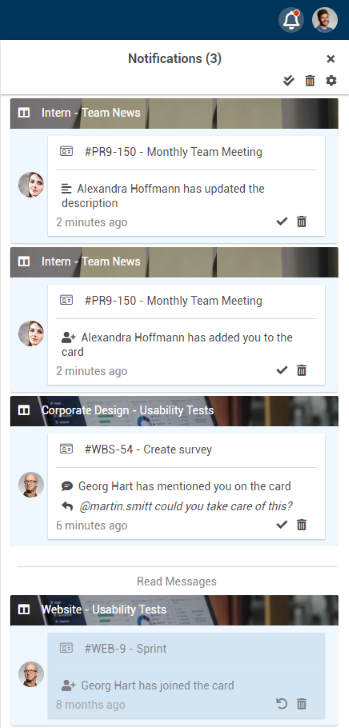
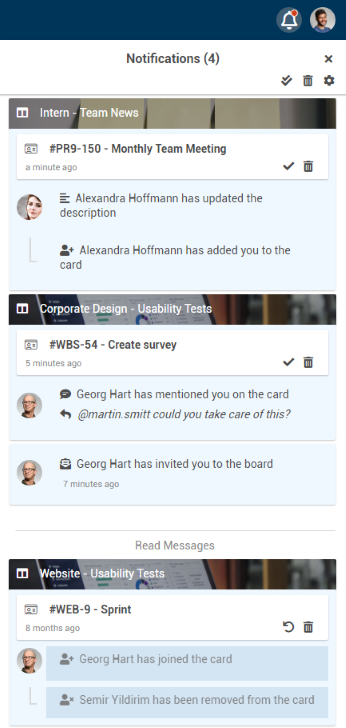
In the Notification Settings, users can configure whether they want their notifications to be displayed chronologically or grouped below the corresponding card.
Procedure
-
Open the Notification Settings via menu → User or User Menu → User Settings.
-
In the lower area, activate the slider Group notifications, to group in-app notifications.
-
Below, the time frame can be configured in which notifications are being grouped below the corresponding card.
-
By default, 2h are defined, i.e. all new notifications regarding a specific card that occur within 2h are grouped below this card.
-
-
If the option is not activated, in-app notifications are displayed chronologically.
Details on the notification window
-
In the New tab, new notifications are displayed, while read notifications are displayed in the Read tab.
-
Within the individual notifications, there are links to the boards or cards.
-
By clicking the symbol, individual boards or cards can be muted.
-
After clicking, the symbol is displayed and the user will not receive notifications regarding activities of the object anymore.
-
By clicking , the object can be unmuted again.
-
Alternatively, boards can also be muted and unmuted in the board menu, while cards can also be muted and unmuted in the card menu.
-
-
-
For every notification, the symbols are displayed, which can be used to mark notifications as read or to delete them.
-
Via the symbols in the upper area, all notifications can be marked as read simultaneously and all notifications which have already been marked as read can be deleted.
-
Deleted notifications cannot be restored.
-
Read notifications can be marked as unread by clicking .
-
-
Via , the Notification Settings can be accessed.
|
Chronological View |
Grouped View |
Description |
|---|---|---|
|
|
Chronological View
Grouped View
|