
Overview
This document describes the PLANTA Server Cloudflare Access authentication handler, which enables secure authentication using Cloudflare Access JWT tokens. Cloudflare Access provides zero-trust network access by validating user identity before allowing access to applications.
Architecture
Authentication Flow
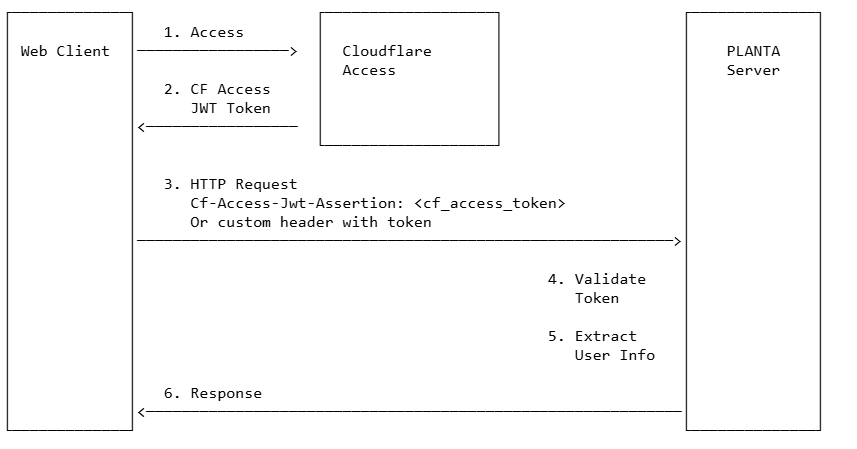
Key Components
-
CloudflareHandler - Main Cloudflare Access authentication handler
-
Validates Cloudflare Access JWT tokens
-
Extracts user information from token claims
-
Manages Cloudflare Access configuration
-
-
CloudflareAccessTokenValidator - Token validation
-
Validates JWT signatures using Cloudflare's JWKS (JSON Web Key Set)
-
Verifies token issuer, audience, and expiration
-
Supports RS256, RS384, and RS512 algorithms
-
Requirements
-
PLANTA Server with Cloudflare Access support
-
PLANTA Webclient with Cloudflare Access integration
-
PLANTA secure enabled
-
Cloudflare Access configured for your application
Configuration
Required Environment Variables
Configure the Cloudflare Access handler using the following environment variables (typically set in docker-compose.yml):
Core Server Authentication Settings
environment:
  # Enable Planta Secure
  - "planta__server__secure__enabled=true"

  # Cloudflare Access Configuration
  - "planta__server__secure__cloudflare__team_domain=https://myteam.cloudflareaccess.com"
  - "planta__server__secure__cloudflare__audience=your-audience-tag-or-app-url"
  - "planta__server__secure__cloudflare__token_user_attribute=email"
  # Alternatives for token_user_attribute: sub, name, or custom claims
Configuration Parameters Reference
|
Parameter |
Type |
Required |
Description |
Example |
|---|---|---|---|---|
|
|
String |
Yes |
Your Cloudflare Access team domain (full URL with schema) |
|
|
|
String |
Yes |
Expected audience (Application Audience Tag or URL) |
|
|
|
String |
Yes |
JWT claim to extract username from (default: |
|
Note: - The cloudflare.team_domain must be specified with the complete URL including the schema: - Correct: https://myteam.cloudflareaccess.com - Also valid (but insecure): http://myteam.cloudflareaccess.com (warning will be logged) - Incorrect: myteam.cloudflareaccess.com (will fail - schema required!) - The handler: - Normalizes the team domain URL (lowercase, removes default ports, etc.) - Validates that the URL is secure (HTTPS) - Warns if HTTP is used (insecure!) - Generates certs URL: {teamDomain}/cdn-cgi/access/certs - certs URL is always auto-generated
Cloudflare Access Setup
Configure Cloudflare Access Application
-
Go to your Cloudflare Zero Trust dashboard
-
Navigate to Access > Applications
-
Create or select your application
-
Note the Application Audience (AUD) Tag - you'll need this for configuration
Get Your Team Domain
Your team domain is found in your Cloudflare Access URL: - Format: https://<your-team-name>.cloudflareaccess.com - Example: https://mycompany.cloudflareaccess.com - Important: Always include the https:// prefix in your configuration
Configure Access Policy
-
Set up authentication policies in Cloudflare Access
-
Configure allowed identity providers (e.g., Google, Azure AD, etc.)
-
Define who can access your application
For debug purposes you could set the log level for package 'de.planta.serveradapter' to debug. Therefore edit your used logback.xml file and add or edit this logger: <logger name="de.planta.serveradapter" level="debug"></logger> Which logger setting could be helpful as well: <logger name="de.planta.server.native.client_socket" level="trace"/> <logger name="de.planta.server.native.event_handling.ev_proc_login" level="debug"/>
Token Validation Process
Client Token Submission
The web client sends the Cloudflare Access token to the server:
-
CF Access JWT: Contains user identity and access information
-
Typically sent in HTTP header:
Cf-Access-Jwt-Assertion
Server-Side Validation
The server validates the Cloudflare Access token through the following steps:
Step 1: Configuration & URL Normalization
-
Normalize team domain URL
-
Validate URL security (warn if HTTP is used)
-
Auto-generate certs URL from team domain
-
Initialize CloudflareAccessTokenValidator with normalized URLs
Step 2: Token Parsing and Inspection
-
Parse JWT token structure
-
Extract header information (algorithm, key ID)
-
Log token details for debugging (in debug mode)
Step 3: Signature Validation
-
Fetch Cloudflare's public keys from JWKS endpoint
-
Find matching key using Key ID (kid) from token header
-
Verify token signature using RS256/RS384/RS512 algorithm
-
Confirm token was issued by Cloudflare Access
Step 4: Claims Validation
-
Issuer (iss): Must match configured team domain
-
Audience (aud): Must match configured application audience
-
Expiration (exp): Token must not be expired
-
Issue Time (iat): Token must have valid issue time
Step 5: Audience Verification
-
Compare token's audience claim with configured
expectedAudience -
Reject token if audience doesn't match
User Extraction
User identity is extracted from the token claim specified in cloudflare.token_user_attribute:
Common Cloudflare Access Token Claims: - email - User's email address (most common, default) - sub - Subject (unique user identifier) - name - User's display name - Custom claims from your identity provider
Priority: 1. Configured attribute (cloudflare.token_user_attribute) 2. If not found or empty, authentication fails
User Data Storage
After successful validation: 1. Delete any existing user details for this user 2. Save token claims to database 3. Associate user session with extracted user identifier
Token Claims
Cloudflare Access Token Claims
|
Claim |
Description |
Example |
|---|---|---|
|
|
Issuer (Cloudflare team domain) |
|
|
|
Subject (user ID from identity provider) |
|
|
|
Audience (application audience tag) |
|
|
|
Expiration timestamp |
|
|
|
Issued at timestamp |
|
|
|
User's email address |
|
|
|
User's display name |
|
|
|
User's country (if configured) |
|
|
|
Custom claims from identity provider |
Various |
Usage Examples
Example 1: Basic Cloudflare Access Configuration
docker-compose.yml
services:
  planta-server:
    environment:
      # Enable Secure Features
      - "planta__server__secure__enabled=true"

      # Cloudflare Configuration
      - "planta__server__secure__cloudflare__team_domain=https://mycompany.cloudflareaccess.com"
      - "planta__server__secure__cloudflare__audience=abc123def456ghi789jkl012mno345pqr678stu901vwx234yz"
      - "planta__server__secure__cloudflare__token_user_attribute=email"
Example 2: Using Subject Claim for User ID
services:
  planta-server:
    environment:
      - "planta__server__secure__enabled=true"
      - "planta__server__secure__cloudflare__team_domain=https://mycompany.cloudflareaccess.com"
      - "planta__server__secure__cloudflare__audience=abc123..."
      - "planta__server__secure__cloudflare__token_user_attribute=sub"
Example 3: Using Custom User Claim
services:
  planta-server:
    environment:
      - "planta__server__secure__enabled=true"
      - "planta__server__secure__cloudflare__team_domain=https://mycompany.cloudflareaccess.com"
      - "planta__server__secure__cloudflare__audience=abc123..."
      # Use a custom claim from your identity provider
      - "planta__server__secure__cloudflare__token_user_attribute=preferred_username"
Common Issues
Token Validation Fails
Symptoms: Cloudflare Access Token validation failed: token is invalid
Solutions: - Verify team_domain is correct (without https:// prefix or with it) - Ensure token hasn't expired - Check that the certs URL is accessible from the server - Verify no proxy/firewall blocking JWKS retrieval - Check certificate validity
Audience Mismatch
Symptoms: Cloudflare audience mismatch. Expected: ..., Received: ...
Solutions: - Verify the audience tag from Cloudflare Access application settings - Ensure the audience in configuration matches exactly - Check that the token was issued for the correct application
No User Found in Token
Symptoms: User extraction returns empty string or authentication fails
Solutions: - Verify cloudflare.token_user_attribute matches available claims in token - Check token contains expected user claims (use debug logging) - Ensure the claim name is spelled correctly (case-sensitive) - Try alternative claims: email, sub, name
Signature Verification Fails
Symptoms: Invalid Cloudflare Access Token (signature verification failed)
Solutions: - JWKS endpoint must be publicly accessible from server - Verify no proxy/firewall blocking JWKS retrieval - Check that team domain is correct - Verify the token is a valid Cloudflare Access token - Ensure the algorithm (RS256/384/512) is supported
Team Domain Issues
Symptoms: You're using an insecure Url for Cloudflare... warning
Solutions: - Always use HTTPS for Cloudflare Access (security requirement) - Configure team domain with https:// prefix or without any prefix (auto-added) - The handler will warn if HTTP is detected but will still attempt to use it - Update configuration to remove http:// prefix
URL Normalization
Note: The handler normalizes team domain URLs: - Input: https://myteam.cloudflareaccess.com → normalized (lowercase, no default port) - Input: http://myteam.cloudflareaccess.com → normalized but warning logged - Input: myteam.cloudflareaccess.com → FAILS - schema is required!
Important: Always provide the full URL with https:// or http:// prefix in your configuration.
Security Considerations
Best Practices
-
Always Use HTTPS: Cloudflare Access requires HTTPS - never use HTTP
-
Validate Audience: Always configure and validate the audience tag
-
Short Token Lifetime: Cloudflare Access tokens have built-in expiration
-
Secure Configuration: Store team domain and audience in secure configuration
-
Monitor Authentication: Log and monitor authentication failures
-
Regular Updates: Keep JWKS cache fresh (automatic in implementation)
-
Principle of Least Privilege: Configure strict access policies in Cloudflare
Token Storage
Server-Side: - Token claims are stored in database for user session - Old user details are deleted before saving new token data - Uses separate data source (ID: "4") for Cloudflare tokens
Supported Algorithms
The handler supports the following JWT signing algorithms: - RS256 (Recommended) - RSA Signature with SHA-256 - RS384 - RSA Signature with SHA-384 - RS512 - RSA Signature with SHA-512
All algorithms use RSA public key cryptography for secure token verification.
Performance Optimization
JWKS Caching
The Cloudflare Access handler uses the Nimbus JOSE+JWT library which implements automatic JWKS caching: - Remote public keys are cached automatically - Reduces external JWKS endpoint calls - Improves validation performance - Keys are refreshed when needed
Token Inspection
Debug-level token inspection is available for troubleshooting: - Logs full token header and claims - Shows issuer, subject, audience - Displays expiration and issue time - Lists algorithm and key ID - Logs user-specific claims (email, name)
API Reference
CloudflareHandler
Main Methods: - verifyCloudflareAccessToken(String audience, String accessToken): Validates token and returns user ID - writeData(String user, JWTClaimsSet jwt): Stores user data from token claims
CloudflareAccessTokenValidator
Main Methods: - validate(String token, String expectedAudience): Validates Cloudflare Access token
Supported Algorithms: - RS256, RS384, RS512
Differences from OIDC/JWT Authentication
|
Feature |
OIDC/JWT (Azure AD) |
Cloudflare Access |
|---|---|---|
|
Identity Provider |
Azure AD / Microsoft Entra |
Cloudflare Access |
|
Token Types |
ID Token + Access Token |
CF Access JWT Token |
|
Issuer |
Azure AD tenant |
Cloudflare team domain |
|
Audience |
Client ID |
Application Audience Tag |
|
JWKS Endpoint |
Azure AD JWKS |
Cloudflare team certs (auto-generated) |
|
URL Normalization |
Manual configuration |
Normalizes provided URL (lowercase, ports) |
|
Schema Required |
Full URL with https:// |
Full URL with https:// required |
|
Certs URL |
Configured separately |
Auto-generated from team domain |
|
Token User Attribute |
|
|
|
Fallback Claims |
Multiple (email, upn, name, etc.) |
Configured attribute only |
|
Data Source ID |
"3" |
"4" |
Troubleshooting Guide
Enable Debug Logging
Add to your logback.xml:
<logger name="de.planta.serveradapter.cloudflare" level="debug"/>
<logger name="de.planta.server.native.client_socket" level="trace"/>
<logger name="de.planta.server.native.event_handling.ev_proc_login" level="debug"/>
Check Token Contents
With debug logging enabled, you'll see:
===== CLOUDFLARE TOKEN INSPECTION =====
Header: {"alg":"RS256","kid":"abc123..."}
Claims: {"iss":"https://myteam.cloudflareaccess.com","sub":"user@example.com",...}
Issuer: https://myteam.cloudflareaccess.com
Subject: user@example.com
Audience: [abc123def456...]
Expiration: 2024-01-01T12:00:00Z
...
Verify Configuration
Check logs for:
Cloudflare team domain configured as: https://myteam.cloudflareaccess.com
Using standard Cloudflare certs URL: https://myteam.cloudflareaccess.com/cdn-cgi/access/certs
Cloudflare Access Token Validator initialized successfully.
If you see a warning about insecure URL:
You're using an insecure Url for Cloudflare 'http://myteam.cloudflareaccess.com'. This should be urgently changed
Update your configuration to use HTTPS.