
Information
-
The period for the visualization of the time scale in modules with Gantt charts, utilization diagrams, or projections is determined by
-
the filter criteria in module customizing or, if there are no filter criteria,
-
the module data
-
Here, the greatest scale unit specified for the time scale in module customizing is displayed entirely.
-
The element in the scale area (date bar, histogram bar, projected numeric value) with the earliest start date determines the year/quarter/month/day (according to the greatest defined scale unit) at which the time scale starts.
-
The element in the scale area (date bar, histogram bar, projected numeric value) with the latest end date determines the year/quarter/month/day (according to the greatest defined scale unit) at which the time scale ends.
-
-
-
The time period can be restricted in the Timescale dialog, see Restrict time period of the time scale.
Unhide/hide scale area units
Information
-
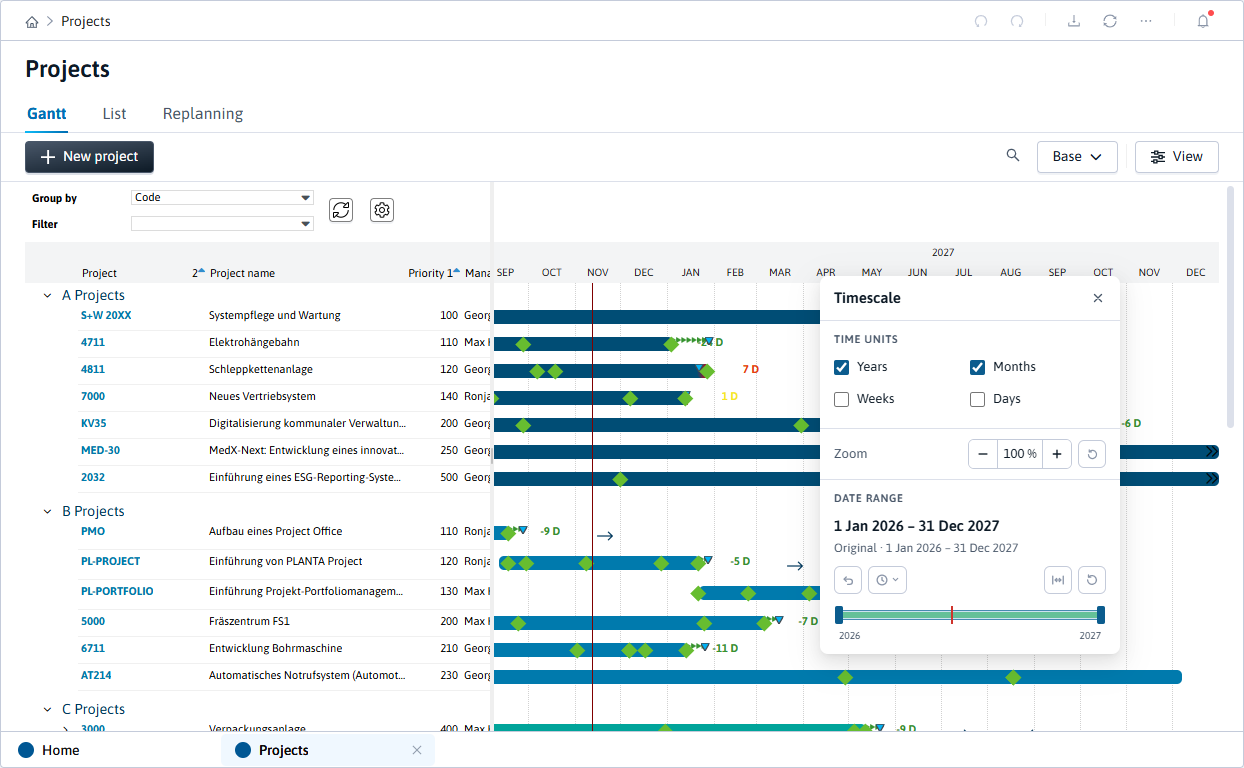
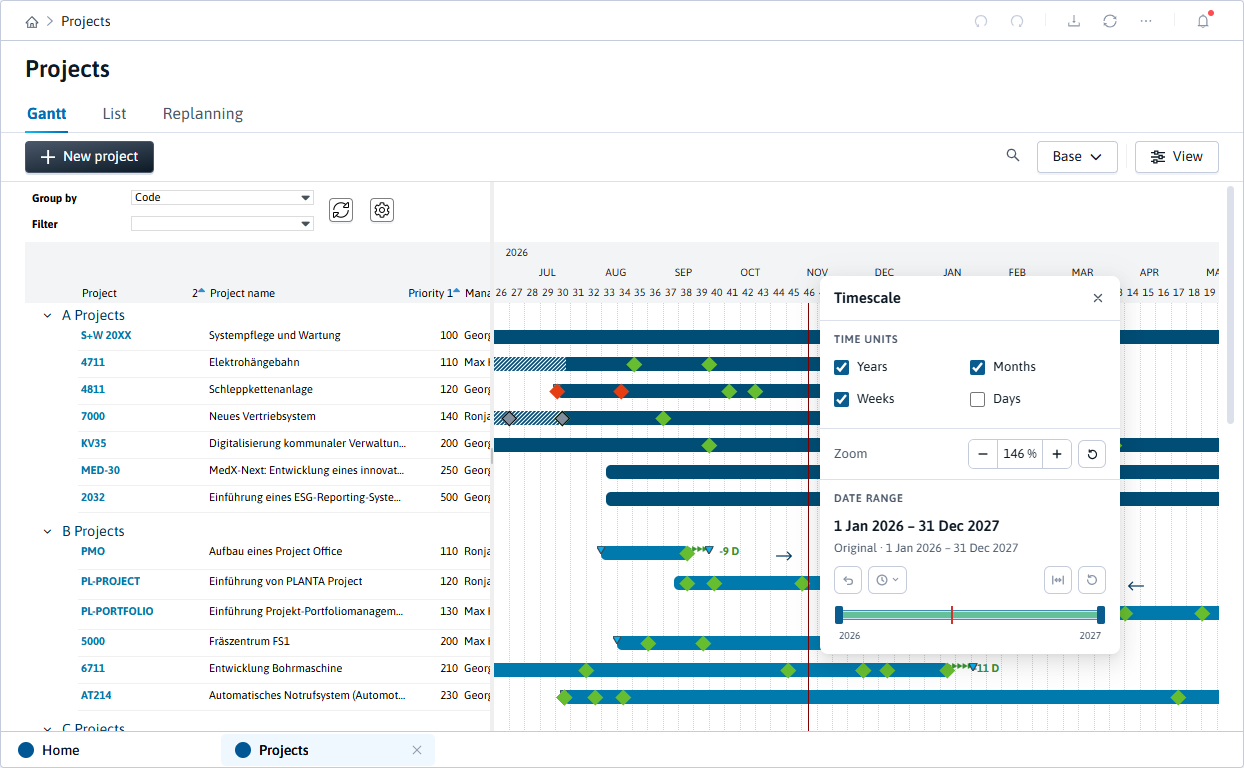
The time scale units (years, months, calendar weeks, days) on the time scale can be unhidden/hidden in the Timescale dialog in the Time units area.
Procedure
-
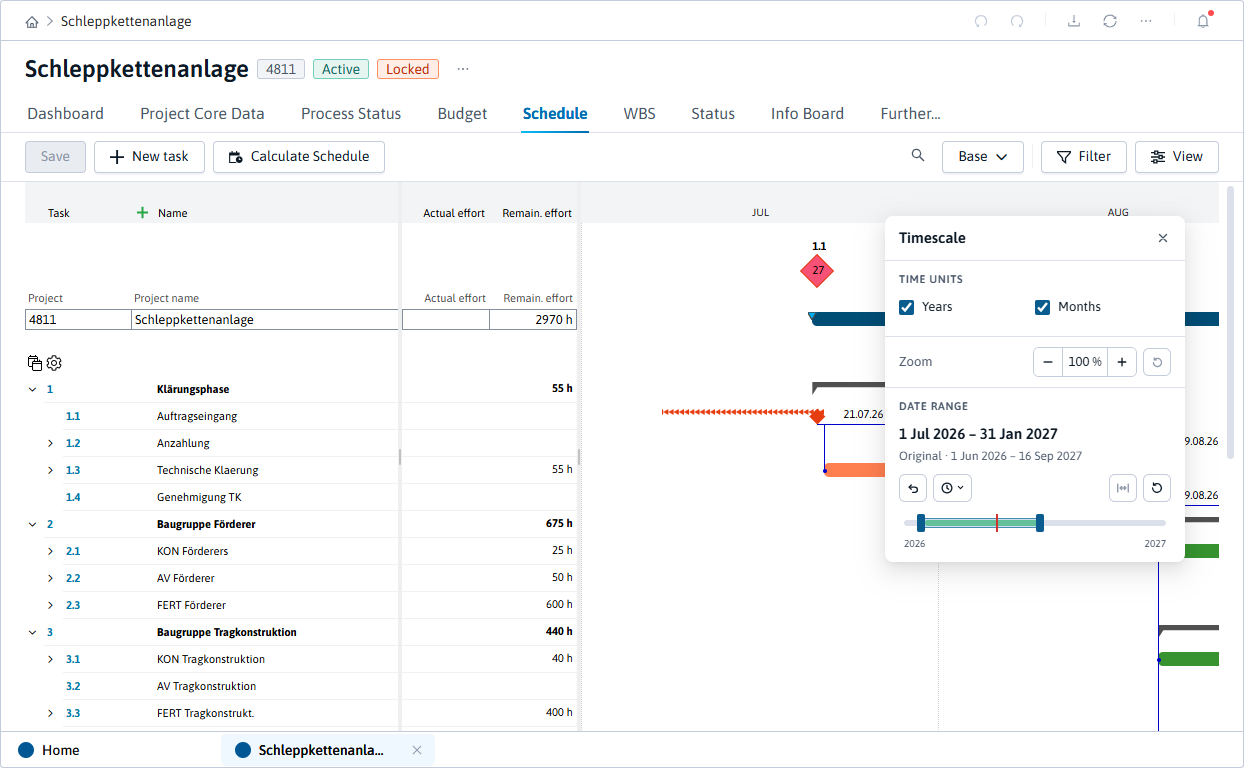
Right-click on the time scale. The Timescale dialog opens. The Time units area lists all visible (checked) and invisible units.
-
In order to unhide an invisible scale unit, set a checkmark next to the respective title.
-
In order to hide a visible scale unit, remove the checkmark for the respective title.
-
Notes
-
Displaying smaller scale units (like, e.g., day) is only possible if the scale would not be too wide afterwards. When unhiding the days the calendar weeks are automatically unhidden as well and the zoom is enhanced. Explanation:
-
The scale has a maximum width (maximum zoom). If [the minimum width of a day * number of days] is too high, this scale unit cannot be displayed.
-
If you restrict the scale and the number of days is thus reduced, days can be displayed.
-
-
Not all units can be hidden. The most recently available scale unit stays displayed (unhidden), its checkmark is deactivated.
-
Scale units which cannot be unhidden in the current visualization will not be shown.
Zoom time scale (horizontal scale zoom)
Procedure
-
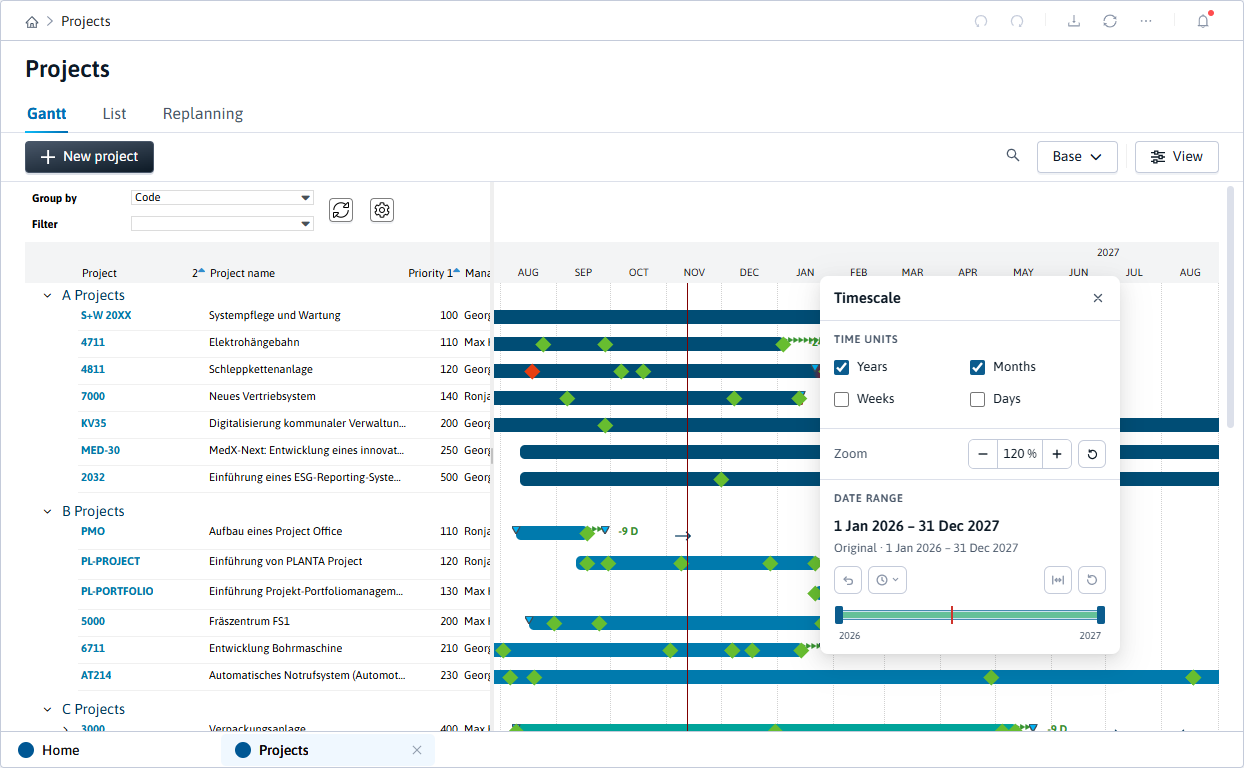
It is possible to change the zoom of the time scale.
-
Right-click on the time scale.
-
In the Timescale dialog, click on the - or + button in order to zoom out of or into the time scale. The dialog remains open.
-
-
In order to reset the zoom click on the Reset scale zoom button.
Restrict the time period of the time scale
Procedure
-
Right-click on the time scale.
-
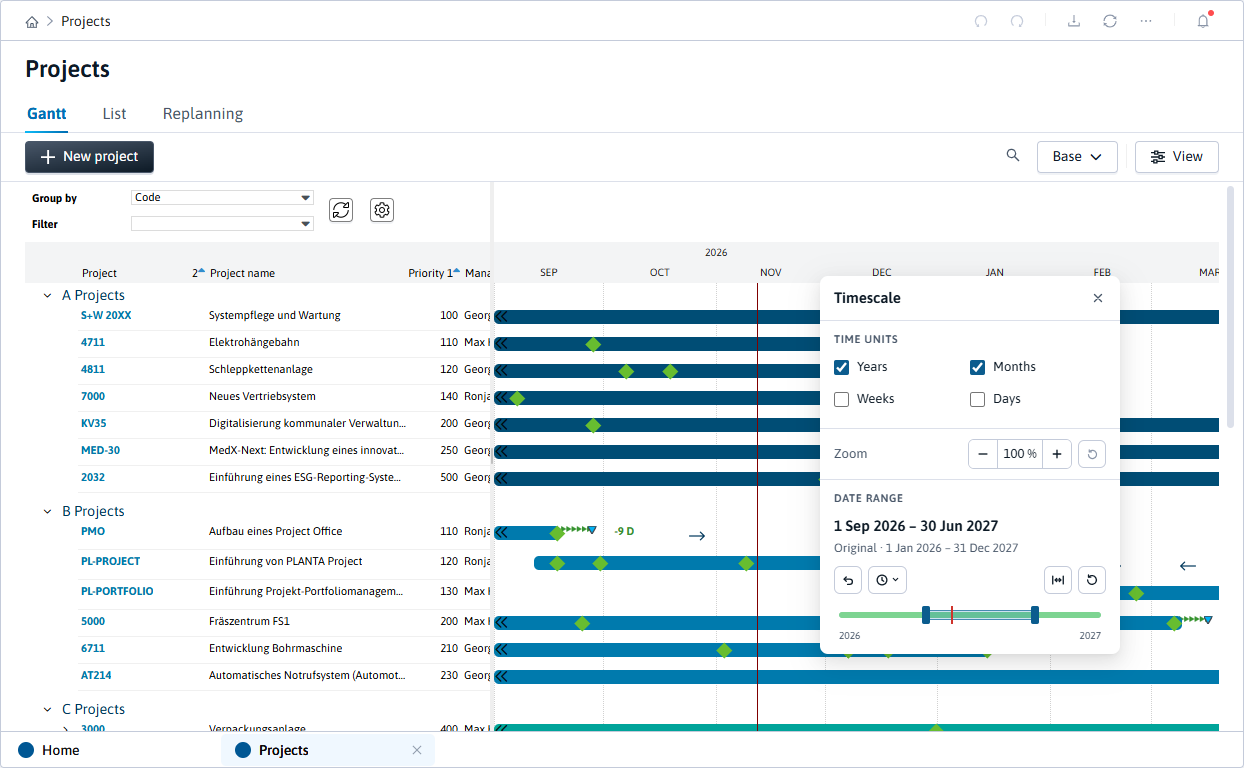
In the Timescale dialog, in the Date range area, drag the left or right slider to set the beginning or end of the time period. The start and end dates are shown continuously while dragging.
-
In order to move the time period, drag the area between the sliders.
-
-
Alternatively, drag across the scale header with the mouse button held down. The dragged area is applied as the date range.
Fit time period to data
-
A green band on the time axis shows the period in which bars (data) lie. The tooltip of the band shows the start and end date.
-
The Fit to data button sets the date range so that all bars are fully visible, at most up to the original time period. A range that is too narrow is enlarged, a range that is too wide is reduced.
Notes
-
The date range can also be set with the keyboard. To do so, click into the Timescale dialog and use the TAB key to focus the area between the sliders or the left or right slider.
-
Clicking a slider with the mouse does not focus it.
-
-
Each arrow key moves the focused slider or area by the smallest displayed time unit, e.g. by one week or one month.
-
PAGE UP and PAGE DOWN move by ten of the smallest displayed time units, SHIFT + arrow key by the next finer unit, e.g. by one week instead of one month.
-
Fit to data rounds the time period to the smallest displayed time unit, at most to whole months.
Reset time period
-
Switch back to the previous time period via the Back button, also after Fit to data.
-
Past settings can be called up via History.
-
The Reset range button restores the original time period.
Time period and zoom are not saved with the module view. When reopening the module the time scale is displayed in its initial state.