Information
-
Below, you will learn how to
-
copy field contents, column contents, and records
-
move records
-
edit records by using arithmetical operations while copying via Drag & Drop, using PLANTA’s own Drag&Drop mimic.
-
-
Copy: CTRL + left-click and drag to the required position while holding down the left mouse button and subsequently release the mouse button
-
Move: SHIFT + left-click and drag to the required position while holding down the left mouse button and subsequently release the mouse button
-
As an alternative, you can also use the arrow buttons as well as the page up/page down and Pos1/End keys.
-
If the position to which records are to be copied or moved is not visible, the bar scrolls to that area automatically when dragging with the mouse.
Drag & Drop Copying of Data
Video Tutorial
Information
-
Output and input fields may be used as a source for Drag&Drop operations.
-
You cannot copy to output fields.
-
The database type of source and target object determines whether you can copy from one object (field/column) to another.
-
You can, e.g., copy from a currency field to a text field, but not vice versa.
-
If copying is not permitted, the Unable to copy message will be displayed after you have released the left mouse button.
-
Field to Field
Objective
-
To copy an entry from one field to another.
Procedure
-
Drag the content of the source field to the target data field by pressing CTRL + holding down the left mouse button.
-
As a result, the source field is colored green and the destination field is colored blue.
-
The cursor display is changed and the copying type is graphically displayed.
-
-
As soon as the cursor is on the target field, release the left mouse button.
-
The value of the source field is copied to the target data field.
-
Note
-
The Field to Field copy type is set by default.
-
If you have changed the copy type while copying, you can change to the Field to Field type again using the Edit → Drag&Drop copy → Field to field menu item or via shortcut CTRL + 1.
-
-
You cannot only copy field content between records within a module but also between two modules.
-
You can copy, e.g., the resource ID from the Resource Structure module to the Resource Data Sheet module.
-
Field to Column
Definition
-
It is distinguished between data logical and layout related columns.
-
A data logical column contains the same data field in all records of a data area.
-
In the horizontal layout, a visual column is equivalent to a data logical column.
-
Compare: columns in Microsoft Excel.
-
-
In the vertical layout, a line is equivalent to a data logic column (the record is a column here).
-
In forms there are no visual lines or columns. A data field in all form records is equal to a data logic column.
-
-
The following examples are explained on the basis of a module with a horizontal layout.
Objective
-
To fill the marked fields in a column with a particular value.
Procedure
-
Define the copy type via the Edit → Drag&Drop copy → Field to column menu item or by using the CTRL + 2 shortcut.
-
Drag the content of the source field to the destination column by pressing CTRL and holding the left mouse button.
-
The cursor display will change and the copying type will be displayed graphically.
-
-
Release the left mouse button as soon as the cursor is on the target field.
-
The source data field value is copied to all data fields of the destination column for all marked records.
-
Notes
-
As target column you can use the column from which the source data field stems or another column.
-
Drag&Drop copy → Field to column behaves on projection data fields (fields below the time scale) like Drag&Drop copy → Field to field.
Column to Column
Objective
-
To copy the contents of the fields from one column to another
Procedure
-
Define the copy type via the Edit → Drag&Drop copy → Column to column menu item or by using the CTRL + 3 shortcut.
-
Drag the content of the source column to the target column by pressing CTRL and holding down the left mouse button.
-
The cursor display will change and the copying type will be displayed graphically.
-
-
Release the left mouse button as soon as the cursor is on the target field.
-
The source column field value is copied to all data fields of the destination column for all marked records.
-
Note
-
Drag&Drop copy → Column to column behaves on projection data fields (fields below the scale) like Drag&Drop copy → Field to field.
Copy Operation
Information
-
You can use Drag&Drop with arithmetical operations for all copy types Field to field, Field to column and Column to column.
-
The following example describes the Field to column copy type with Addition operation.
-
The procedure for other copy types and other copy operators is identical.
Objective
-
To copy a value from a source data field to a destination column and change the value at the same time.
Procedure
-
Mark target records.
-
Define the copy type via the Edit → Drag&Drop copy → Field to column menu item or by using the CTRL + 2 shortcut.
-
Select an operator via Edit → Copy operation ( e.g. + (Addition)).
-
Drag the content of the source field to the destination column by pressing CTRL and holding the left mouse button.
-
The cursor display will change and the copying type will be displayed graphically.
-
-
Release the left mouse button as soon as the cursor is on the target field.
-
The Add: will be displayed. Enter the required figure and confirm the message by clicking on OK.
-
The value calculated on the basis of the selected operator and figure is entered in all field of the target column for all marked records.
-
Drag & Drop Copying/Moving of Data
Video Tutorial
Information
-
The positioning logic is the same for both methods. The only difference is that
-
when copying, a new record will be created and
-
when moving, the very record will be moved to the other position.
-
-
The terms source and target are central in copying/moving.
-
The Source is the record
-
which you want to copy or move.
-
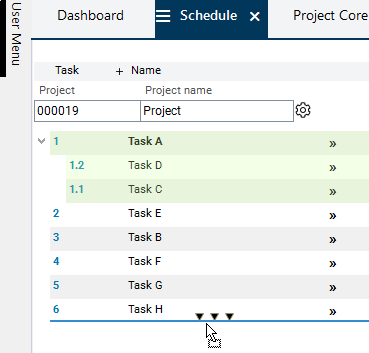
It is visualized in green during copying or moving.
-
-
The target is the target position (the position to which the source record is to be moved), a position below, above, or on a record.
-
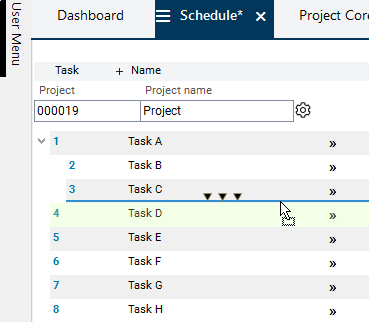
The position below/above the record to which you want to move/copy is visualized by a dark blue line and three black arrows pointing down/up.
-
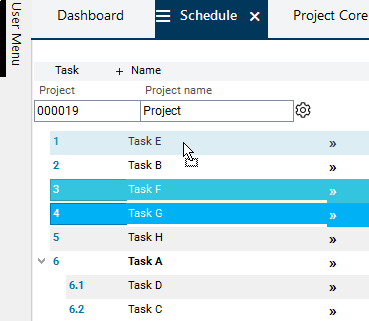
The position on the target record will be colored in light blue (the entire record will be colored in light blue).
-
-
Details
-
You can use the Copy/Move function to structure records.
-
An illustration of the copying/moving procedure, can be found in the following sections:
Notes
-
Drag&Drop copying/moving of records between modules is not permitted.
-
Structuring records is not allowed for all modules.
-
If structuring is not allowed, records you want to structure will simply be moved or copied.
-
Procedure
-
All following examples are based on the Schedule module.
-
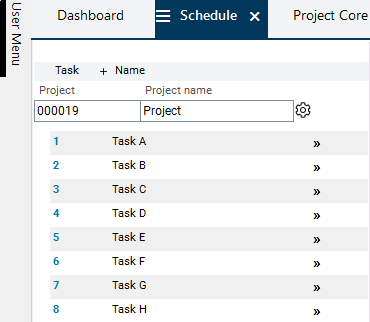
To be able to follow the instructions below, insert 8 new tasks in the schedule of an empty project and name them from "Task A" to "Task H”.
-
Save and click on the

-
Result:
Move
Notes
-
In the customizing settings, the movement of records can be permitted or prohibited.
-
If moving is not allowed, the following message will be displayed after releasing the left mouse button: Cannot perform move.
-
-
It is not possible to move a parent record to its child record.
-
The source record is always copied/moved including all of its child records.
Moving and Structuring
Subordinate
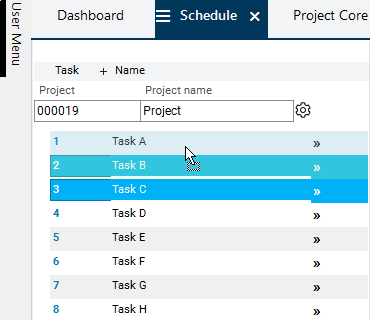
Tasks 2 and 3 are to be subordinated to task 1.
-
Mark tasks 2 and 3 and drag them to task 1 by pressing SHIFT + holding down the left mouse button.
-
Release the left mouse button.
-
Result: Tasks 2 and 3 are moved below task 1.
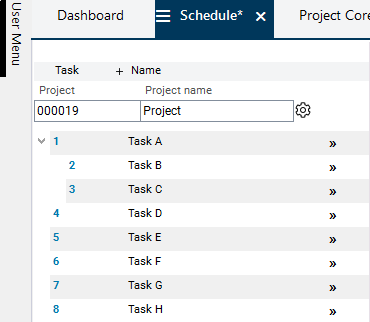
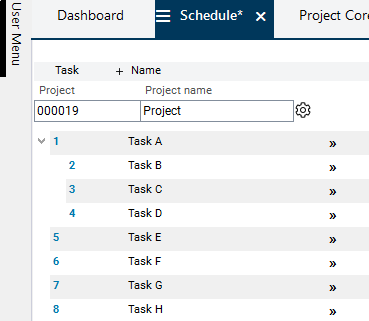
Task 4 should also be a child of task 1 and should be positioned under task 3.
-
Drag task 4 below task 3 by pressing SHIFT and holding down the left mouse button, so that a dark blue line is displayed below task 3.
-
Release the left mouse button.
-
Result:
-
Save and click on the

-
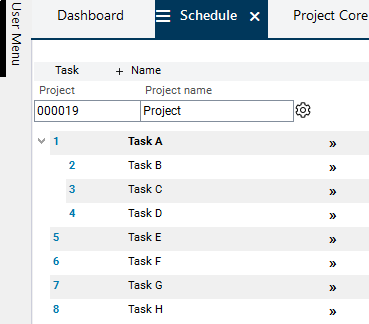
Result: Task 1 is marked in bold and hence visualized as summary task.
-
Click on the
-
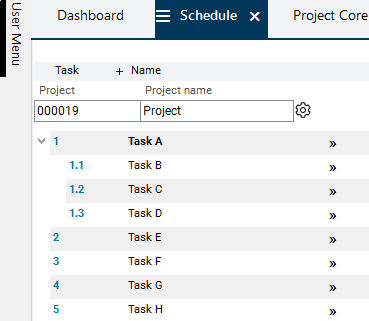
Result: The new structure is displayed.
Outdent
Task 1.1 is to be outdented (it is no longer to be a child of task 1).
-
You can outdent the task by moving the child record above or below the required parent record. A parent record can be the parent record of the required child record or every other parent record, depending on the position to which the child record is to be moved.
-
The task is placed at the position to which it is moved with the mouse.
-
By pressing SHIFT and holding the left mouse button, drag task 1.1 above task 3 so that a dark blue line appears above task 3.
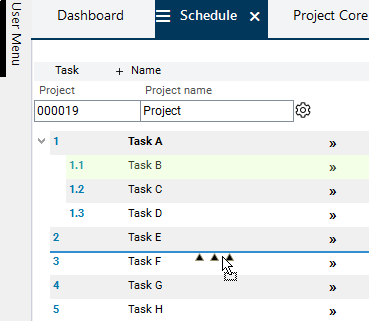
-
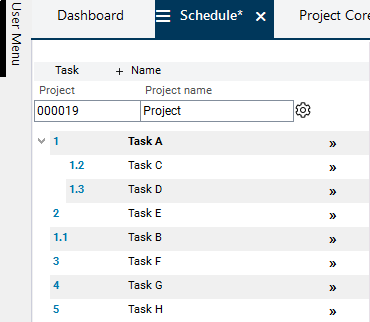
Release the left mouse button.
-
Result: Task 1.1 is positioned on the highest level above task 3. Thus, it is no longer a child of task 1.
-
Click on the
-
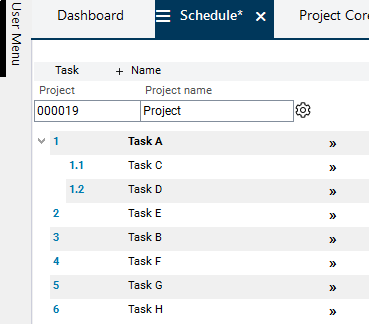
Result: The new structure is displayed.
Moving without Structuring
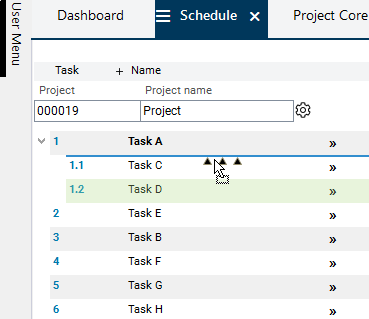
Task 1.2 is to be positioned above task 1.1.
-
By pressing SHIFT and holding the left mouse button, drag task 1.2 above task 1.1 so that a dark blue line appears above task 1.1.
-
Release the left mouse button.
-
Result:
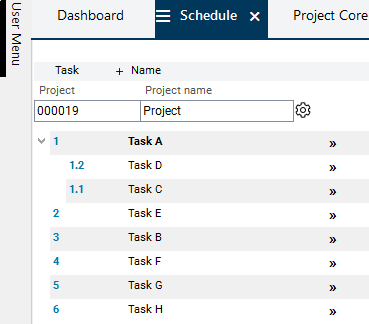
Summary task 1 and its children are to be positioned below task 6
-
By pressing SHIFT and holding the left mouse button, drag task 1 below task 6 so that a dark blue line appears below task 6.
-
Release the left mouse button.
-
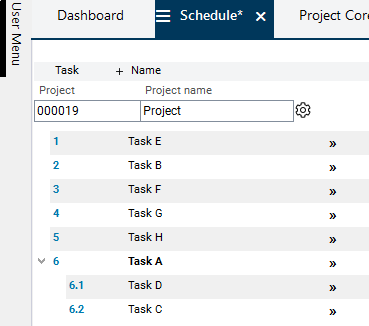
Result:

-
Save and click on the
-
Result: The new structure is displayed.
Copy
Notes
-
When records are copied, the IDs of the target objects will be newly created.
-
Other IDs in the target object may be adjusted too.
-
-
Values of the output fields are not included when copying.
-
Values of the source object input fields, also those of hidden input fields, will not be included when copying.
-
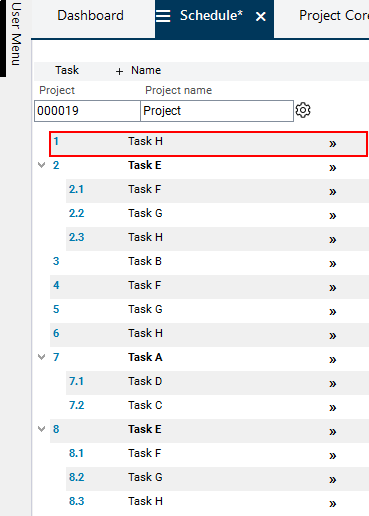
Only visible records will be copied. I.e. if you copy a record that has some of its child records hidden in the module via filter criteria, only the visible child records will be included.
Structure by copying
Information
-
In order to copy entire records, the following setting must be made:
-
Select Edit → Drag&Drop copy → Record/s in the menu bar or use the CTRL + 4 shortcut.
-
Copies of tasks 3 and 4 are to be created and to be subordinated to task 1 at the same time
-
Mark tasks 3 and 4 and drag them to task 1 by pressing STRG + holding down the left mouse button.
-
Release the left mouse button.
-
Save and click on the
-
Result: Tasks 1.1 and 1.2 have been created automatically with data from tasks 3 and 4 and have been assigned to task 1.
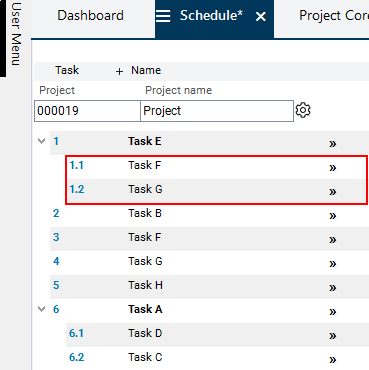
Furthermore a copy of task 5 is to be created and to be subordinated to task 1 as well.
-
Drag task 5 below task 1.2 by pressing CTRL and holding down the left mouse button.
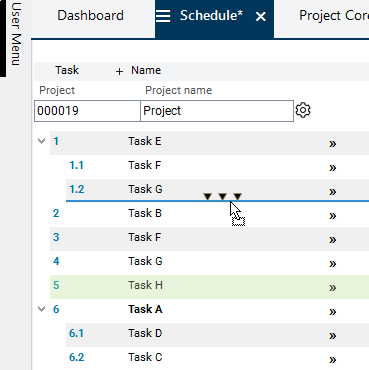
-
Release the left mouse button.
-
Save and click on the
-
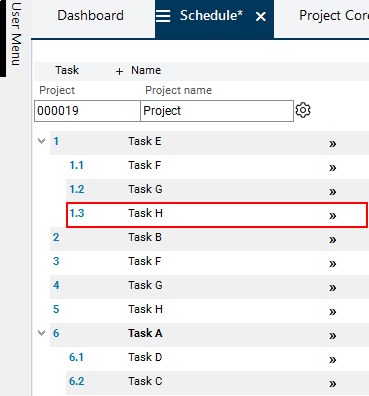
Result: Task 1.3 has been created automatically with data from task 5 and has been positioned below task 1.2.
-
Save and click on the
-
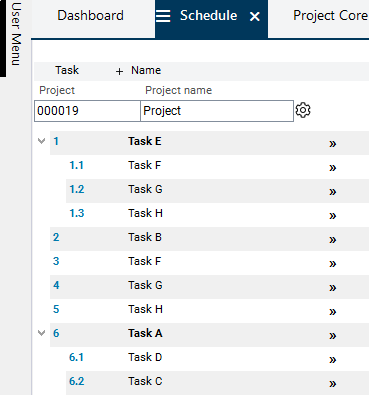
Result: Parent task 5 is displayed in bold.
Copying without Structuring
Information
-
In order to copy entire records, the following setting must be made:
-
Select Edit → Drag&Drop copy → Record/s in the menu bar or use the CTRL + 4 shortcut.
-
A copy of summary task 1 should be created and positioned below task 6 too.
-
By pressing CTRL and holding the left mouse button, drag task 1 below task 6 so that a dark blue line appears below task 6.
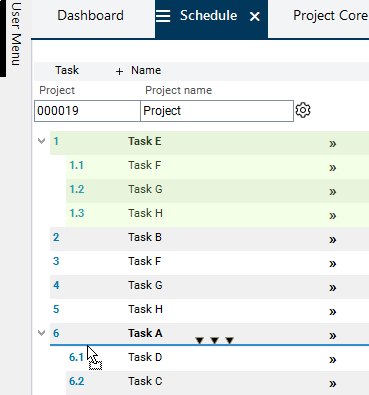
-
Release the left mouse button. If CTRL is released too soon, the record will not be not copied.
-
Save and click on the
-
Result: Task 7 is created with the data from task 1 and positioned below task 6.
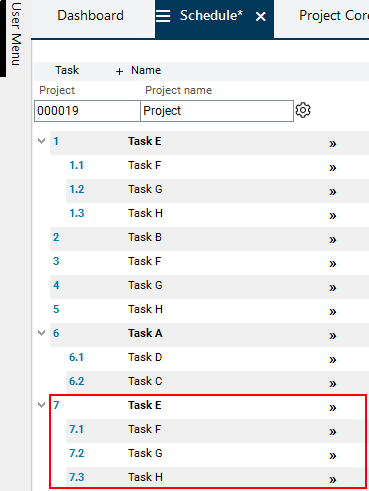
A copy of task 5 should be created and positioned below task 1 as well.
-
Drag task 5 above task 1 while pressing CTRL and holding down the left mouse button, so that a dark blue line appears above task 1.
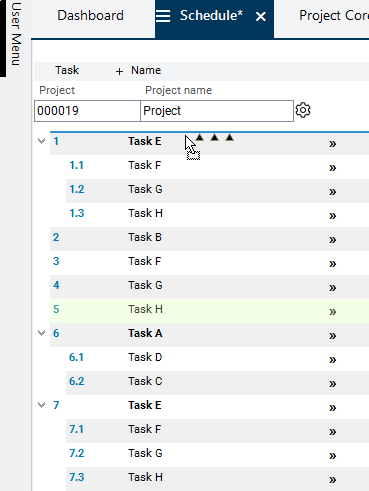
-
Release the left mouse button.
-
Result: A new task has been created with the data from task 5 and has been positioned above task 1.
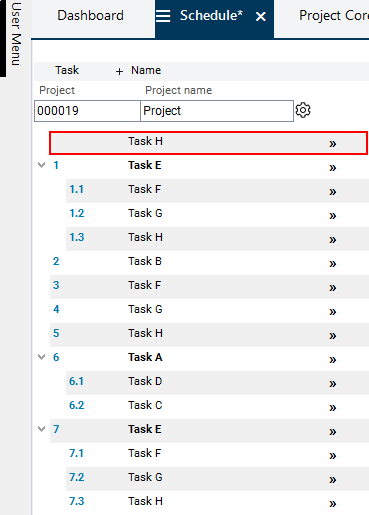
-
Save and click on the
-
Result: Due to its top position, the new task becomes task 1.