Objective of this tutorial
-
To introduce first time users to the elements of the PLANTA surface and to the operational functions.
Please note:
-
This tutorial is especially designed for users with management role. For project team members we recommend the short version of this tutorial.
-
All exercises are based on the PLANTA demo data. This data must be installed beforehand.
The screen shots used in this tutorial are mere examples of functions and may differ from the actual layout in the program.
Starting and Exiting the Program
Start and login
-
Double click on the PLANTA icon.
-
The PLANTA logo is now shown and the network connection to the server is established.
-
-
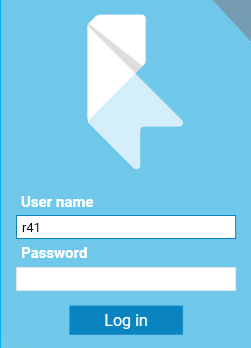
A screen with two fields for entering the user ID (the user code) and the password appears in the foreground of the program logo.
-
Enter the user code in the User name field, here R41 for the PLANTA demo user with project management and multi-project management roles.
-
Demo users do not possess passwords, thus no input is necessary in the Password field.
-
-
Confirm by clicking on Login.
Exit
-
Use the Data → Exit Program menu item or press ALT + F4.
-
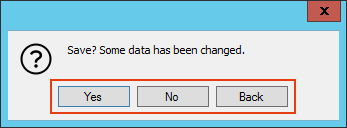
If there are any unsaved changes, the following message will be displayed: Save? Some data has been changed. After the message has been confirmed, the program is closed.
-
If all changes have already been saved, the program will be closed (without further prompt).
-
-
If no Panel is open, you can also exit the program using the x button in the title bar.
PLANTA project User Interface
Did you know?
Click here to watch a video explaining the PLANTA project user interface.
Information
-
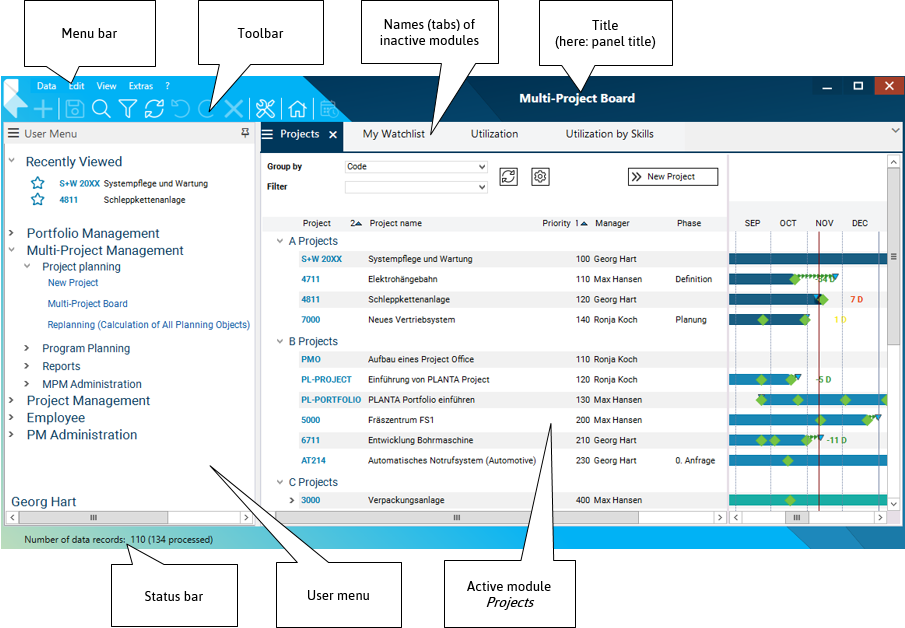
Title bar
-
forms the upper line of the screen and contains the following elements:
-
PLANTA logo
-
-
includes menus with the individual menu items for execution of different actions and operations.
-
-
Toolbar (standard)
-
consists of buttons which represent the most frequently used menu items as graphical symbols.
-
By clicking on a button in the toolbar, the respective action is carried out.
-
-
the title
-
of the active panel or
-
the main module, if no panel title is defined, or
-
the system title, in case no panel is opened.
-
-
-
-
Status bar
-
The status line is placed at the bottom margin of the screen. Here, messages on the progress of the program which do not require confirmation are displayed.
-
In between, there is the panel area which consists of user name and user modules:
-
-
Panel
-
In PLANTA, a panel is a unit which is used to group modules. It contains a user menu, a main module, and possibly one or more submodules.
-
Modules can be displayed as tabs or be frozen as windows at the top or bottom, or on the left or right hand side.
-
-
Module
-
In PLANTA, a module is a unit which enables the display and editing of data from the database (e.g. project data).
-
-
User menu
-
is a module which is displayed on the left hand side of the screen by default and contains the following elements:
-
Links to the panels with editing or view modules On the left-hand side of the user menu you will find the work areas which are grouped by roles.
-
The rights of the logged-on user determine which links are contained in the user menu.
-
-
Links to the panels of the recently viewed planning objects (projects, programs, ideas, proposals) and planning objects marked as favorites by the user.
-
Name of the logged-on user.
-
-
Modules
Information
-
A module enables data from the database to be displayed and edited.
-
The data is arranged in records which again consist of individual data fields.
-
A record summarizes attributes/parameters of an object (project, task, resource, etc.) with their corresponding values.
-
Values are displayed in separate data fields.
-
What data fields belong to a record (record structure) is defined by the customizing of the corresponding data area.
-
-
The same data field across several records forms a data logical column.
Example
-
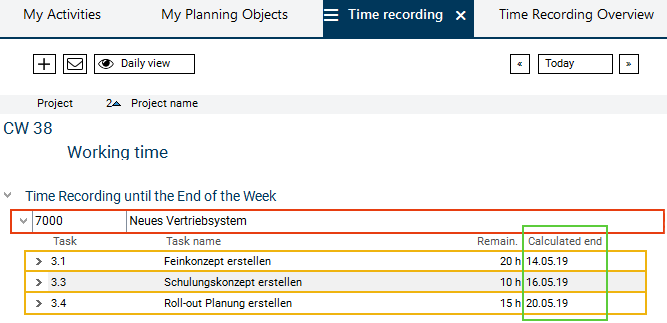
Here, four records are displayed: one project record (marked red) and three task records (marked orange).
-
The project record consists of two data fields (Project and Project name), and their corresponding values.
-
The task records consist of four fields (Task, Task name, Remaining effort, and Calculated end) and their corresponding values.
-
-
All Calculated end fields form a column (marked green). The data logical Calculated end column equates to the layout column.
|
See also: Further Details on the Module Structure |
Graphical Representation of Data
Information
-
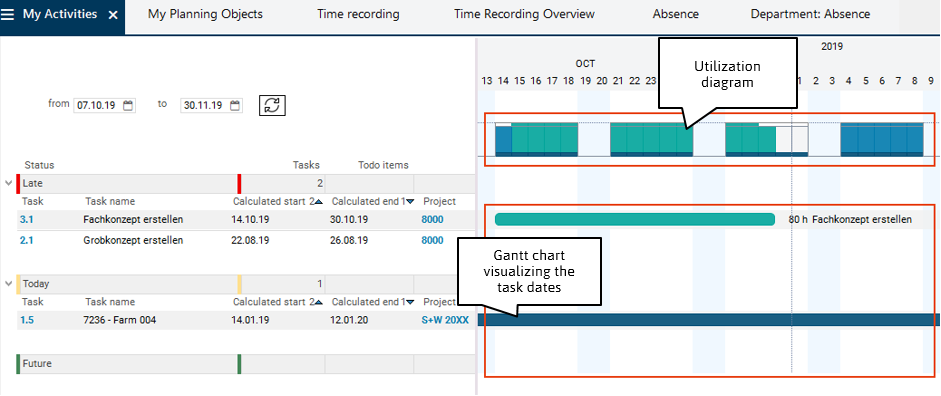
In some modules, particular data is represented graphically:
-
in the form of histograms, e.g. utilization diagram for the representation of resource utilization throughout a particular period,
-
in the form of bars, e.g. for the visualization of project or task dates.
-
Module Variants
Information
-
Almost every module in PLANTA project can be modified on the user interface to meet individual requirements of the user and saved as a variant of the modified module.
-
For instance, it is possible to only have the fields that are most frequently used displayed in a module while all other fields are hidden.
-
-
For some modules, PLANTA already provides default module variants.
-
In the module tab of all standard modules, there is the Module variants button .
-
If there are module variants of a module, the module variants and the Base variant are displayed in a listbox when you click on the button.
-
Task
-
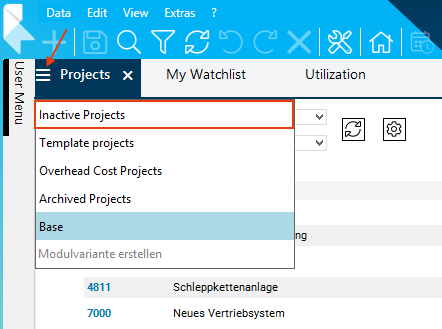
Select the Inactive Projects module variant in the Projects module.
Procedure
-
If the Projects module of the Multi-Project Board panel is not opened yet, select Multi-Project Management → Multi-Project Board in the user menu.
-
The panel is opened. The Projects module is opened automatically.
-
-
Click on the button in the tab of the Projects module.
-
Select the Inactive Projects module variant from the listbox.
-
-
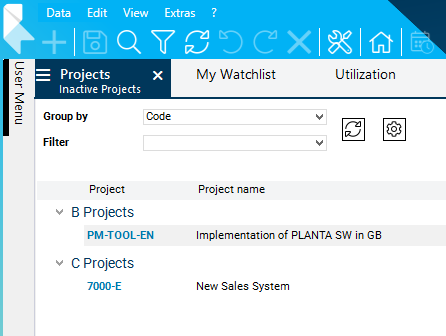
The module variant is loaded. Now, only the inactive projects are displayed in the Projects module.
-
Select the Base entry in the module variant listbox to return to the Base variant.
Note
-
You can create individual module variants and define them as favorites. The module variant marked as a favorite is loaded when the module is opened.
Buttons
Information
-
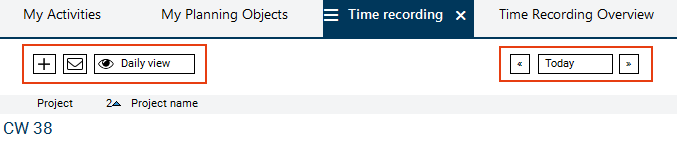
Buttons in the PLANTA system are
-
module buttons for executing different actions or for refreshing data or
-
buttons in dialog or message boxes.
-
Example of module buttons
Note
-
On each button there is a tooltip which explains the action on the respective button (in the case of pure symbol buttons) or further clarifies them (if the label is not sufficiently meaningful). For this purpose, see the " (39.5.21-en) Tutorial: PLANTA Software Operation#Tooltips” section.
Example of buttons in a dialog box
-
To activate a button,
-
click on the button displayed on your screen with the cursor or
-
focus the button with the TAB key and press ENTER or SPACE (for module buttons) on the keyboard.
-
Context Menu
Information
-
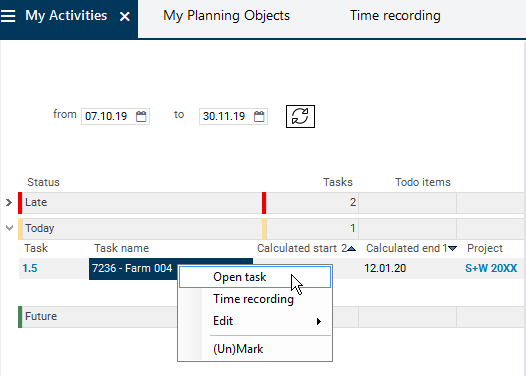
You can open the context menu via the right mouse button.
-
Depending on the record on which the context menu command was executed, different context menu commands are offered, e.g.:
-
Insert: Insertion of records
-
Display: Unhide/hide data
-
Individual context menu commands: Start actions (e.g. opening additional modules or macros)
-
Edit: Standard editing functions for the activated data field
-
(Un)mark: Mark or unmark the record
-
Tooltips
Information
-
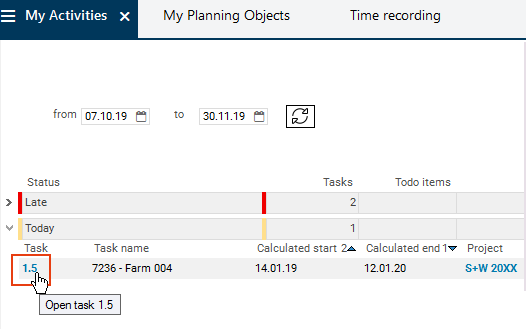
Tooltips are texts which are shown when the mouse is moved over particular elements of the user interface.
-
In PLANTA project there are 2 types of tooltips:
-
Automatic tooltips are automatically displayed on the headings which are truncated due to insufficient field length. In this case, the tooltip shows the entire heading.
-
Tooltips stored by the customizer. They contain help texts or explanations for the affected field. Such tooltips can be stored on regular fields as well as on fields and bars.
-
Create, Edit, Delete Data
Information
-
PLANTA distinguishes between activation and marking of data.
-
Data fields must be activated in order to record and edit data in them or to delete data from them.
-
Records must be marked in order to be copied, moved, deleted, etc. entirely.
-
Activate/Mark/Unmark
Procedure
-
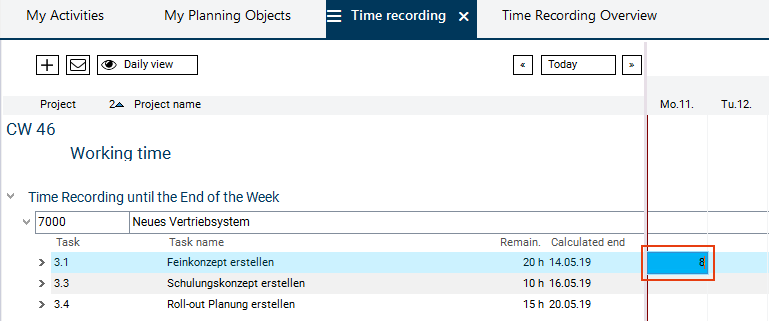
Activate by clicking or making an input.
-
Only one data field can be activated (not the entire record). It is highlighted in bright blue.
-
The record in which the activated field is located is considered focused. It is highlighted in light blue.
-
-
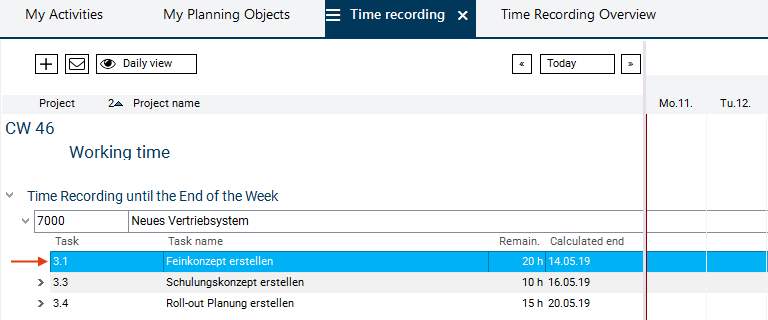
Mark by pressing CTRL + mouse-click.
-
The entire record is marked.
-
The marked record is highlighted in bright blue.
-
-
Unmark by pressing CTRL + clicking on the marked record.
-
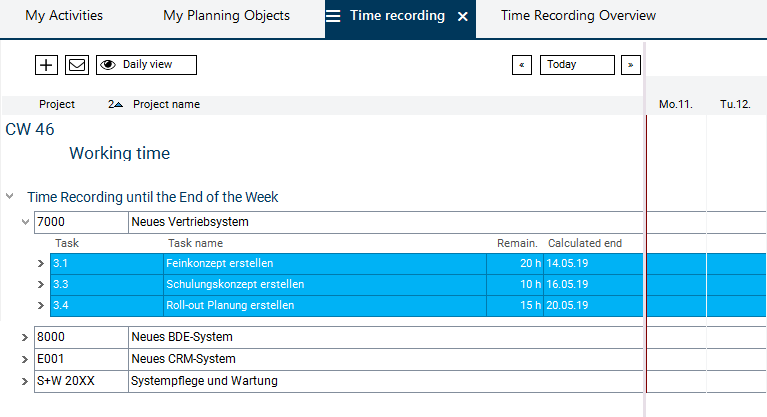
Mark multiple records:
-
Select the first record and press CTRL + mouse click to mark it (here: Task 3.1).
-
Select a last record and press SHIFT + mouse click to mark it (here: Task 3.4).
-
This will cause all records between the first and the last record to be marked at the same time.
-
Result:
-
-
-
The marked records can be unmarked by pressing SHIFT + mouse click on the first record.
-
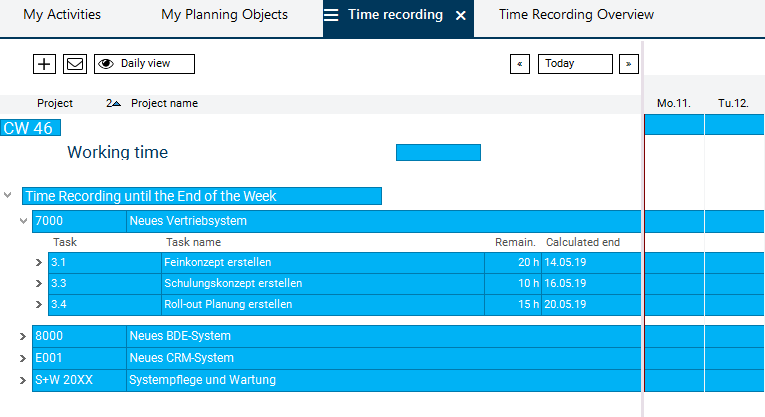
Mark all records by pressing CTRL + A.
-
Result:
-
-
The marked records can be unmarked by pressing CTRL + D.
Edit
Change existing values
-
Which data fields can be edited and how they can be edited in existing records depends, a.o., on the data field type:
|
Data field type |
Description |
Example |
|---|---|---|
|
Input data field (input) |
|
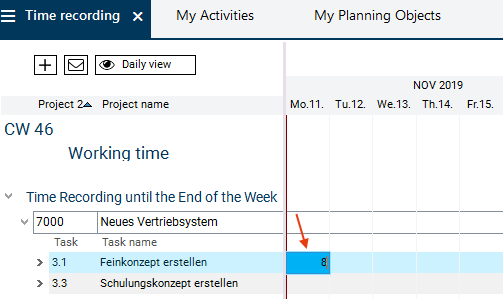
|
|
Output data field (output) |
|
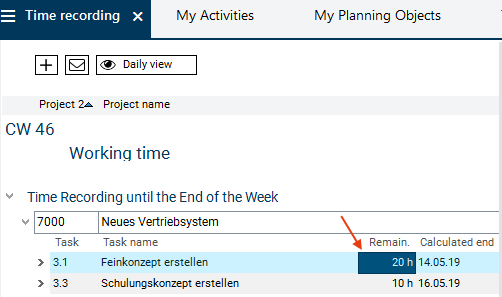
|
|
Link Data Field |
|
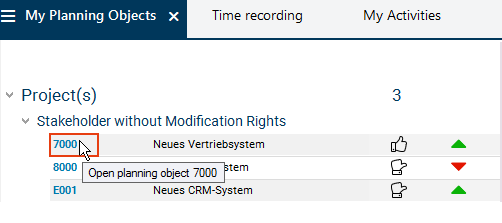
|
|
Listbox |
|
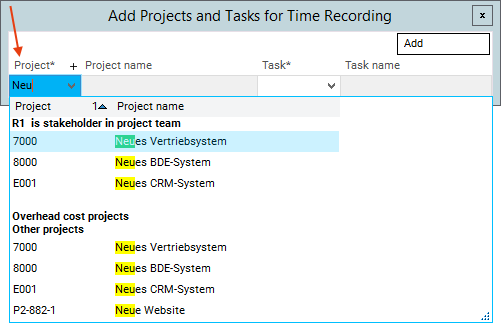
|
|
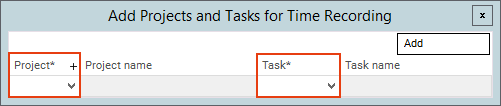
Mandatory data fields |
|
|
|
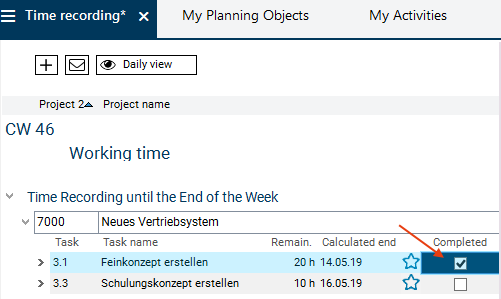
Checkbox |
|
|
|
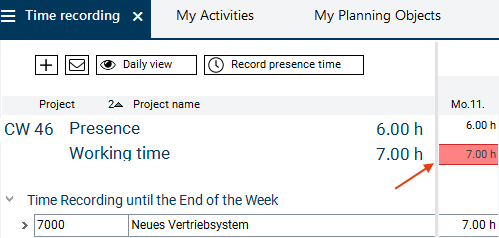
Traffic light |
|
|
|
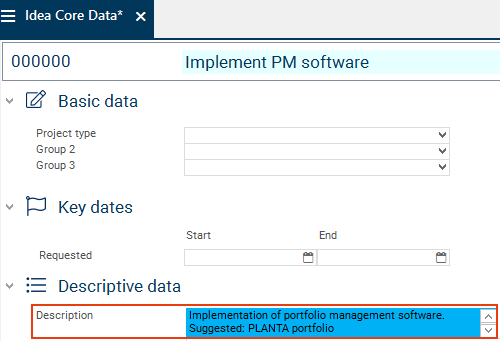
Continuous text field |
|
|
Copying Data via Drag and Drop
Information
-
New values can either be entered manually or copied from other fields. For this purpose, you can used PLANTA's own Drag&Drop copy function, which replaces the conventional copying via CTRL + C and CTRL + V.
-
Field to field (default setting)
-
Field to Column
-
Column to Column
-
Task
-
Copy values via Drag&Drop in the Schedule module.
Procedure
-
Click on Multi-Project Management → Project Planning → Multi-Project Board in the user menu.
-
The Multi-Project Board panel is opened and the Projects module is focused automatically.
-
Here, click on the link on the ID of project 5000 Fräszentrum FS1.
-
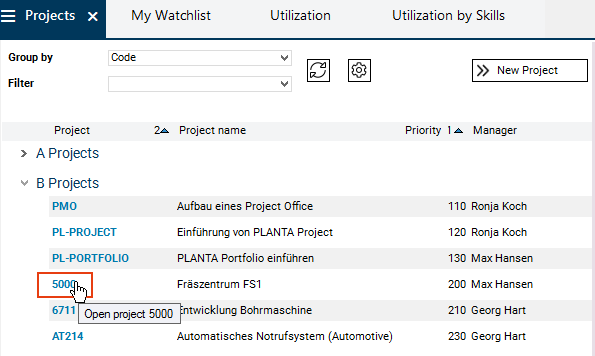
-
The panel of the project is opened.
-
Click on the Schedule tab to open the module of the same name.
-
Copy: Field to Field
-
Drag the content of the source data field (Remaining duration field of task 1.3) to the target data field (Remaining duration field of task 1.4) via CTRL + holding down the left mouse button.
-
As soon as the cursor is on the target field, it changes its form (see the picture). Release the left mouse button.
-
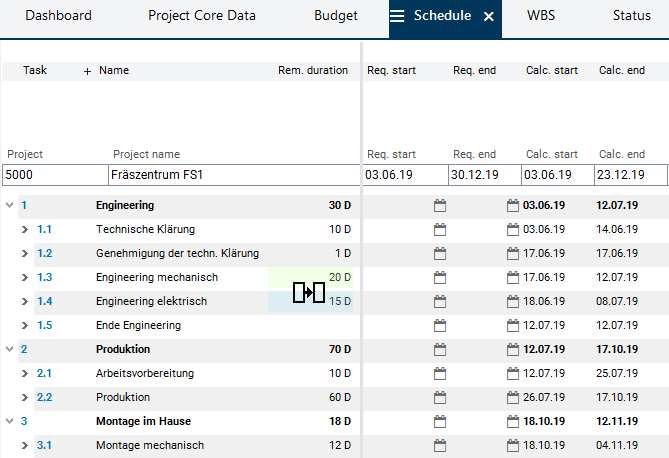
-
The value of the source field is copied to the target data field.
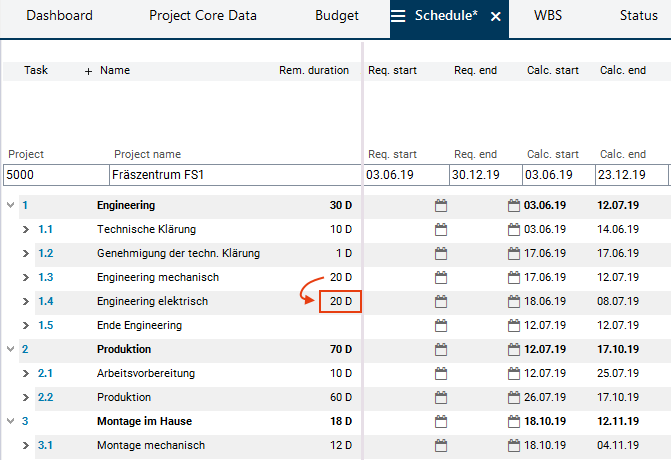
-
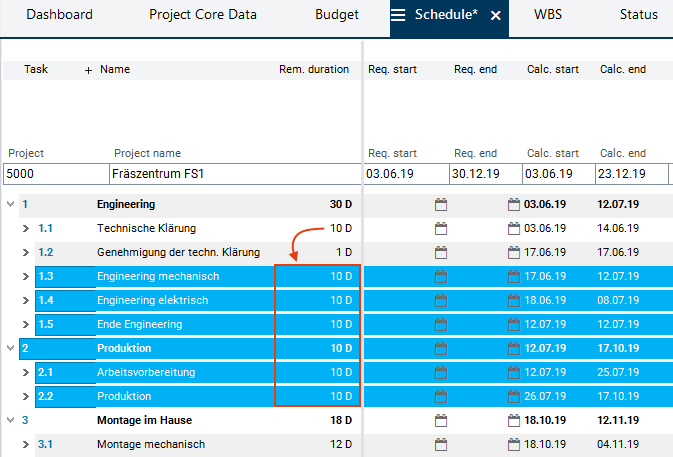
Copy: Field to Column
-
Define the operation in the menu bar via Edit → Drag&Drop Copy → Field to column.
-
Mark all target records with CTRL + click on the start record and SHIFT + click on the end record (e.g. task 1.3 as a start record and task 2.2 as an end record).
-
Drag the content of the source data field (Remaining duration field of task 1.1) to the Remaining duration target column of the marked records via CTRL + holding down the left mouse button.
-
As soon as the cursor is on the target column, it changes its form (see the picture). Release the left mouse button.
-
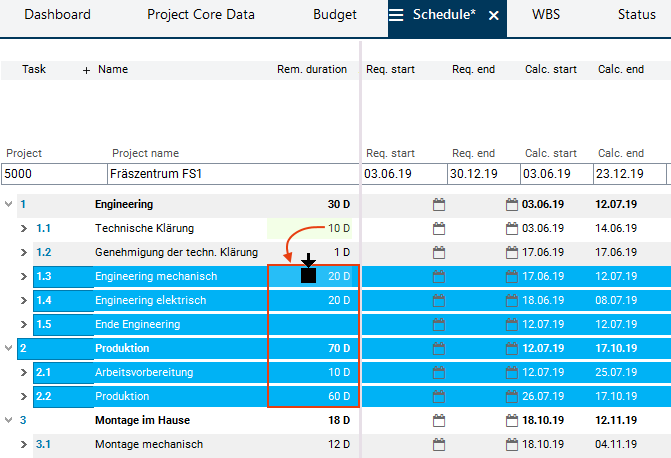
-
The value of the source data field is entered for all marked records in all records of the target column.
-
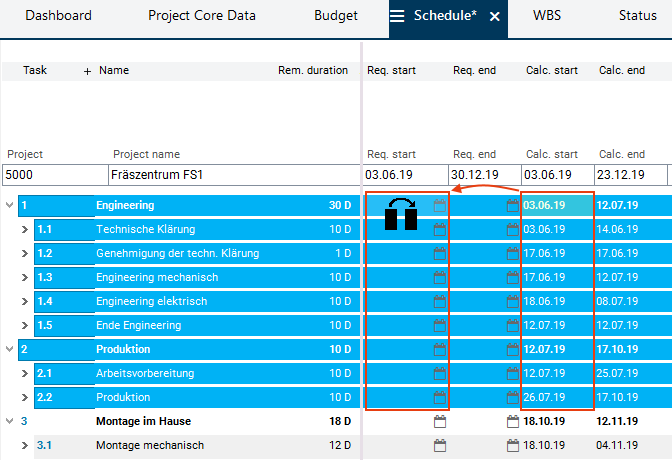
Copy: Column to Column
-
Define the operation in the menu bar via Edit → Drag&Drop Copy → Column to column.
-
Mark all target records with CTRL + click on the start record and SHIFT + click on the end record (e.g. task 1 as a start record and task 2.2 as an end record).
-
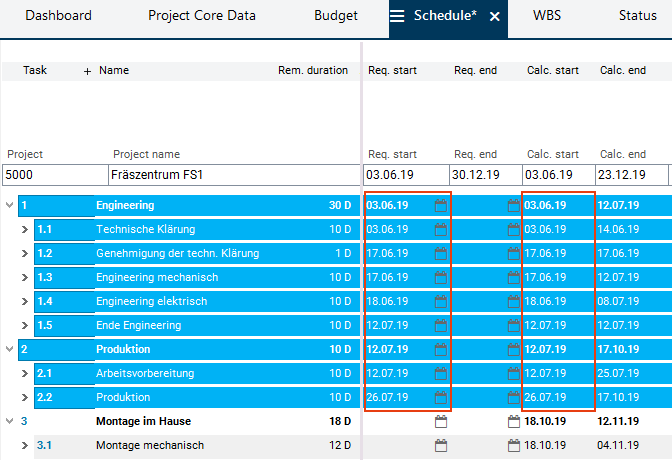
Drag the content of the source column (Calc. start) to the target column (Requested start) via CTRL + holding down the left mouse button.
-
As soon as the cursor is on the target column, it changes its form (see the picture). Release the left mouse button.
-
-
The values of the source column fields are entered in the corresponding data fields of the target column for all marked records.
Insert New Records
Procedure
-
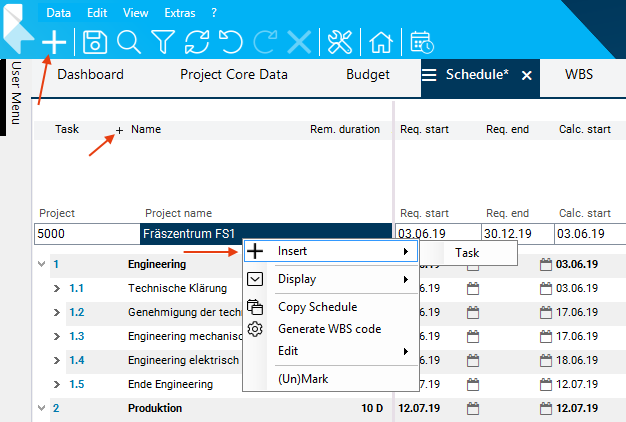
You can insert a record in the following ways:
-
Press the F4 key or
-
select the required option in the context menu by right-clicking or
-
click on the plus symbol in the toolbar or
-
click on the plus symbol in the data area heading line or in the record heading.
-
Example
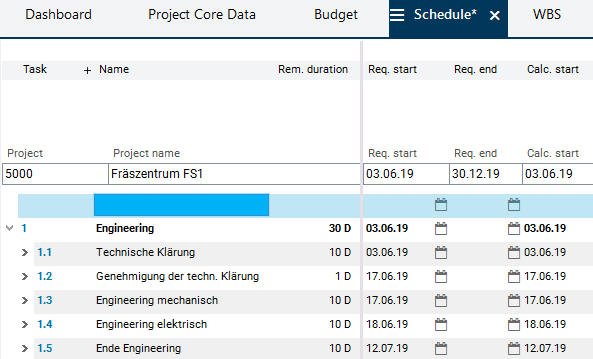
-
Result: A blank record has been inserted.
-
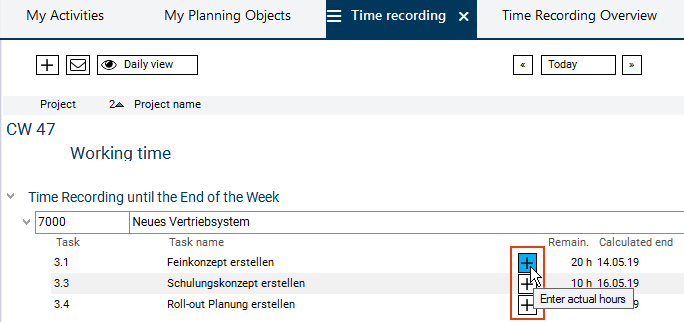
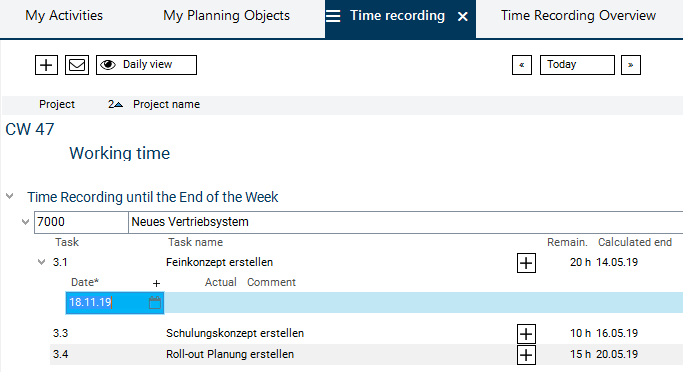
Special case: Insertion via plus symbol in the record
-
This option is only available in some modules, e.g. in a variant of the Time Recording module.
-
-
Result:
|
See also: Detailed Description of Insert Options |
Save
Procedure
-
Save the data
-
by clicking on the Save button in the toolbar,
-
by pressing CTRL + S or
-
by using the Edit → Save menu items.
-
-
If some of the records are still invalid (blank lines) when you save, the following message is displayed: Mark invalid records?
-
If this message is confirmed with Yes, the records with an empty ID are marked. They can be edited, or they can be deleted via the Delete button.
-
If the message is answered with No, the invalid records are not marked.
-
Deletion
Deletion of values
-
Activate the required data field.
-
Delete the value.
-
Save.
Deletion of entire records
-
Mark the required record.
-
Click on the Delete button in the toolbar.
-
Afterwards, the following message is displayed: Delete marked data?
-
Confirm it with Yes.
-
Save.
Search in Module
Task
-
Search a character string in the Schedule module of project 5000.
Procedure
-
Go to the Schedule module of project 5000 in case it has not yet been opened.
-
Display the search bar at the bottom margin of the screen via:
-
the Search in module button in the toolbar or
-
Data → Search in module or
-
via the CTRL + F key combination.
-
-
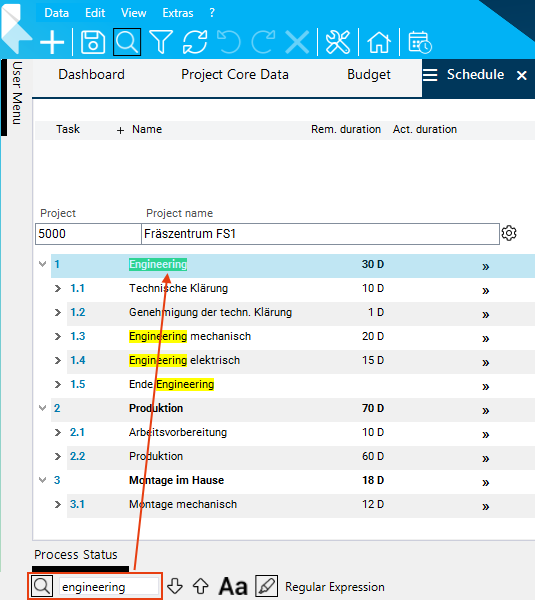
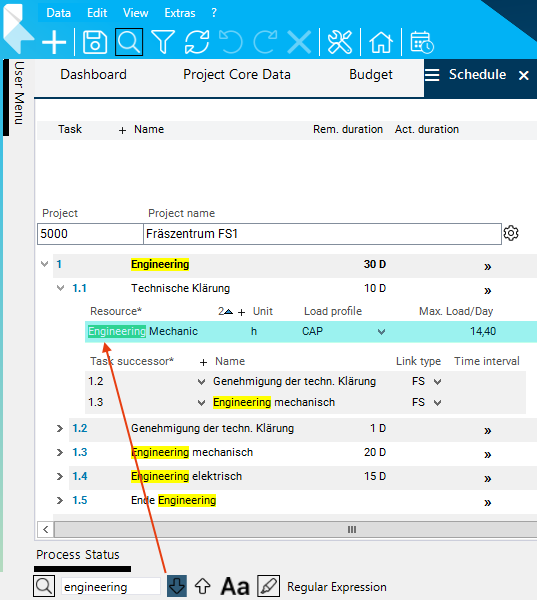
Enter the character string to be searched in the input field (e.g. "clarification").
-
The mouse automatically scrolls to the first character string in the module which matches the search value.
-
The first hit is highlighted in green. All further hits are marked yellow.
-
-
-
Navigate:
Details
-
The hit selected by jumping now has a colored background. All further hits are marked yellow.
-
In the search, hits may also be found in the data which is not displayed. If you jump to these hits, the records which were previously invisible are opened.
|
See also: Description of Further Search Functions |
Filter
Information
-
Filtering enables you to restrict the display of data in a module.
-
You can filter with the help of filter criteria and fulfillment rules.
Details
-
Filter criteria can be set in almost every module.
-
The filter options are dependent on the customizing of the module and on the individual user rights.
-
In the standard, filter criteria and fulfillment are already preset by the customizer in many modules.
Simple Filtering (Filter Criteria Only)
Task
-
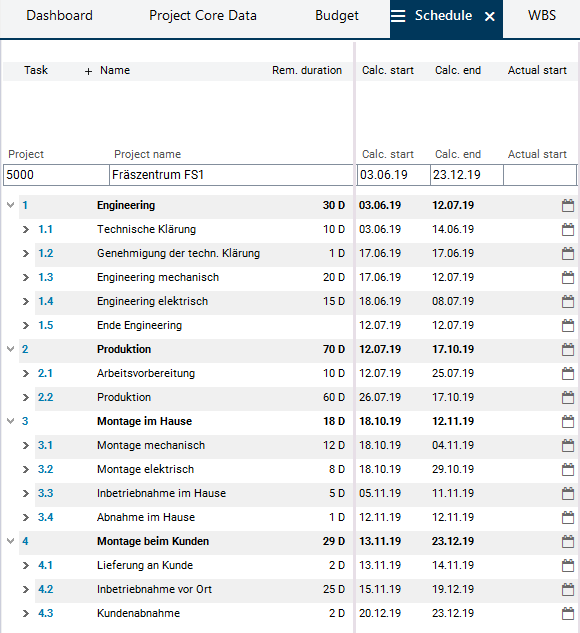
Filter the tasks of project 5000 Fräszentrum FS1 by the required calculated start period via filter criteria in the Schedule module.
Procedure
-
Initial situation: Schedule of project 5000 without filter.
-
Open the Filter Criteria module via:
-
the

-
the Extras → Filter Criteria menu item or
-
the CTRL + ALT + F key combination.
-
-
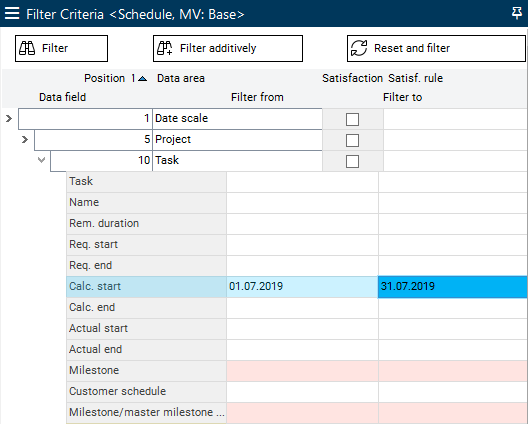
Expand the Task area.
-
Enter its period in the Calc. start line in the Filter from and Filter to fields, e.g. "01.07.2019" up to "31.07.2019".
-
-
Click on the Filter button.
-
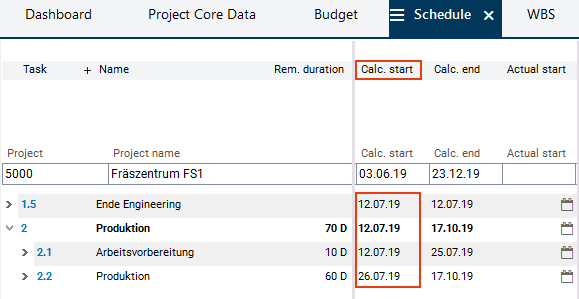
Result: In the Schedule source module, only those tasks of the project are displayed the calculated start of which lies within the selected period.
Details on the changing of filter criteria
-
When clicking on the Filter button, a data reselection is always carried out, so that only the data which correspond to the last entered filter criteria are displayed.
-
If you want the results of the newly set filter criteria to be displayed in addition to the previous filter results, click on the Filter additively button instead of the Filter button.
Filter via Fulfillment
Information
-
With the Fulfillment option you can determine which data from which child areas is displayed for a parent data area or not.
Operators
-
& = AND
-
| = OR
-
! = NOT
Task
-
Filter via satisfaction rules to display only those tasks to which no resource is assigned in the Schedule module.
Procedure
-
Open the Filter Criteria module from the Schedule module via the

-
Empty the fields in the Calc. start line.
-
Enter "!19" in the Task line in the Fulfillment rule field.
-
The ! operator means that only records are to be displayed which do not contain particular data (marked by the subsequent number).
-
The number 19 is the Position number of the Resource data area (framed in blue on the image, your own system may show a different number). With this fulfillment rule you can therefore define that only tasks for which no resource assignments exist are displayed.
-
-
Activate the Satisfaction checkbox to apply the satisfaction rule in the filter process.
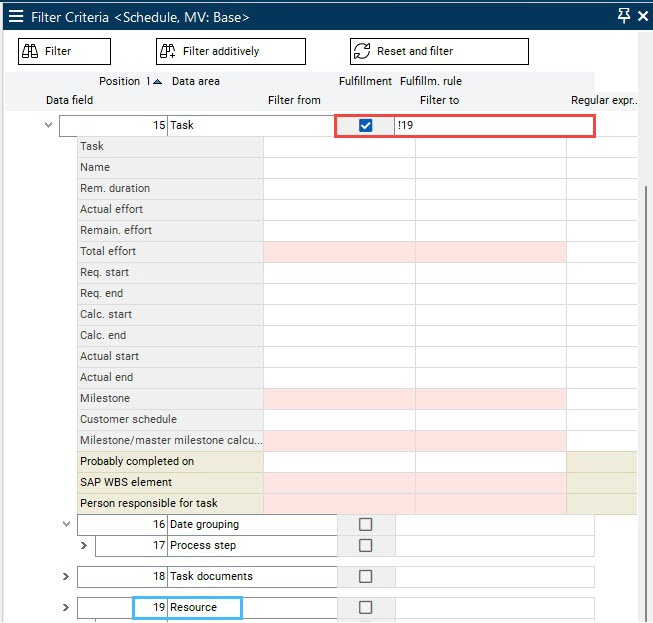
-
Click on the Filter button.
-
Result: Only tasks without assigned resources are displayed.
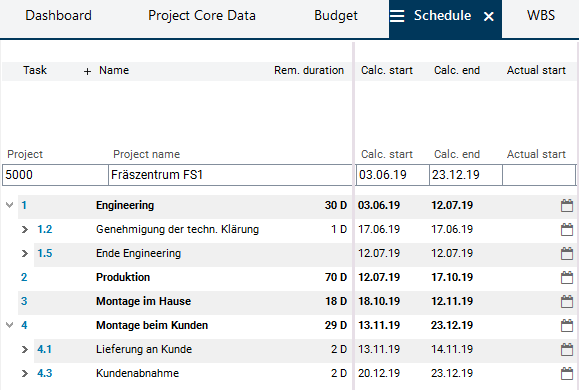
Filtering via Filter Criteria and Satisfaction Rules
Information
-
Filter criteria and fulfillment can also be combined.
Task
-
In the Schedule module, filter to display, with the help of filter criteria and satisfaction rules, only those tasks
-
the calculated start of which lies within a particular period and
-
to which a resource is assigned.
-
Procedure
-
Open the Filter Criteria module from the Schedule module via the
-
Expand the Task area.
-
Enter its period in the Calc. start line in the Filter from and Filter to fields, e.g. "01.07.2019" up to "31.07.2019".
-
-
Enter "21" in the Task line in the Fulfillment rule field.
-
The entry does not contain any operators (&, |, !), so that only records are displayed which contain particular data (marked by the subsequent number). In this case it is data from the Resource data area, marked by the number 21.
-
With the "21" fulfillment rule you can therefore determine that only tasks for which a resource assignment exist are displayed.
-
-
Activate the Satisfaction checkbox to apply the satisfaction rule in the filter process.
-
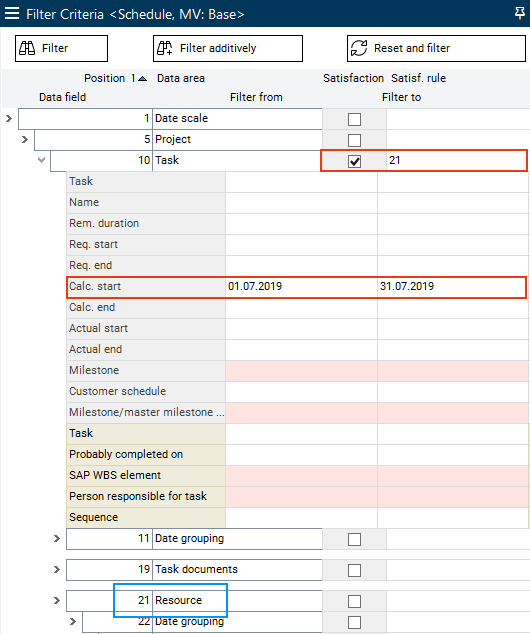
-
Click on the Filter button.
-
Result: Only tasks are displayed the calculated start of which lies within the selected period and to which a resource is assigned.
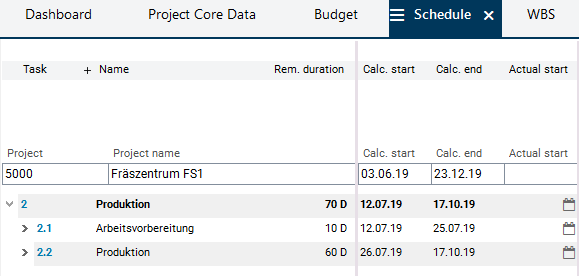
Reset Filter
Procedure
-
To reset the filter and switch back to the default view of the Schedule module, click on the Reset and filter button in the Filter Criteria module.
-
Result: In the Schedule module, all tasks are displayed unfiltered.
-
Unhide and Hide Child Data
Initial situation
-
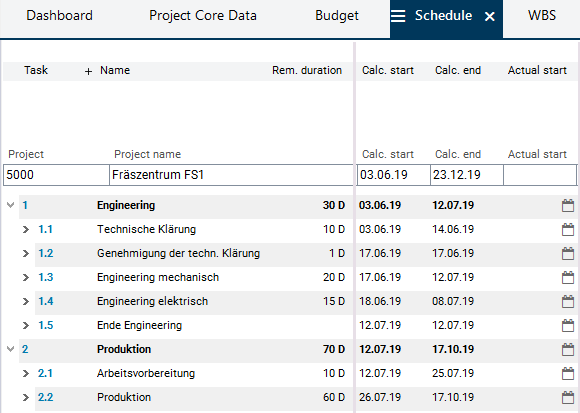
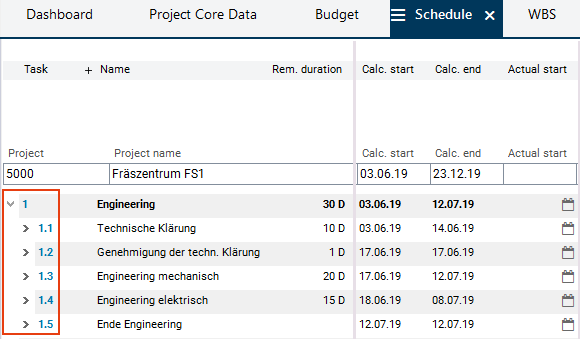
In the Schedule module of project 5000, summary task 1 Engineering is expanded (identifiable by the

-
The task records 1.1 to 1.5 are collapsed (identifiable by the

Unhide/hide via the tree structure arrow symbol
-
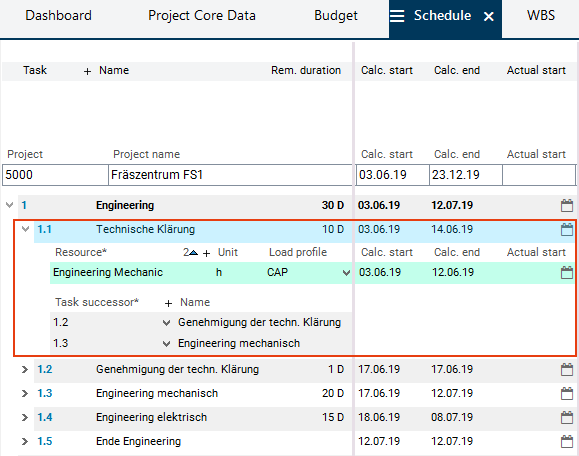
Click on the
-
The arrow is pointing down (
-
Collapse the task by clicking on the
Unhide/hide via double click
-
Double-click on an output field (output) of task record 1.1, e.g. the Actual duration field.
-
Now all child areas of the record are shown.
-
Double-click again to hide the child areas again.
Unhide/hide via key combination
-
Activate an arbitrary field of task record 1.1.
-
Use the CTRL + "+" key combination to unhide all child records of record 1.1.
-
Hide the data again via CTRL + "-".
-
-
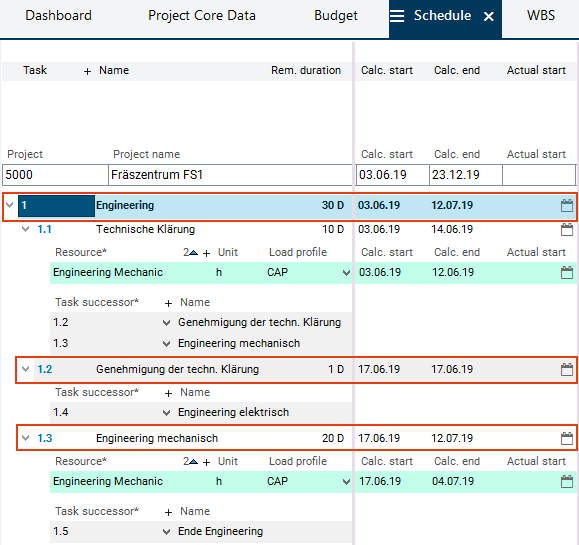
Use the CTRL + "*” key combination to have the child data of all records displayed which are on the same level as the focused record (i.e. 1.1, 1.2, ... , 2.1, 2.2, 3.1, etc.).
-
Hide the data again via CTRL + "/".
Unhide and hide via the context menu
-
Via the context menu, child data areas can be unhidden/hidden individually, e.g. only the resources or only the task successors.
-
Right-click on task record 1.1 to open the context menu.
-
Select the Display command.
-
A new level of the context menu is opened. Here, all child areas that can be unhidden or hidden are displayed.
-
Select the required area, e.g. + Resource.
-
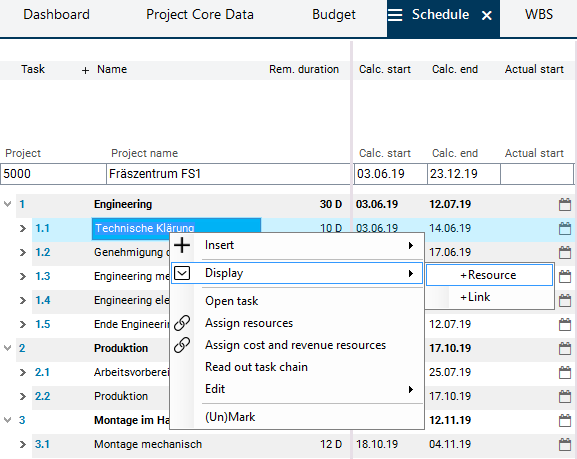
-
Result: Only the child resource record of task 1.1 is shown.
-
Cf. expanding records via arrow symbols or double-click. When using one of these options, all child areas are shown.
-
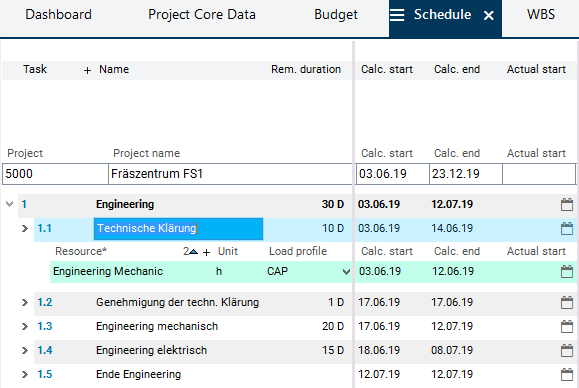
-
To hide the resource record again, select Show → - Resource from the context menu.
Data Field Options
Sorting in Modules
Information
-
In data sorting, a distinction is made between sort direction and sort sequence.
-
With the help of a sort direction you can specify whether the data is to be sorted in ascending or descending order.
-
The sort direction is then visualized in the column heading by triangles that point up or down.
-
-
With the help of a sort sequence you can specify by which column the sorting of the data of a module is to be performed first, second, etc. if there are several identical values within the columns.
-
The sort order is visualized by numbers in column headings.
-
-
Example
-
Open the Multi-Project Board panel in the user menu via Multi-Project Management → Project Planning → Multi-Project Board. As a result, the Projects module is activated automatically.
-
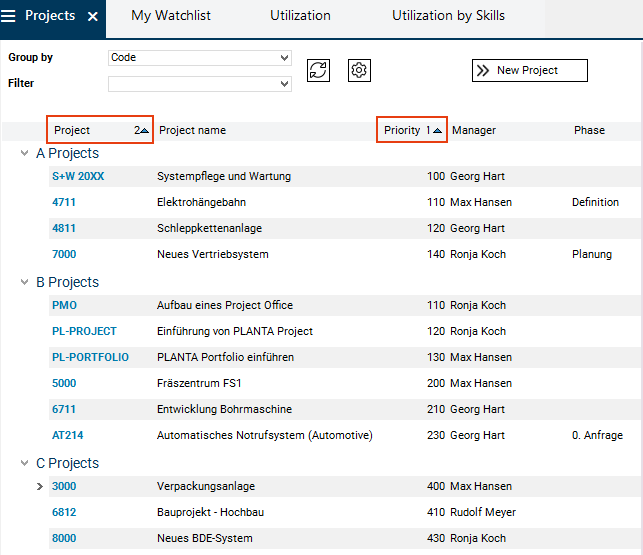
In this module, a sorting is already preset.
-
The sorting is done within the data group, i.e. the A projects, B projects, etc. are sorted independently from one another.
-
The triangles pointing up in the Project and Priority column headings show that both columns are sorted in ascending order.
-
The Priority column has the number 1, i.e. the data is sorted first by this column.
-
The Project column has the number 2, i.e. if in the Priority column there are several records which possess the same entry, the entries in the Project column (hence the project ID) determine the sorting among these records.
-
Since in the present case no priority values occur multiple times within the project group, the data is only sorted by the Priority column. The sorting number on the Project column has no influence.
-
-
-
Task
-
Change the sort sequence: In the Projects module, sort first by the Manager column and define the ascending sort direction.
Procedure
-
Position the mouse on the heading of the Manager column. Subsequently, both triangles for the selection of the sort direction are displayed.
-
Click on the triangle pointing up to sort the data in the column in ascending order.
-
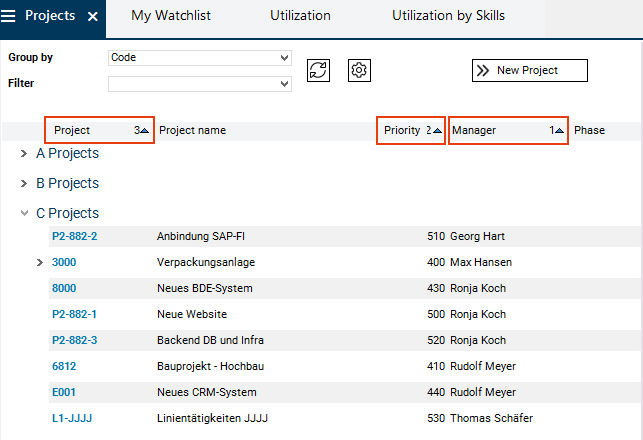
Afterwards, the triangle is still displayed in the column heading and the sort sequence of the Manager column is visualized by a 1.
-
The Priority and Project columns which previously had the numbers 1 and 2 now automatically receive the numbers 2 and 3.
-
The column which was clicked on last always receives the sort sequence 1, i.e. the numbering of the other columns is changed accordingly.
-
-
-
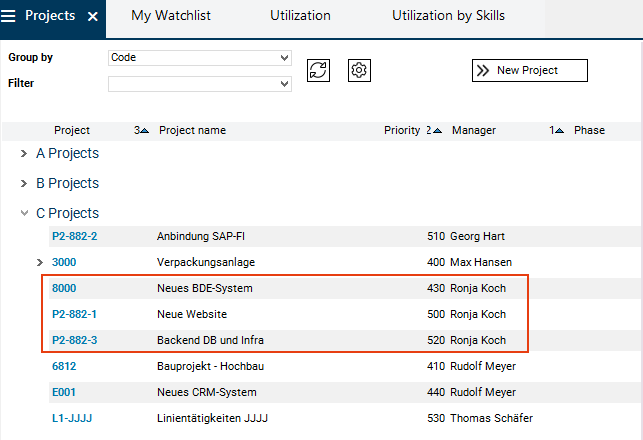
The project records are now sorted alphabetically by manager names (sort sequence 1).
-
Since there are three entries in the C projects group for manager Ronja Koch, the respective records (projects 8000, P2-882-1, and P2-882-3) are sorted by their values in the Priority column (sort sequence 2) in ascending order.
-
Since the projects of Ronja Koch have different priority values, the sort sequence 3 has no influence on the Projects column.
Task
-
Change the sort direction: The sort direction of the Manager column from ascending to descending.
Procedure
-
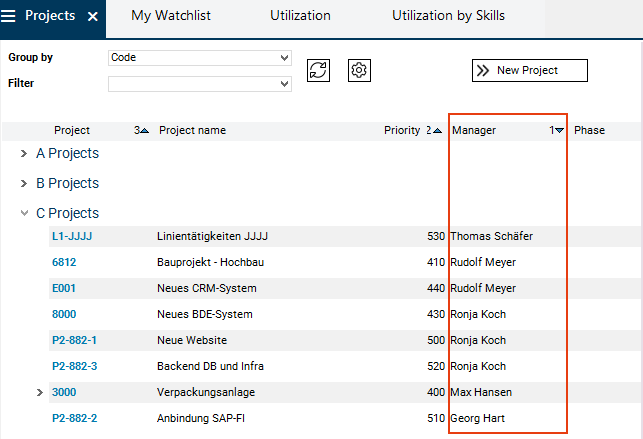
In the heading, the triangle visualizes the current sort direction. The triangle pointing up on the Manager column shows that the column is sorted in ascending order.
-
Change the sort direction of the column by clicking on the heading of the Manager column.
-
Result: The sort direction of the Manager column is changed. The column is now sorted in descending order (cf. sorting above).
Change the Column Width (Data Field Width)
Task
-
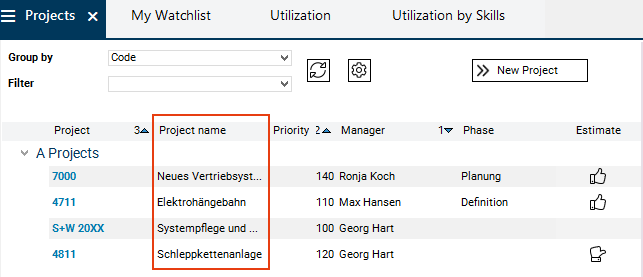
Reduce the width of the Project name column in the Projects module.
Procedure
-
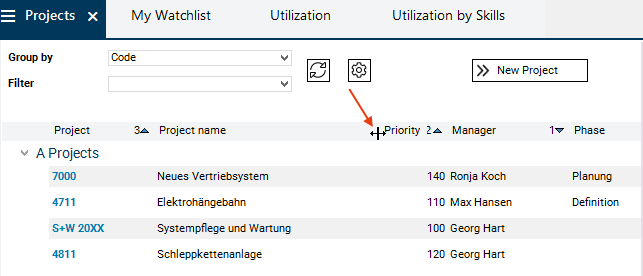
Position the mouse on the right separator of the Project name column or next to the column heading.
-
The mouse pointer then changes its shape.
-
-
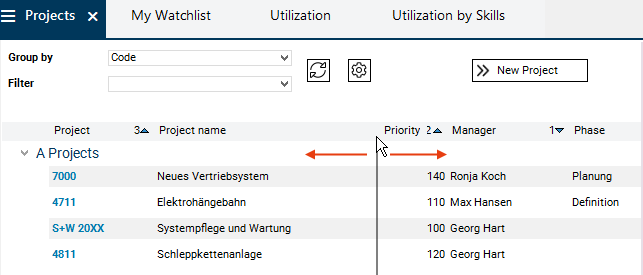
You can now expand or reduce the size of the respective column by dragging the mouse to the right or to the left.
-
In this case drag the mouse to the left in order to reduce the size of the Project name column.
-
-
Result:
Display/Hide Columns
Task
-
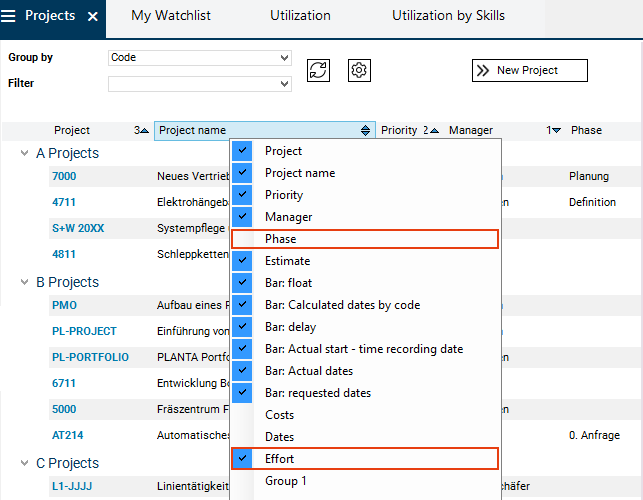
Hide the Phase column in the Projects module and unhide the Effort column.
Procedure
-
Right-click on the column heading line.
-
A menu is opened, in which all visible columns or data fields (checked) of the respective window and all hidden columns or data fields (unchecked) of the current module are listed.
-
Press and hold down the CTRL key and
-
deactivate the checkmark next to the Phase entry by clicking on it and
-
activate the checkmark next to the Effort entry by clicking on it.
-
-
Release the CTRL key.
-
The menu is closed.
-
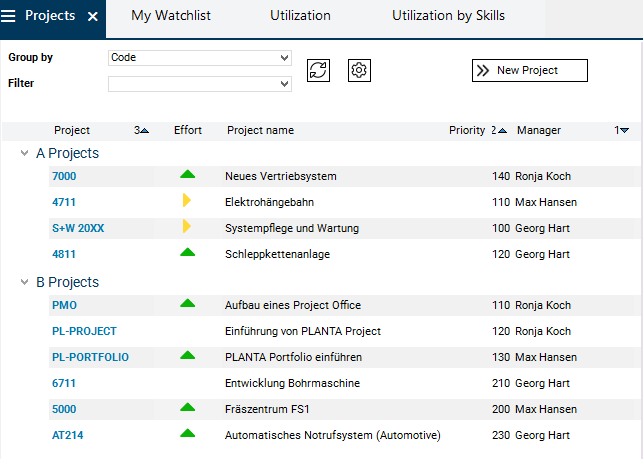
The Phase column is now hidden and the Effort column is displayed.
Moving of Columns
Task
-
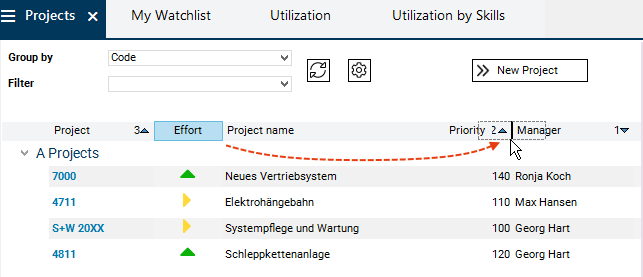
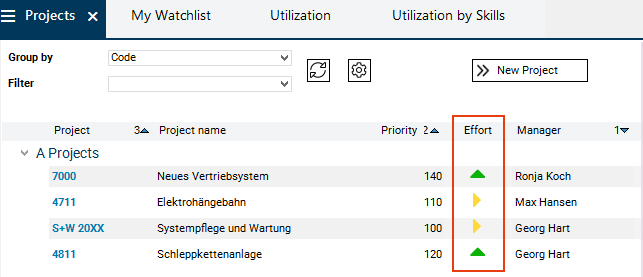
Position the Effort column between the Priority and Manager columns in the Projects module.
Procedure
-
Click on the heading of the Effort column.
-
By left-clicking move the column to the required position and release the mouse button.
-
Result:
Documentation/Online Help
Information
-
For its product documentation, PLANTA uses an online documentation tool based on Confluence.
-
The PLANTA Online Help is available at https://help.planta.de/.
Details
-
The PLANTA Online Help is divided into 6 spaces.
-
Five of these spaces belong to PLANTA project and one space belongs to PLANTA pulse.
|
Product |
Space |
Content |
|---|---|---|
|
PLANTA project |
|
|
|
|
INTRO |
Here you will find basic information regarding the structure and operation of PLANTA project and, for example, answers to the questions:
|
|
|
PROJECT |
Here you will find detailed information regarding the use of PLANTA project and PLANTA portfolio and, for example, answers to questions like:
|
|
|
CU |
Here you will find detailed information regarding the use of PLANTA customizer and, for example, answers to questions like:
|
|
|
LINK |
Here you will find detailed information regarding the use of PLANTA link and, for example, answers to questions like:
|
|
|
TEC |
Here you will find technical information and information regarding installation and update of PLANTA project and, for example, answers to the questions:
|
|
PLANTA pulse |
|
|
|
|
PULSE |
Here you will find all information regarding PLANTA pulse and, for example, answers to questions like:
|
-
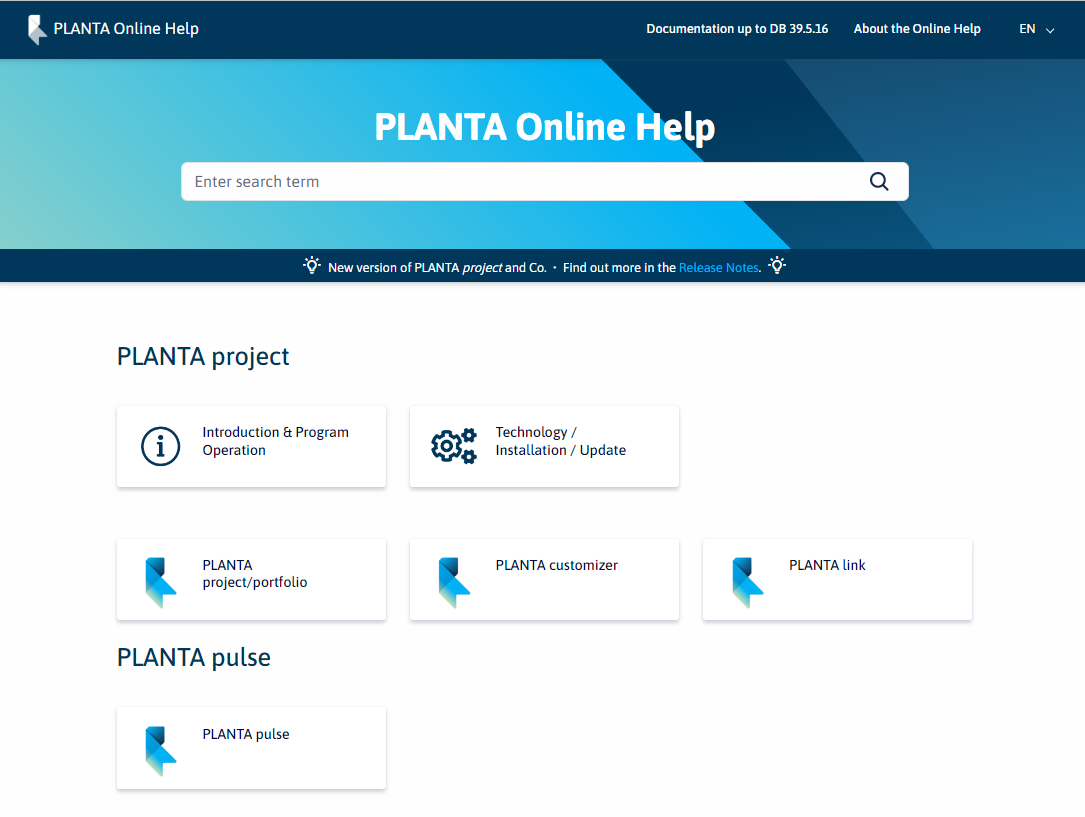
On the start page of the PLANTA Online Help, all help areas are listed:
-
The individual help areas are structured thematically.
-
Via the start page of the respective help area you can navigate directly to the required topic.
-
-
In addition to the topic-related pages, there are object descriptions in which the modules and data fields of the PLANTA software are described.
-
The object descriptions can be opened from within the software and via links (see Access). However, they will be hidden in the table of contents.
-
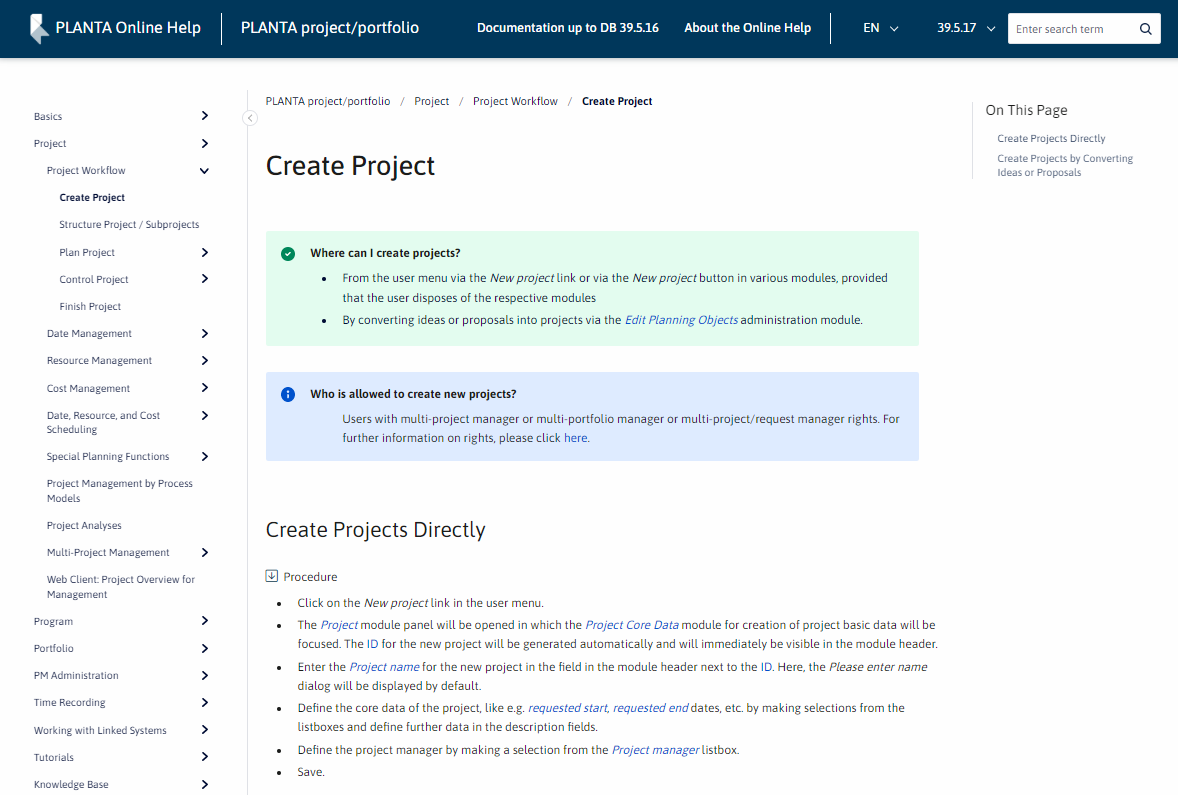
Example for a page in the PLANTA Online Help:
Read and write permission
-
every PLANTA project user has read-only access to the complete PLANTA Online Help.
-
Only PLANTA employees have modification rights.
Open Documentation
Information
-
The PLANTA Online Help can be opened via browser or directly from within the software.
Open the PLANTA Online Help via browser
-
Enter https://help.planta.de/en into your browser.
-
You are now on the entry page of the PLANTA Online Help (figure 1). Here, all available spaces are listed as individual boxes.
-
If you do not know yet in which space you will find the required information, you can use the search field on the entry page to search for a search term in all spaces.
-
If you are looking for information regarding PLANTA project, click on the PLANTA pulse box to open the start page of this help section (figure 2). Here, all the topics of the space are listed.
-
If you cannot find the required topic on the home page of the space, you can use the search field to search for a search term in the entire space.
-
If, for example, you are looking for information regarding basic data in PLANTA project, click on the General information and basic data box to open information on this topic (figure 3).
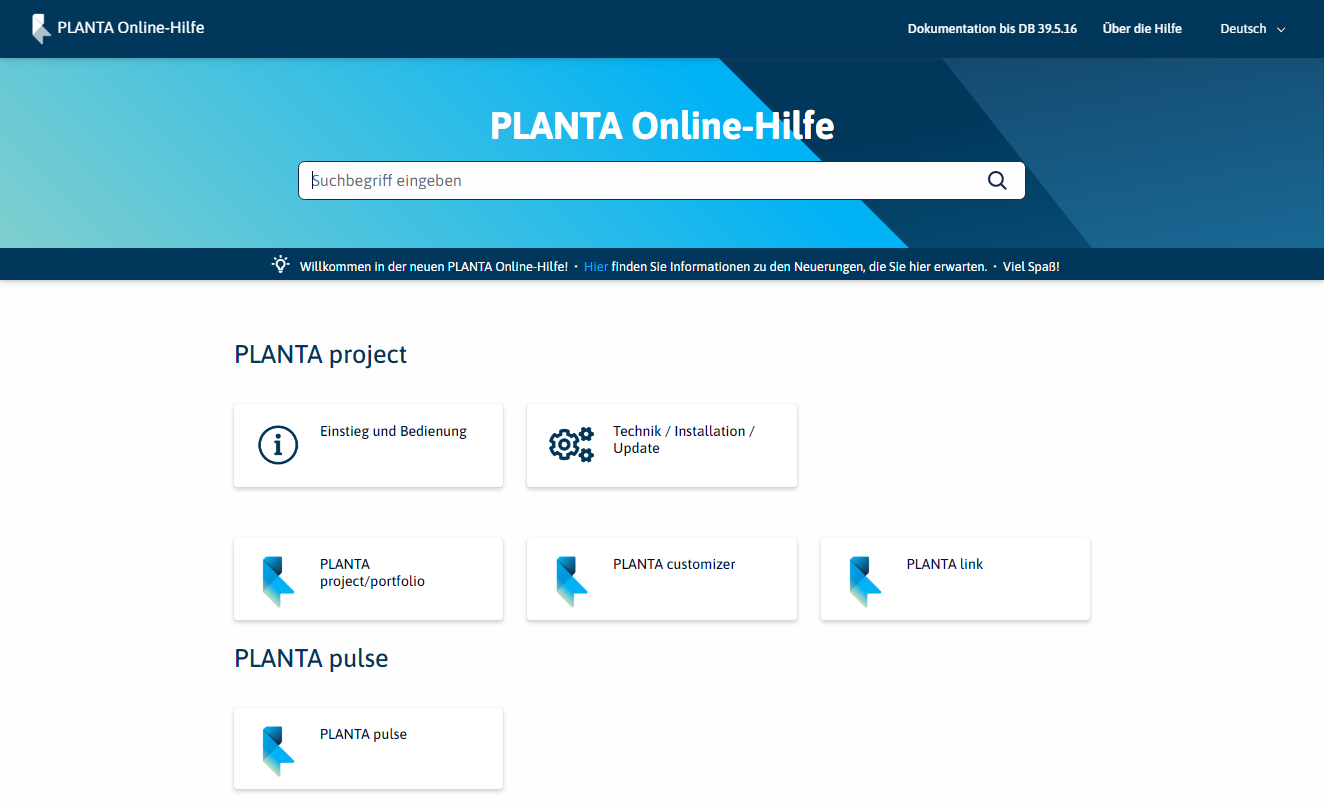
Image 1: Entry page of the Online Help
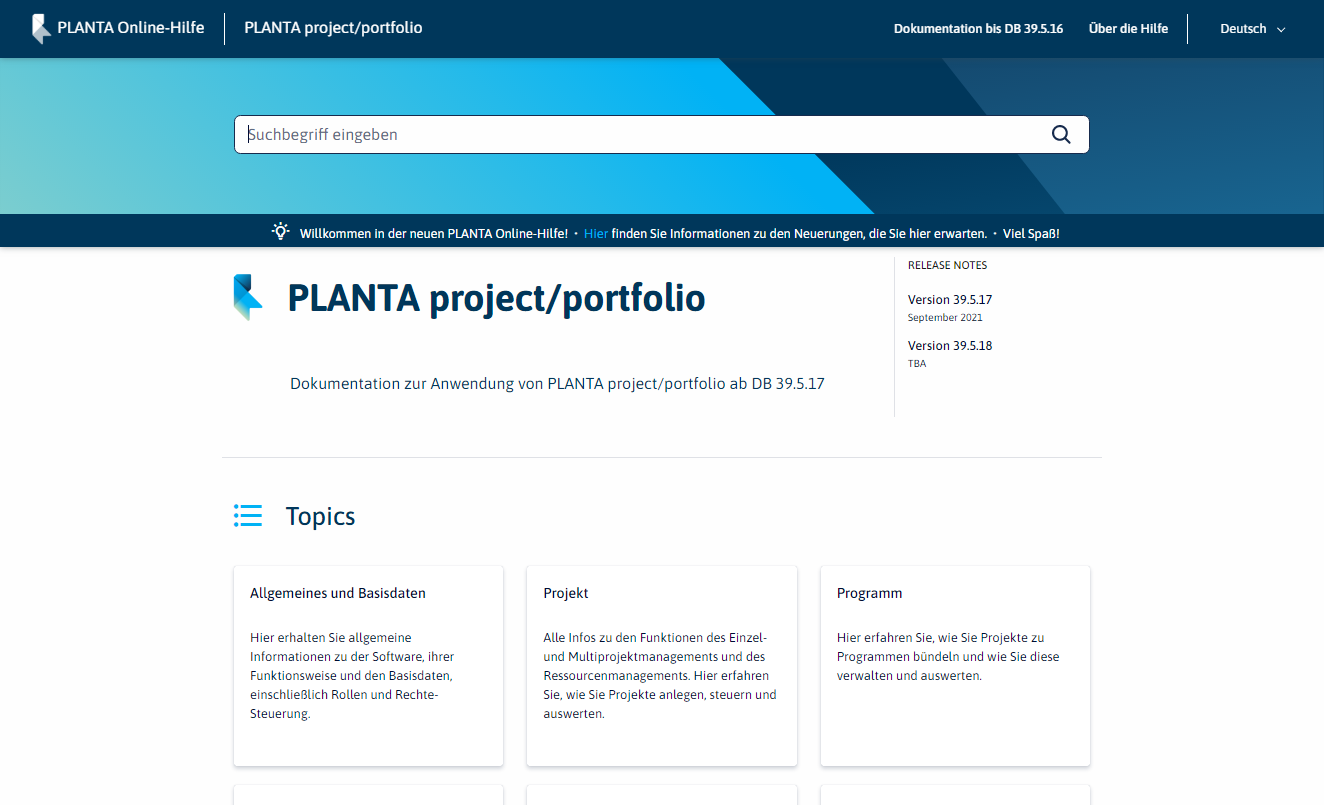
Image 2: Home page of the space
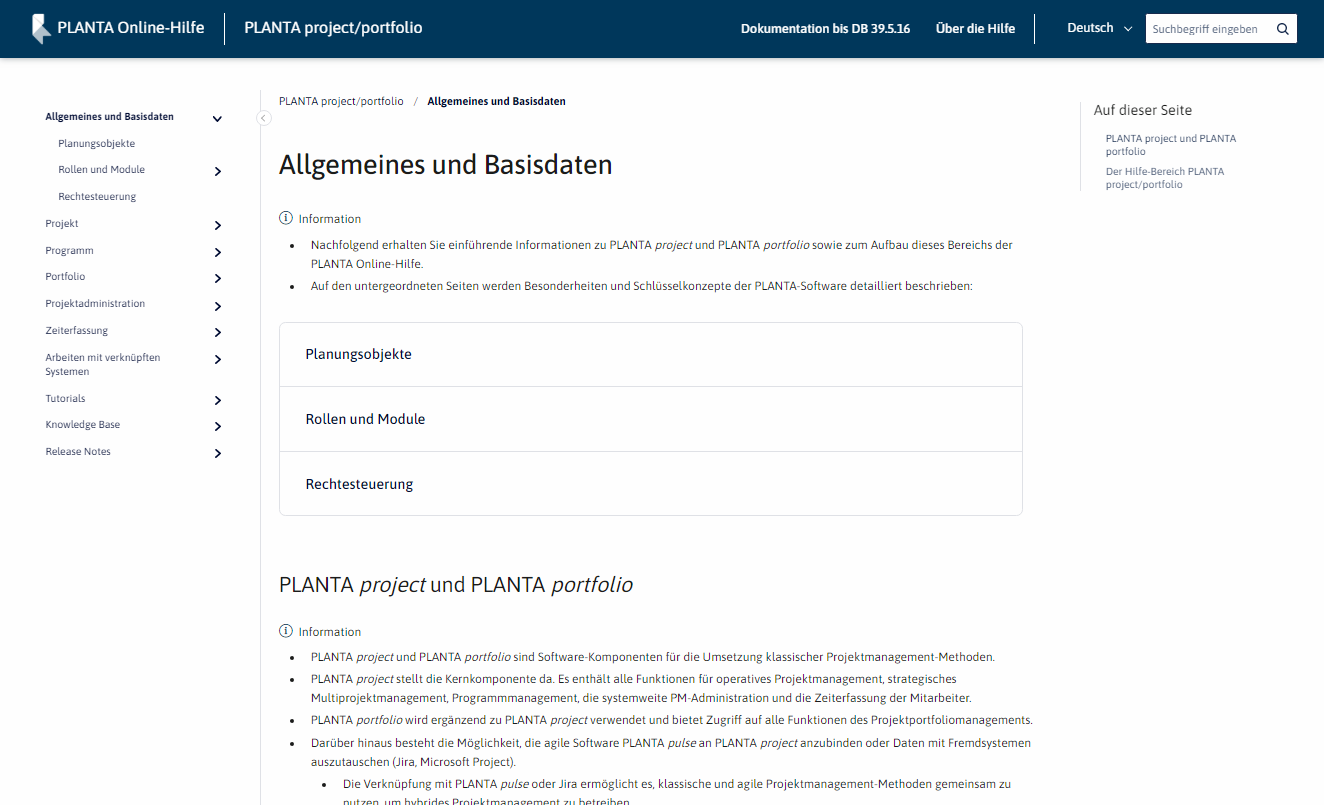
Image 3: Example of a page
By clicking PLANTA Online Help in the upper left of the header you can return to the entry page from all spaces.
By clicking on the title of a space in the upper left of the header you can return to the home page of the space from the individual pages of the space.
Open the PLANTA Online Help from within the program
-
Open the description of a particular module:
-
Press F2 or select the ? menu item. → Module descriptions in the required module.
-
-
Open the description of a particular data field:
-
Press F1 in the required data field or select the ? menu item. → Data field description (the data field must be focused by confirming via mouse-click).
-
-
Open the PLANTA Online Help start page
-
Press CTRL+M or select the ? menu item. → Open Manual.
-
When you open the Online Help from within the program, the version corresponding to your program is opened automatically.
If you open the description of a module or a data field, the appropriate help area which contains the required module or data field will be opened automatically.
By clicking on the PLANTA Online Help on the left-hand side in the header of the Online Help you can switch to the start page if required in order to open another help area.
Note
-
If you press F1 or F2 on a field or in a module which is not contained in the standard program but which was customized individually in your system, only a notification page will be opened in the PLANTA Online Help, informing you that you are currently on an individual object.
Search
Information
-
In the PLANTA Online Help, the search can be opened from three places:
-
On the entry page, which is opened when opening
help.planta.de/en
-
If the search is started here, all spaces are searched
-
-
On the home pages of the individual spaces
-
If the search is started here, the currently opened space is searched.
-
-
On the individual pages of the space in the upper right
-
If the search is started here, the currently opened space is searched.
-
-
Details
-
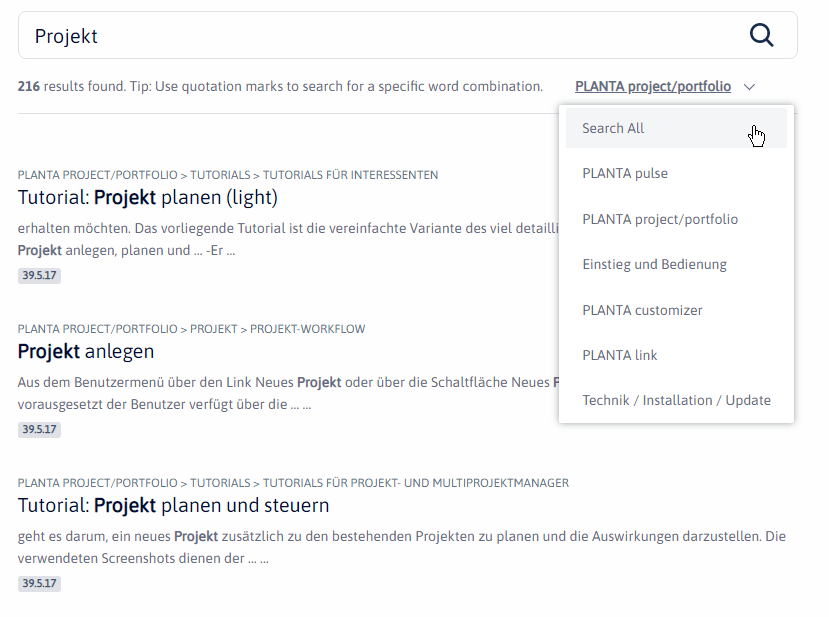
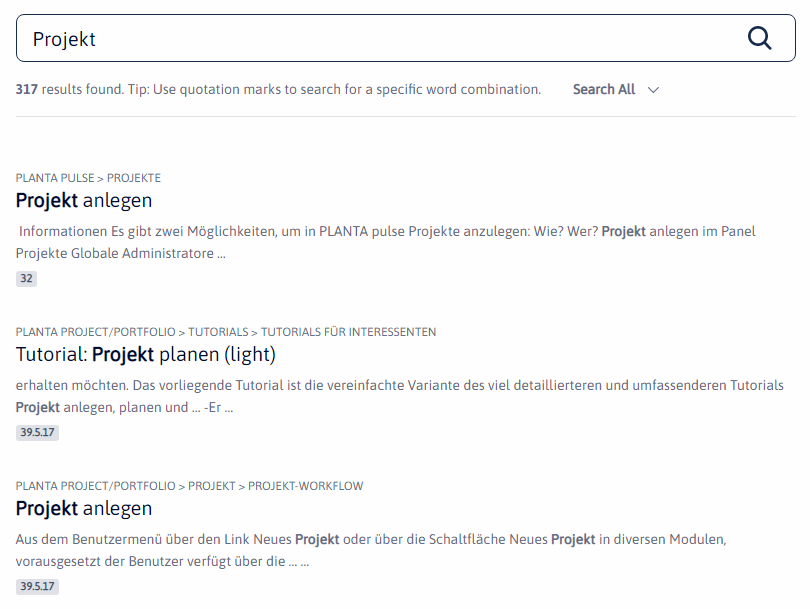
When the search results are displayed, the information which space is being searched is also displayed.
-
If needed, another space can be selected in the according listbox above the search results.
-
Select the All option to search all spaces.
-
The paths above the results also contain the information in which space the search result can be found.