
Information
-
The connection between client and server cannot be established if
-
no server address was entered in the client installation.
-
Client parameters were not defined or defined incorrectly.
-
the PLANTA Service is not running.
-
Details
-
The following dialog window will be displayed:
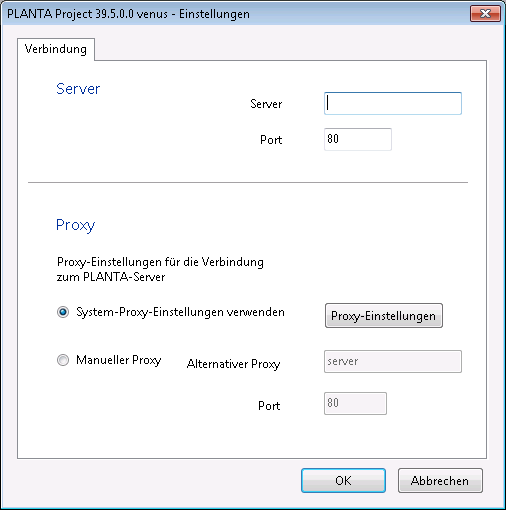
Establish a Connection to the Server (Directly)
Procedure
-
Enter the server name in the Server field and the port number in the Port field.
-
Confirm with OK.
-
The client will attempt to establish a connection to the server.
-
-
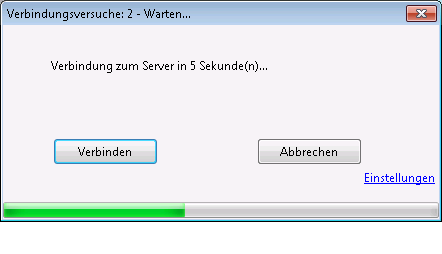
If no connection can be established, the following dialog window will be displayed:
-
The client will attempt to establish a connection. The interval between the connection attempts is prolonged by 10 seconds upon each attempt (auto connect).
Details
-
Click on the Connect button to initiate an immediate connection attempt.
-
Click on the Cancel button to close the client.
-
After clicking on the Settings link, the first dialog box is displayed again. Server name and port number can be entered again.
Note
-
Upon crash or when the server is terminated, the client attempts to reestablish the connection to the server. In such a case, the message is displayed until it has reestablished this connection (reconnect). As soon as the connection to the server is established again, the login dialog message is displayed.
Establish a Connection via Proxy Server
Procedure
-
The Windows proxy settings can be configured by clicking on the Proxy settings button.
-
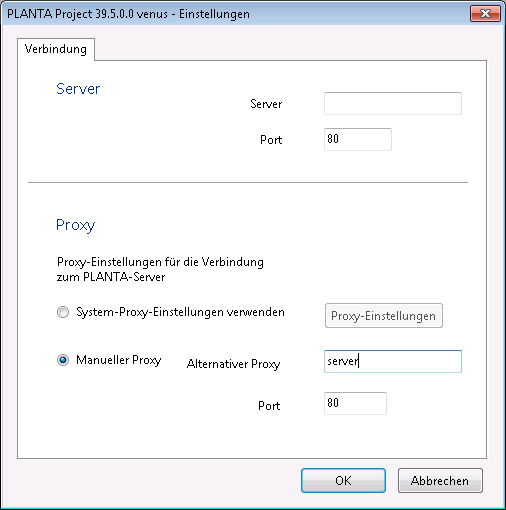
Alternatively, the proxy settings can be adjusted manually as well.
-
Activate the Manual proxy checkbox in the Proxy area.
-
Enter the server name in the Alternative proxy field and the port numbers in the Port field.
-
-
Confirm with OK.
-
The client will attempt to establish a connection to the server.
-