
Introduction
Information
-
In addition to the conventional way of project planning, PLANTA project allows you to plan and control projects in a process-oriented way.
Objective
-
The objective of this workflow is to teach users how to work with process models in the PLANTA software.
Notes
-
All exercises are based on the PLANTA demo data. This data must be installed beforehand.
-
Master data such as process models, resources, users, etc. has already been set up in the demo data. This tutorial does not cover the definition of master data (for information on this subject, see Master Data Entry). In this topic you will merely find descriptions of procedures like project planning or the creation of a new project based on one of the available models.
-
A technical guide on how to create and control projects with the PLANTA software can be found in the Project Tutorial as well as in the description of individual user modules (in the case of planning objects such as ideas, plans, or requests).
-
We recommend that you work through the Project Tutorial before getting started with the process model workflow.
-
The screen shots used in this tutorial are mere examples of functions and may differ from the actual layout in the program.
Activate Process Models (R41)
Task
-
The multi-project manager, Mr. Hart, has just created the new project PR-01 and has appointed Ronja Koch (R8) as project manager.
-
To plan and control the new project, Mr. Hart would like to apply the DIN69901/1-5 EN process model.
Procedure
-
Start the client.
-
Log in with user R41.
-
Enter PR-01 as project name.
-
Appoint Ronja Koch as a project manager (Manager).
-
Deactivate the Locked checkbox in the Attributes/Parameters area (the field must not contain a checkmark).
-
Save.
-
The Do you want to replace the existing stakeholder assignment of the manager or do you want to assign the new manager as stakeholder in additionally? message is displayed. Select Assign new manager stakeholder additionally in order to keep Georg Hart as stakeholder.
-
-
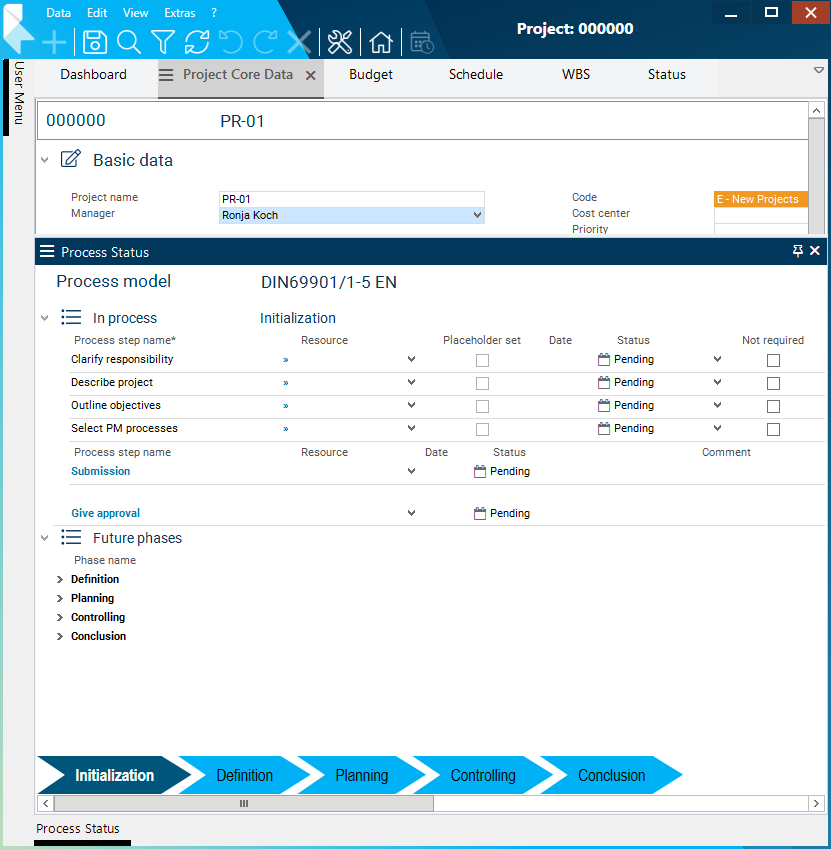
Click on the Process status tab at the bottom of the panel in order to open the module of the same name.
-
Select the DIN69901/1-5 EN process model from the Process model listbox.
-
Click on the Activate model button.
-
All phases of the model are loaded along with the process steps belonging to it.
-
the first phase is opened under the In process category; the individual process steps are immediately visible.
-
All other phases are displayed under the Future phases category, the individual process steps are invisible.
-
-
The process bar at the bottom of the module is loaded.
-
Edit the Phase (R41)
Create Process Steps Manually
Task
-
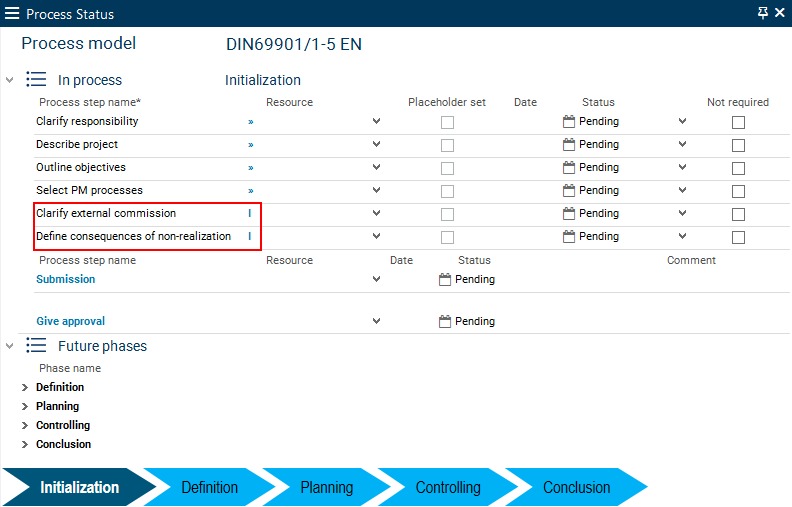
For the Initialization phase, Mr. Hart wants to create the additional Define consequences of non-realization and Clarify external commission process steps.
Information
-
New process steps can be inserted manually in the existing model:
-
Project specific process steps: right-click on the process phase names → Insert process step
-
Approval steps: via the context menu Create subordinated approval step
-
Process steps of the Submission class cannot be inserted manually.
-
Procedure
-
Right-click on the Initialization process phase in the Process Status module and select the Insert process step context menu command ( project-specific process steps that were inserted manually are marked with "I").
-
Enter a name for the new process step in the line inserted in the Process step name field.
-
Place the new step below the Select PM processes step by holding SHIFT and dragging with the left mouse button.
-
Create the second individual process step in the same way.
-
Save.
Delete Process Steps
Task
-
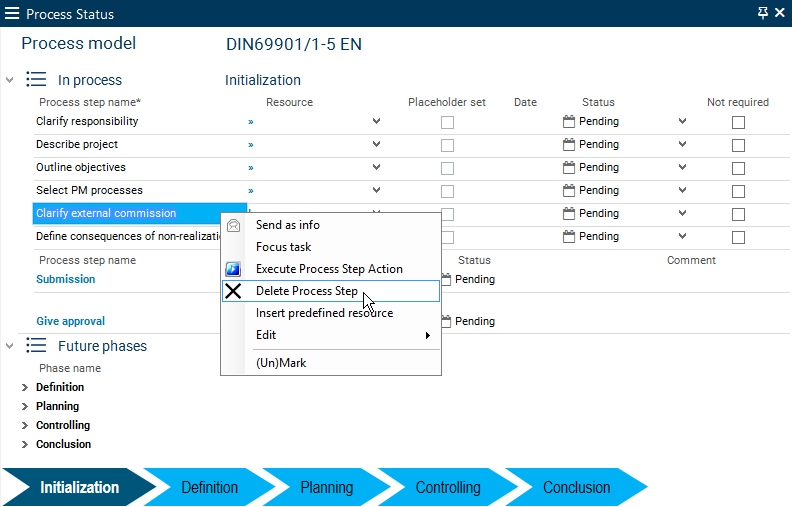
After consideration, Mr. Hart no longer considers the Clarify external commission process step to be necessary. He now wants to delete it.
Procedure
-
Right-click on the process step in the Process Status module.
-
Select the Delete process step context menu command.
-
Confirm the dialog message with OK.
-
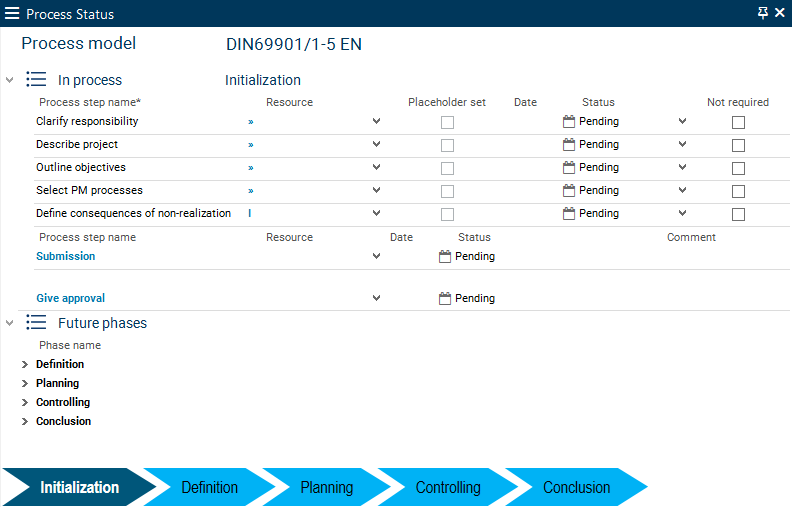
The process step has been deleted.
Notes
-
Standard process steps can only be deleted if the respective checkboxes have been activated in the Process Model Templates module.
-
If process steps must not be deleted, the Due to the configuration of the process model, the marked records could not be deleted. message will be displayed.
-
Deactivate Process Steps
Task
-
As Mr. Hart has already appointed the project manager for the project, the Clarify responsibility process step is no longer necessary. Furthermore, PM processes have already been selected for this project, which is why this process step is not required.
-
Mr. Hart wants to deactivate both steps.
Procedure
-
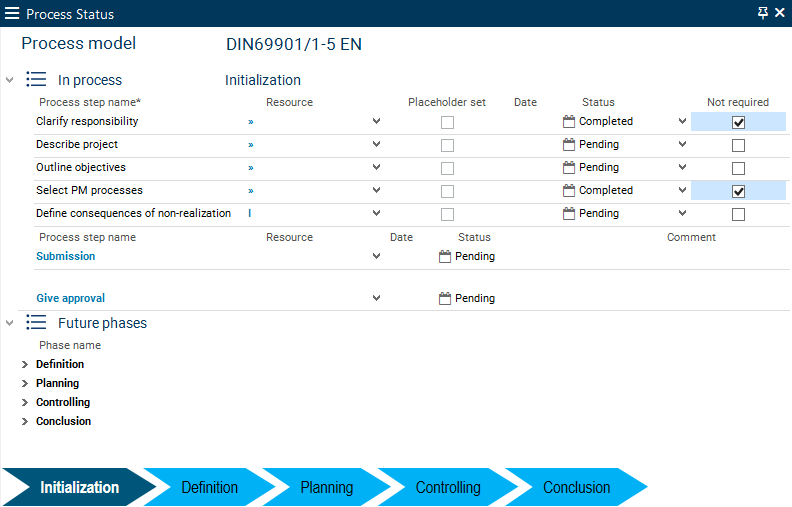
Activate the Not required checkbox next to the Clarify responsibility process step in the Process Status module.
-
The status of this process step is automatically set to completed.
-
Do the same for the Select PM processes process step.
-
Save.
-
The process steps are now deactivated.
Define the person responsible for the process steps
Task
-
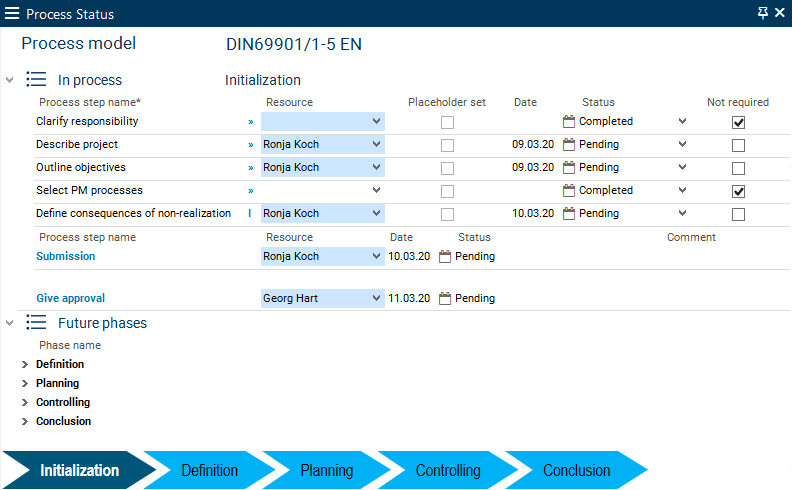
Mr. Hart now wants to define completion dates as well as a person responsible for every project-specific, submission, and approval process step (usually this is a manager or another person with modification rights).
Procedure
-
Select a resource in the Resource name field in the process step line.
-
Select completion dates for next week in the Date field.
-
Describe project:
-
Person responsible: Ronja Koch (PM)
-
Date: 8/28/2019
-
-
Outline objectives:
-
Person responsible: Ronja Koch (PM)
-
Date: 8/28/2019
-
-
Define consequences of non-realization:
-
Person responsible: Ronja Koch (PM)
-
Date: 8/29/2019
-
-
Submission:
-
Person responsible: Ronja Koch (PM)
-
Date: 8/29/2019
-
-
Give approval:
-
Person responsible: Georg Hart (MPM) ( The logged-on user can only define himself/herself as the person responsible for approval when he/she is multi-project manager.)
-
Date: 8/30/2019
-
-
Save.
-
Edit Process Steps (R8)
Execute Process Steps
Task
-
Project manager Ronja Koch (R8) wants to execute the process steps for which she has been defined as the person responsible.
Procedure
-
Start the client.
-
Log in with user R8.
-
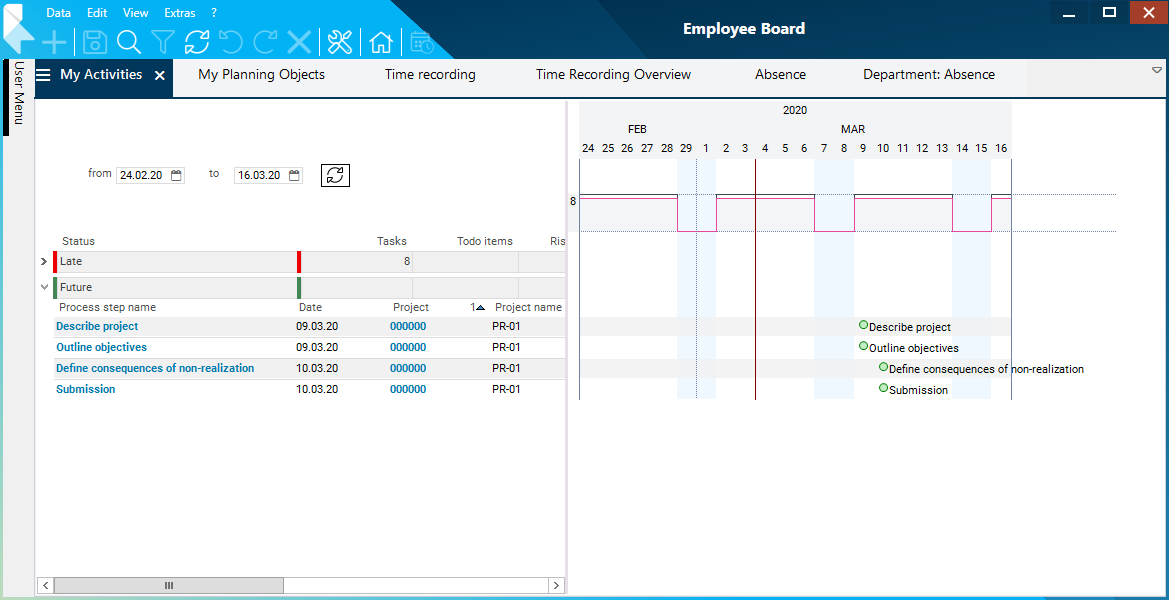
Ronja Koch can now see the process steps she is supposed to edit in the My Activities module of the Employee Board panel in the Future area in the Process step name subarea.
-
First, Ronja Koch wants to edit the Describe project process step.
-
Click on the link on the ID of the project.
-
The Project panel of project PR-01 is opened.
-
Activate the Process Status module at the bottom left margin of the panel.
-
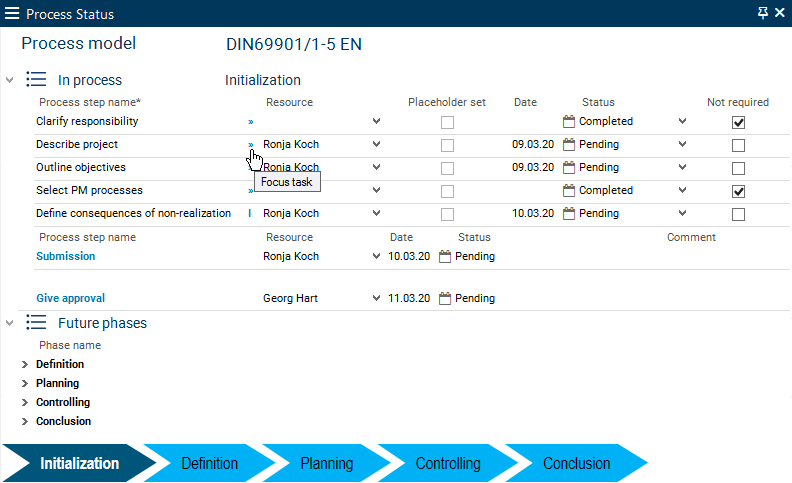
Click on the Focus task button next to the name of the Describe project process step. (Alternatively, the task can be focused using the Focus task context menu command.)
-
This function is only available if the corresponding process rules have been defined for the process step in the Process Model Templates module. This only makes sense for process steps that require a defined data entry in the system in order to be completed.
-
-
-
-
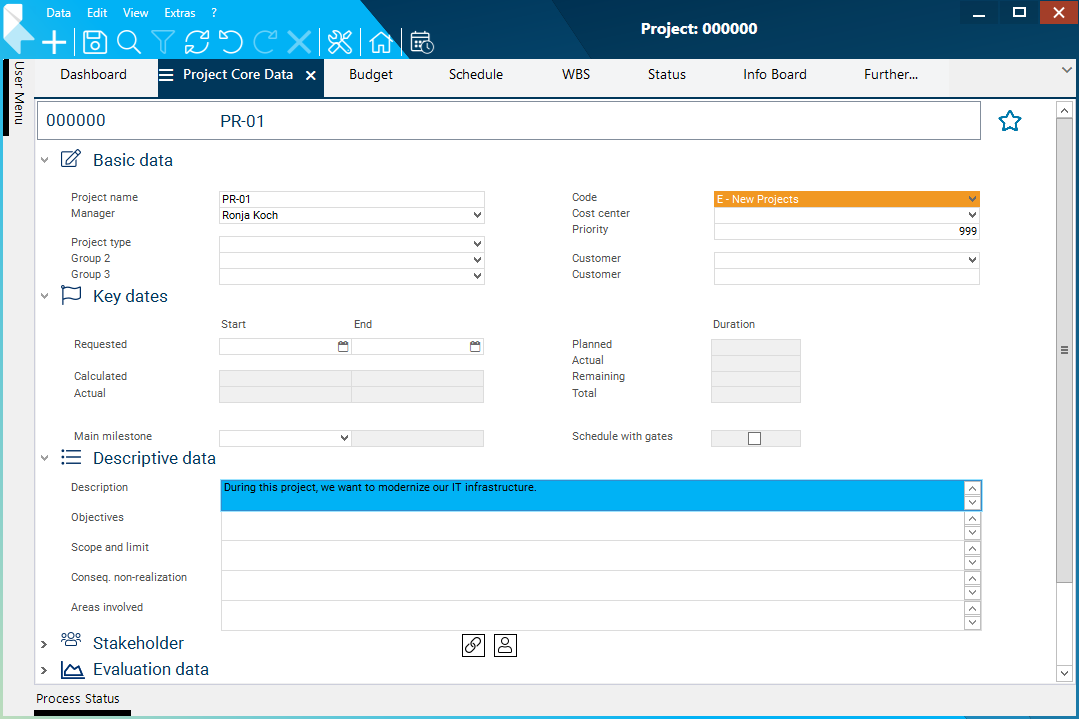
The linked module is opened and the field to be edited is focused. In this case, the Description field in the Project Core Data module.
-
Write a description for the project.
-
Save.
-
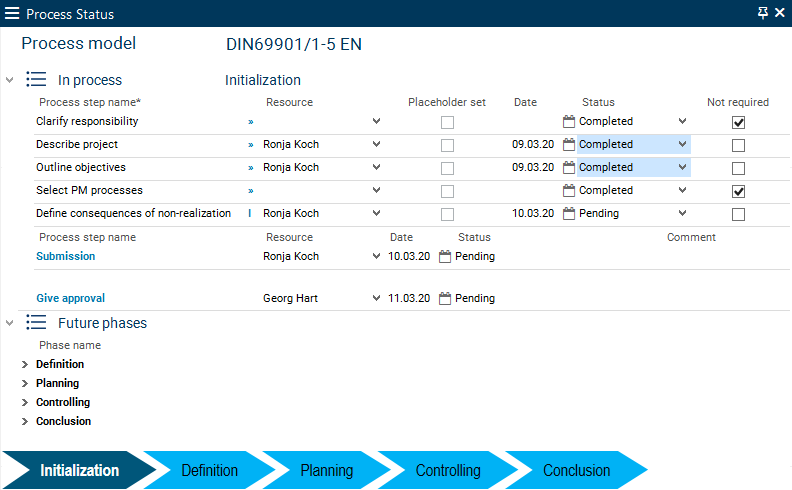
Ronja Koch has completed the Describe project process step and changes the process step status in the Status field in the Process Status module from Pending to Completed.
-
Save.
-
Ronja Koch then carries out the same steps for the Outline objectives process step.
Notes
-
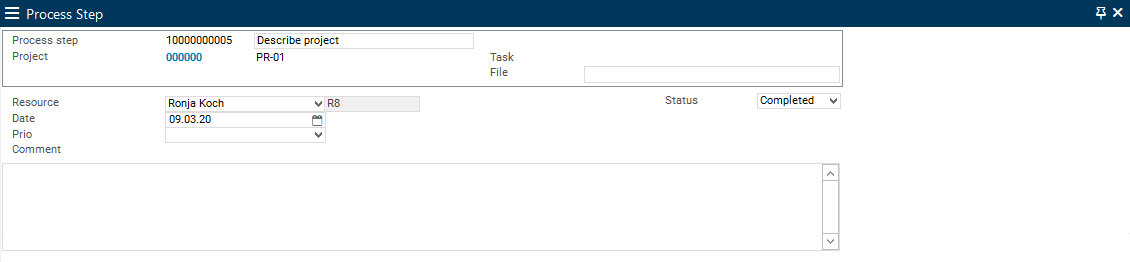
The process step status can also be changed in the Status field of the Process Step Core Data, which can be opened by clicking on the Edit process step context menu command in the My Activities module or by clicking on the Process step name link.
-
When a process step has the Completed status, it is no longer displayed in the employee board of the corresponding employee.
-
Process steps are only really completed when the Tutorial: Plan a Project with a Process Model | id (39.5.19 en)Tutorial:PlanaProjectwithaProcessModel Abgabe in the Process Status module has been completed.
-
The process step status of the Submission and Approval classes cannot be changed manually. This happens automatically when the process step concerned is completed.
Task
-
Complete the Define consequences of non-realization process step in the same way.
Notes
-
The Define consequences of non-realization process step is an an individual process step which does not contain any focus to a corresponding editing module.
-
But Ronja Koch, as an experienced PLANTA user, knows in which module she has to edit data for this step.
Procedure
-
Ronja Koch opens the project panel of project PR-01,
-
activates the Project Core Data module and
-
fills the Conseq. non-realization field.
-
Then she sets the status of the process step to "Completed" as described above.
Submit Phase for Approval
Task
-
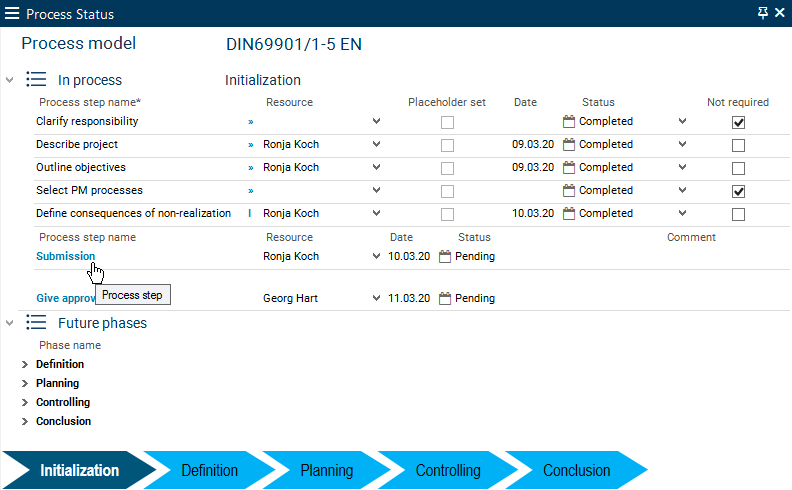
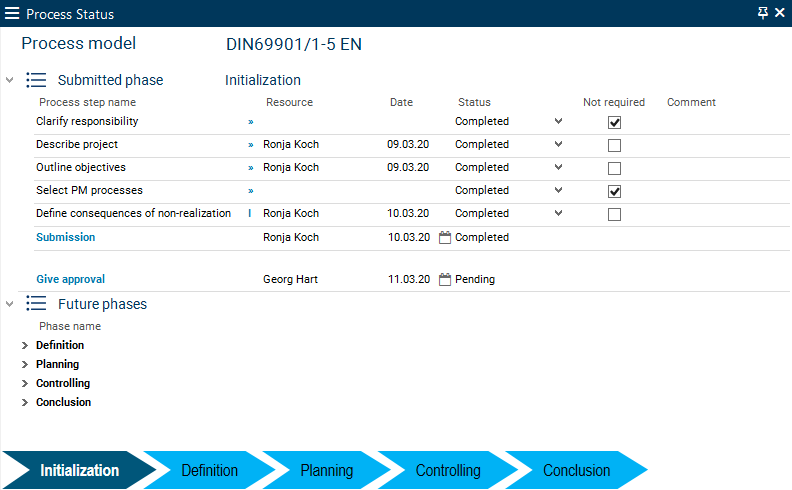
In the Process Status module, Ronja Koch sees that all project-specific process steps of the Initialization phase have the Completed status. Now she wants to submit the process steps of the Initialization phase. To do so, she needs to complete the Submission process step.
Procedure
-
Click on the link on the Submission process step in the Process Status module.
-
A message will be displayed asking whether you want to add a comment.
-
Confirm the message with No.
-
-
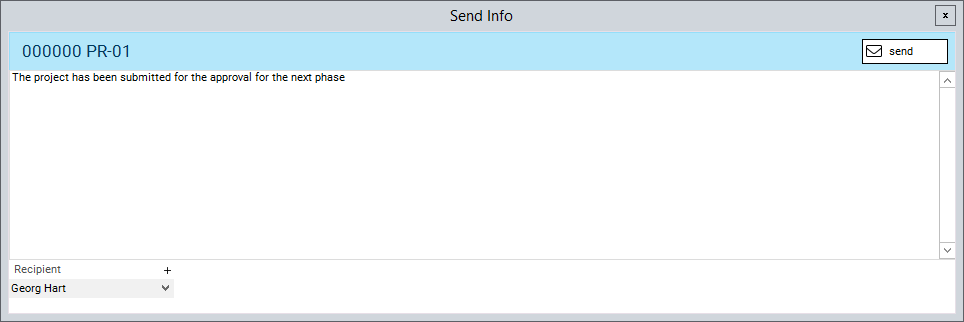
After submission, the Send Info module is opened and an info can be sent.
-
The text of the message is already predefined but can be changed if necessary.
-
Georg Hart is set as recipient by default.
-
-
Click on the Send button.
-
After submission, completed process steps are listed in the Submitted phase category.
Approve Phase (R41)
Task
-
The multi-project manager has checked the completed process steps and wants to approve the Initialization phase.
Procedure
-
Start client
-
Log in with user R41.
-
Open the project and click on the Give approval approval step in the Process Status module.
-
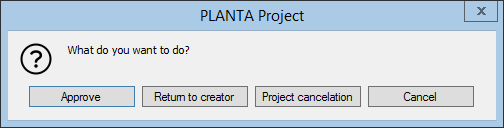
A dialog message is displayed.
-
Click on the Release button.
-
By doing so, the process step status is automatically set to Accepted.
-
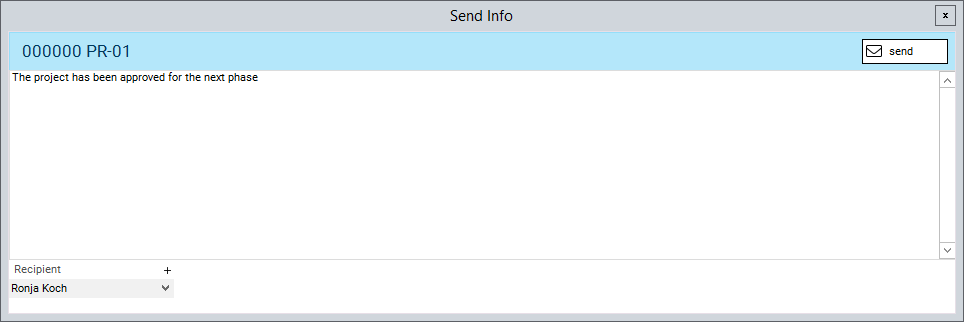
The Send Info module will be opened and a message can be sent.
-
The info text is inserted automatically.
-
Ronja Koch (R8) is automatically set as recipient for project PR01.
-
Click on the Send button.
-
-
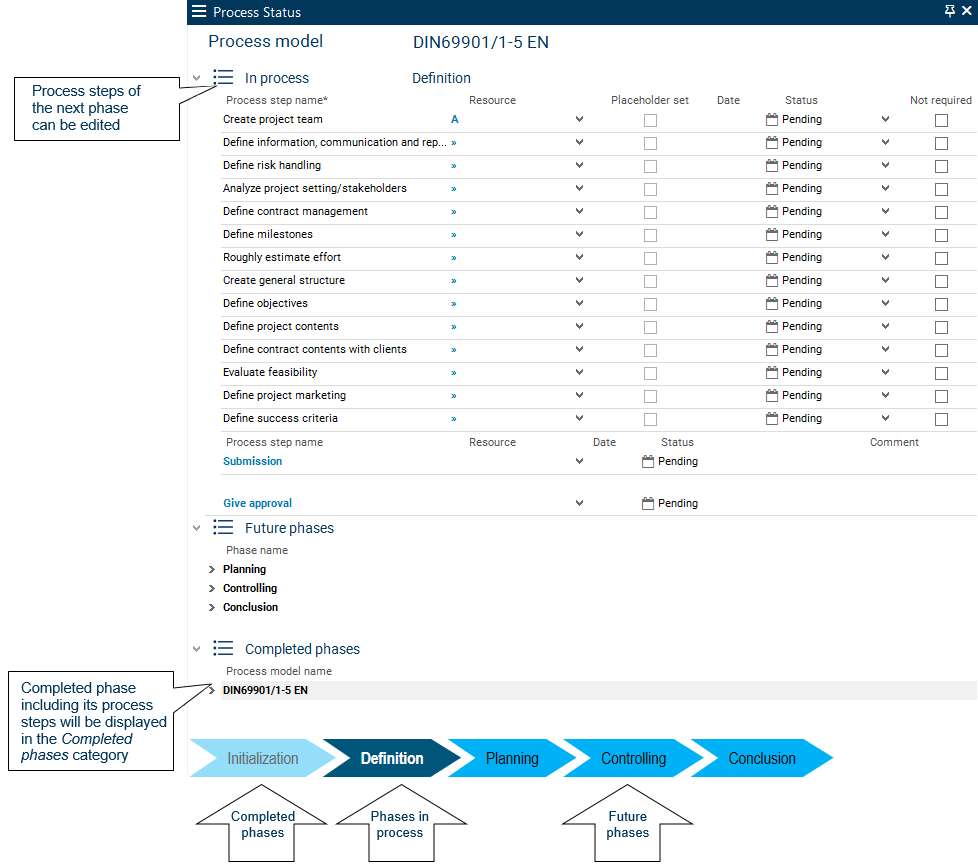
The completed phase including its process steps is moved to the Completed phases category.
-
In the process bar, the name of the completed phase is highlighted in gray and the name of the new phase is highlighted in white.
-
The process steps of the next phase can be seen in the In process category.
-
The transition from one phase to the next is thus completed.