
Information
-
In the upper area of a board, the board bar can be found within the home bar.
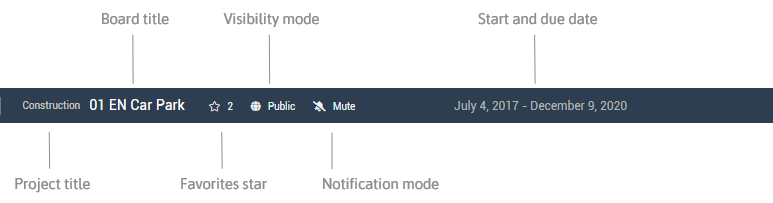
Project Title
Information
-
Via the link on the project title in the board bar, the project can be opened in the Projects panel.
Board Title
Information
-
By clicking on the board title, the title and the description of a board can be edited.
-
Furthermore, start and due dates can be added to the board and, if available, the custom fields of the board can be filled.
Procedure
-
Open board → Board bar
-
Click on the board title.
-
In the dialog box, edit/add the title and/or description of the board.
-
If needed, select start and due dates in the calendar and click Save.
-
If needed, edit the custom fields.
-
Click OK.
Details
-
The description of a board is displayed on the board card in the Boards panel.
-
The custom fields of a board are displayed in the board bar once a value is added.
The settings described above can only be configured by board admins.
Favorites Star
Information
-
A board can be added to the favorites.
Procedure
-
In the board bar, click on or click on the star on a board card in the Boards panel or in the Projects panel.
-
When a board has been added to the favorites, the favorites star changes to: .
Details
-
Favorite boards are displayed in the menu on the left.
-
In the Boards tab of the Projects panel, they are always displayed at the top in a separate Favorites area.
-
The number next to the star in the board bar (e.g. 2) indicates how many users have added the board to their favorites.
-
By clicking on the favorites star again, the board is removed from the favorites.
Visibility Mode
Information
-
Boards can be defined as Private or Public.
Edit visibility mode
-
Open board → Board bar
-
Click Private or Public and select a mode.
Details
-
A private board is only visible and editable for assigned members.
-
A public board is visible for every logged-in user in the area Public Boards.
-
It can only be edited by board members.
-
Users can join public boards themselves, if needed.
Notes
-
The visibility of boards can only be changed by board admins.
-
By default, new boards are created as Private boards.
Chat
Information
-
If the option is activated in the board menu, the button Chat is displayed in the board bar.
-
Board members can then access the board chat via the button.
More information on the board chat
Start and Due Date
Information
-
By clicking on the board title, start and due dates can be added for the board.
Procedure
-
Open board → Board bar
-
Click on the board title.
-
In the dialog box, select start and due dates in the calendar and click Save.
-
Click OK.
Details
-
The start and due dates of the board are displayed in the board bar.
Custom Fields
Information
-
Further custom fields can be created for a board.
-
The fields are created in the Projects panel → Settings tab or in the board menu.
-
The fields can be edited by clicking the board title.
-
Once values are entered, the fields are displayed in the board bar.