
Video tutorial
There are the following ways to insert new records:
-
By selecting the required data area from the context menu on the focused record
-
By clicking on the plus button directly in the record or in the record heading
In order to understand the insert function in the PLANTA software, knowledge of module structure or of module data areas, and a notion of the term "to focus" is required. For further information on module structure, please click here. The record in which the activated field is located is considered focused.
Details
-
The insert context menu and the pull-down menu on the insert button consist of two sections.
-
The first section is always identical, regardless of the data area from which the context menu is opened. Here, the data area(s) of the highest level for which insertion is allowed are displayed.
-
Whether the second section will be displayed and which areas will be shown there depends on whether insertion is allowed for focused data areas and/or its child data areas.
-
In general, a data area will only be displayed in one of the two subparts.
-
Notes
-
Depending on the rights of the logged-on user and the respective module context, different insert buttons are displayed in the action bar, such as New Task in the Schedule module.
-
All following examples are based on the Schedule and Time Recording modules.
Inserting by clicking the plus button when hovering over a record
-
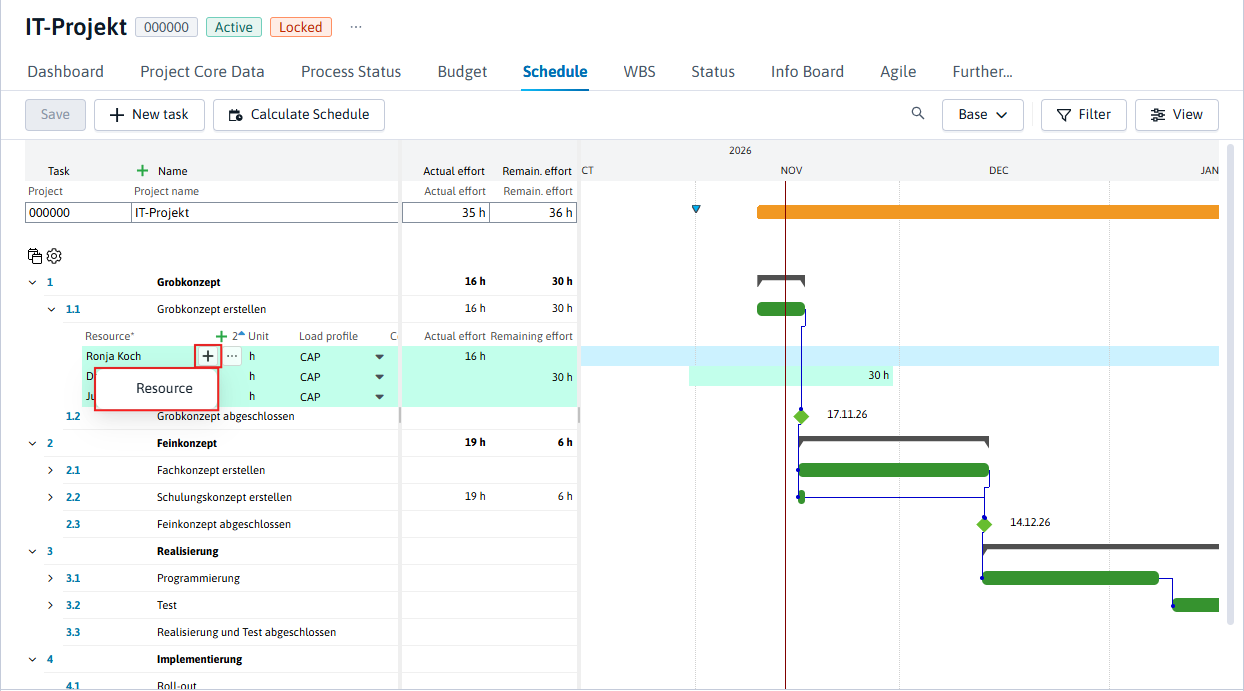
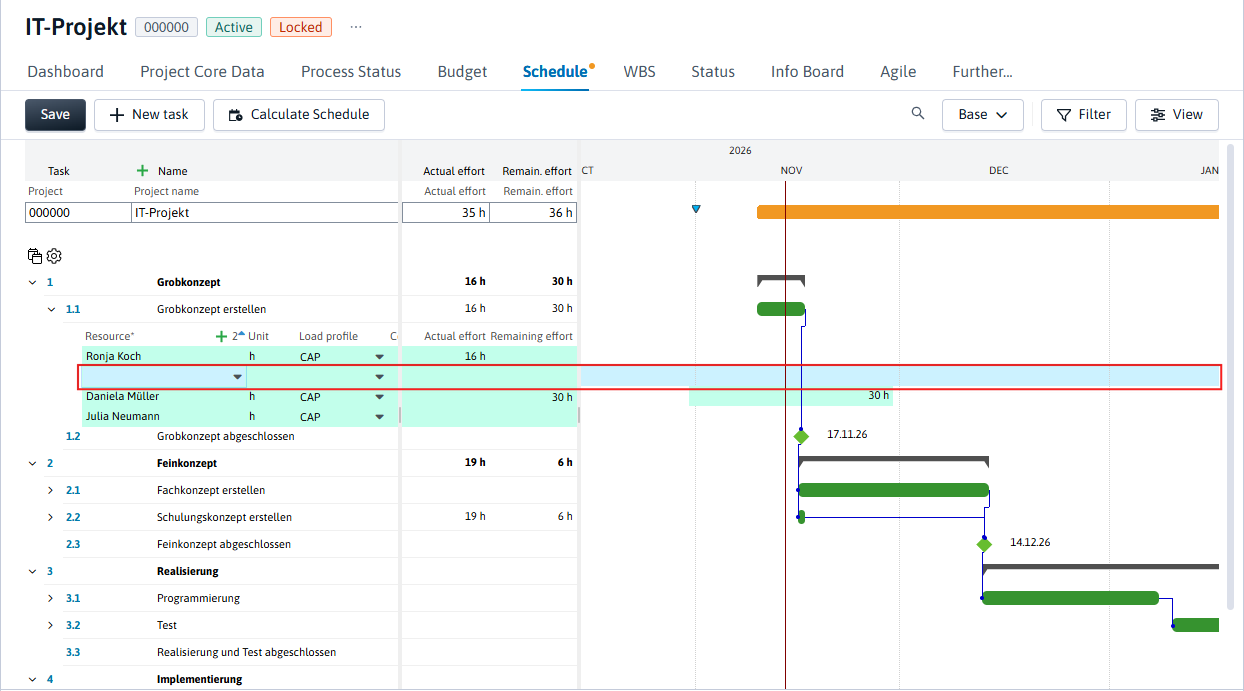
In some modules with table views, for example in the Schedule module, a plus button appears when hovering over a record, via which further records can be inserted.
-
A click on the plus symbol opens the same inserting options as the Insert command in the context menu of the respective module.
-
-
Where the new record is inserted depends on the existing structure:
-
If there are further records on the same level, the new record is inserted directly under the record from which the plus button has been clicked.
-
If the record from which the plus button has been clicked, has child records, the new record is inserted at the bottom of the child area.
-
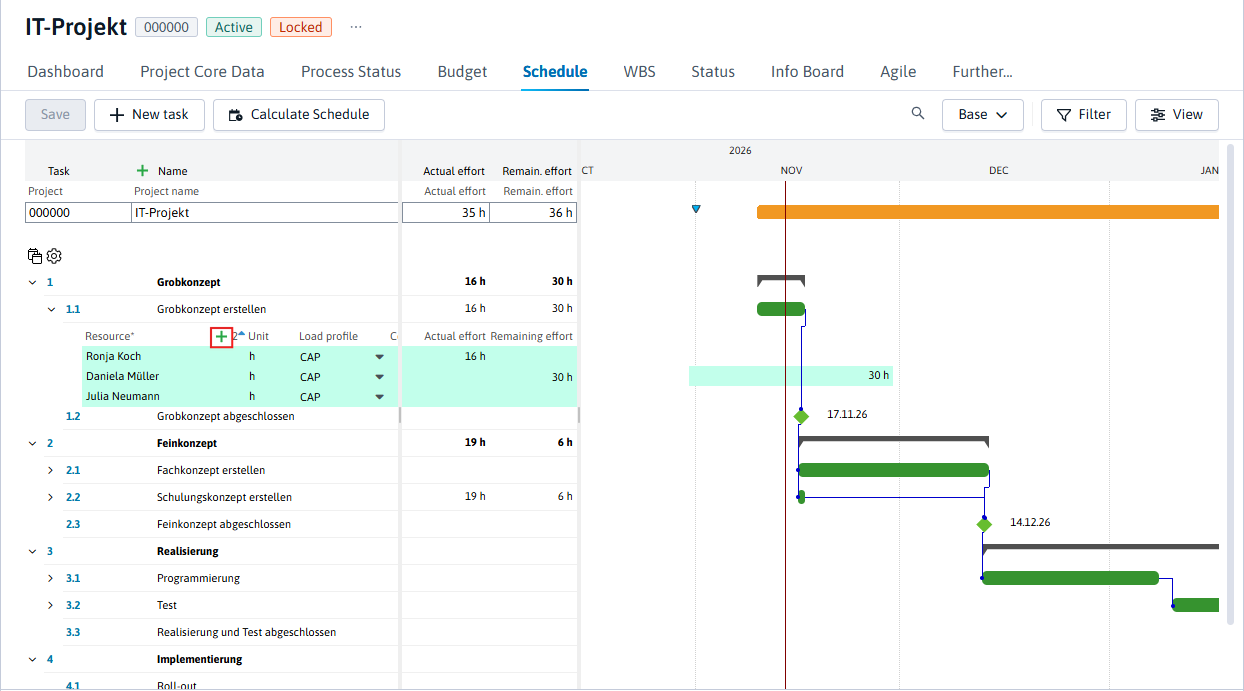
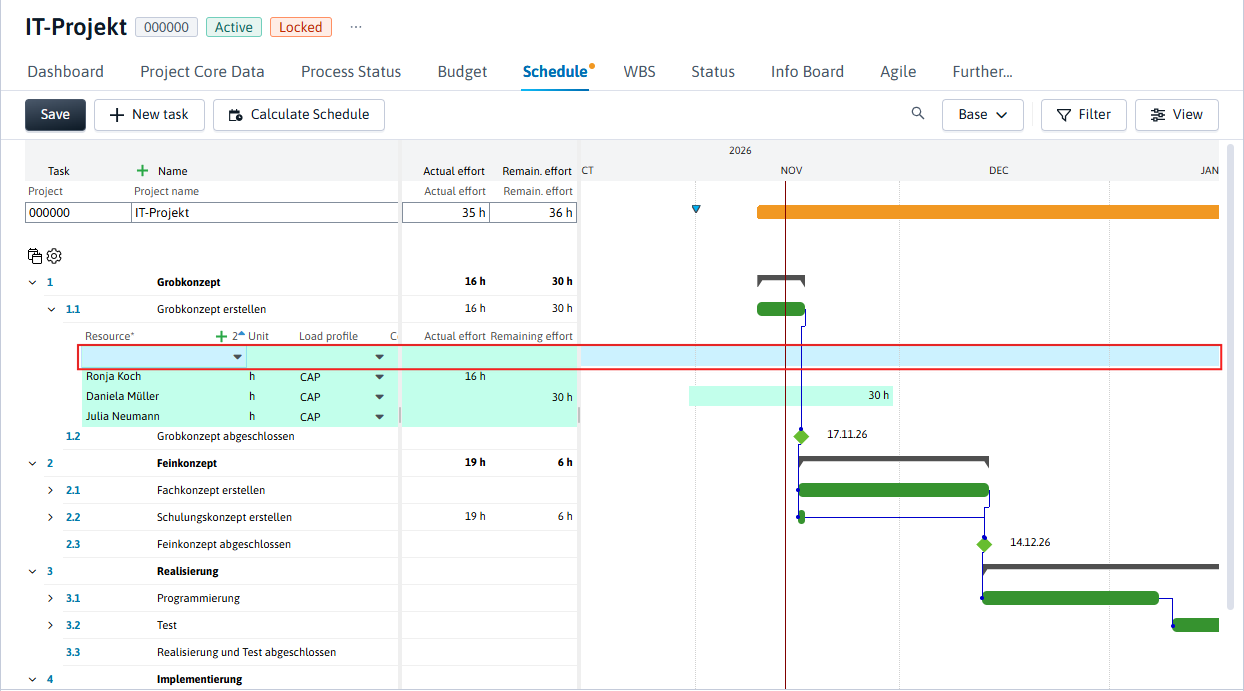
Inserting by clicking the plus button directly in the record or in the heading line of the data area
-
The new record will be inserted at the top of the data area from which the plus icon has been clicked.
-
In some standard modules, the insert button for inserting child records is displayed directly on the parent records, like, e.g., in the Time Recording module, so that the source records do not have to be focused.
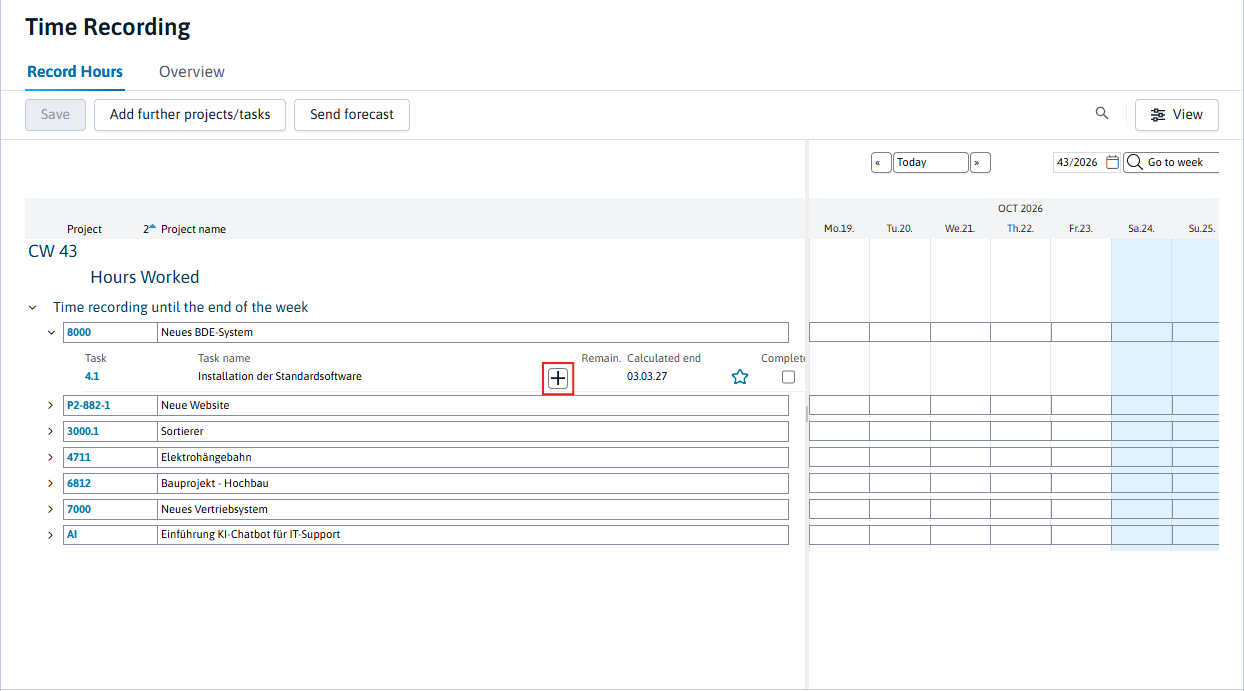
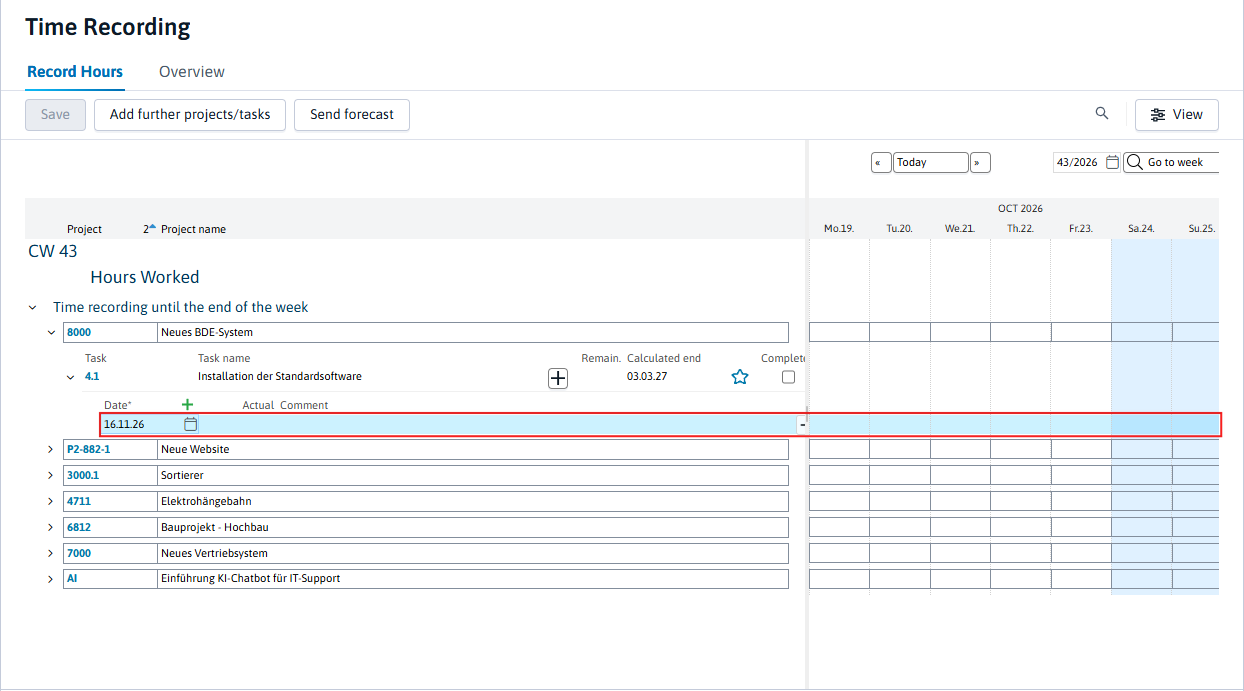
Inserting by selecting a data area from the context menu on the focused record
-
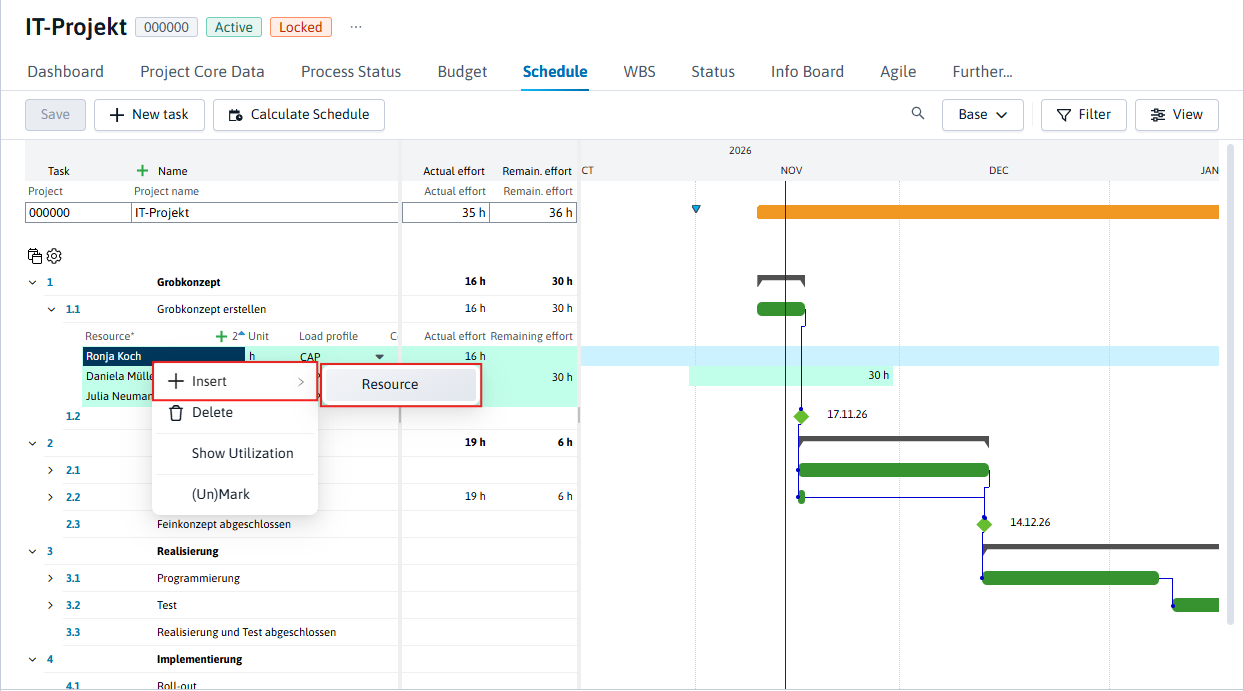
Focus the record and right-click to open the context menu.
-
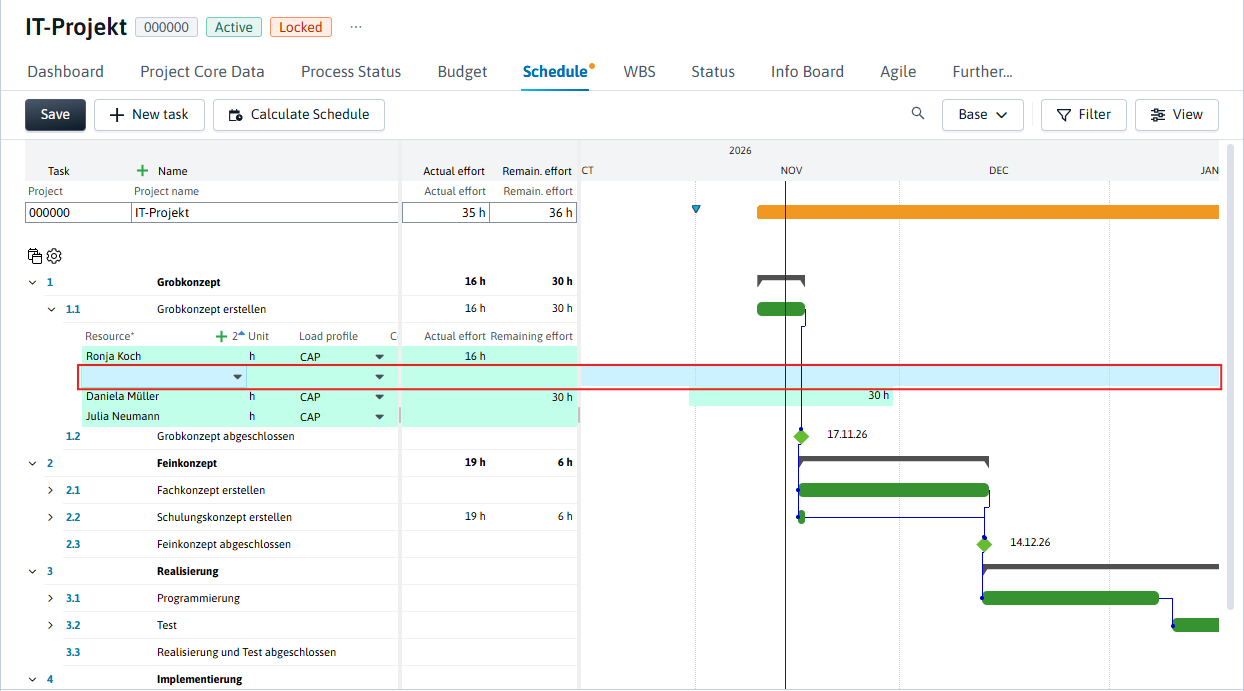
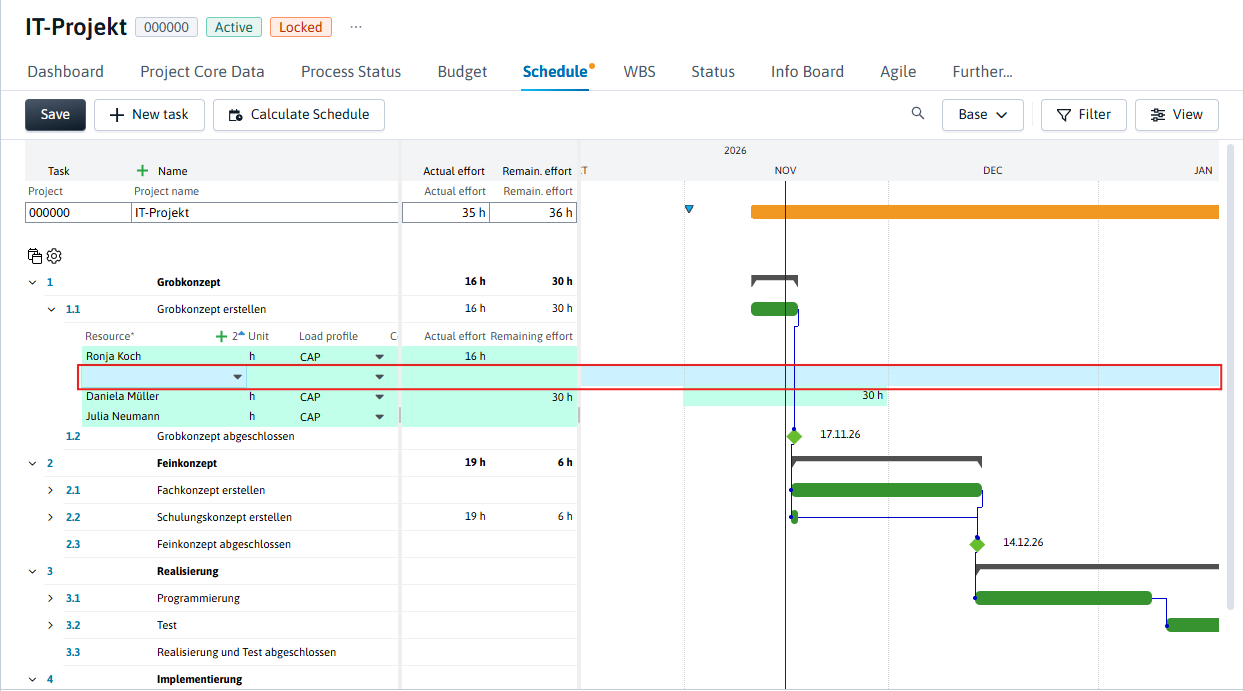
Click on the Insert command in the context menu and select what you want to insert (for example, a resource like in the figure below).
-
The new record is inserted directly under the focused one.
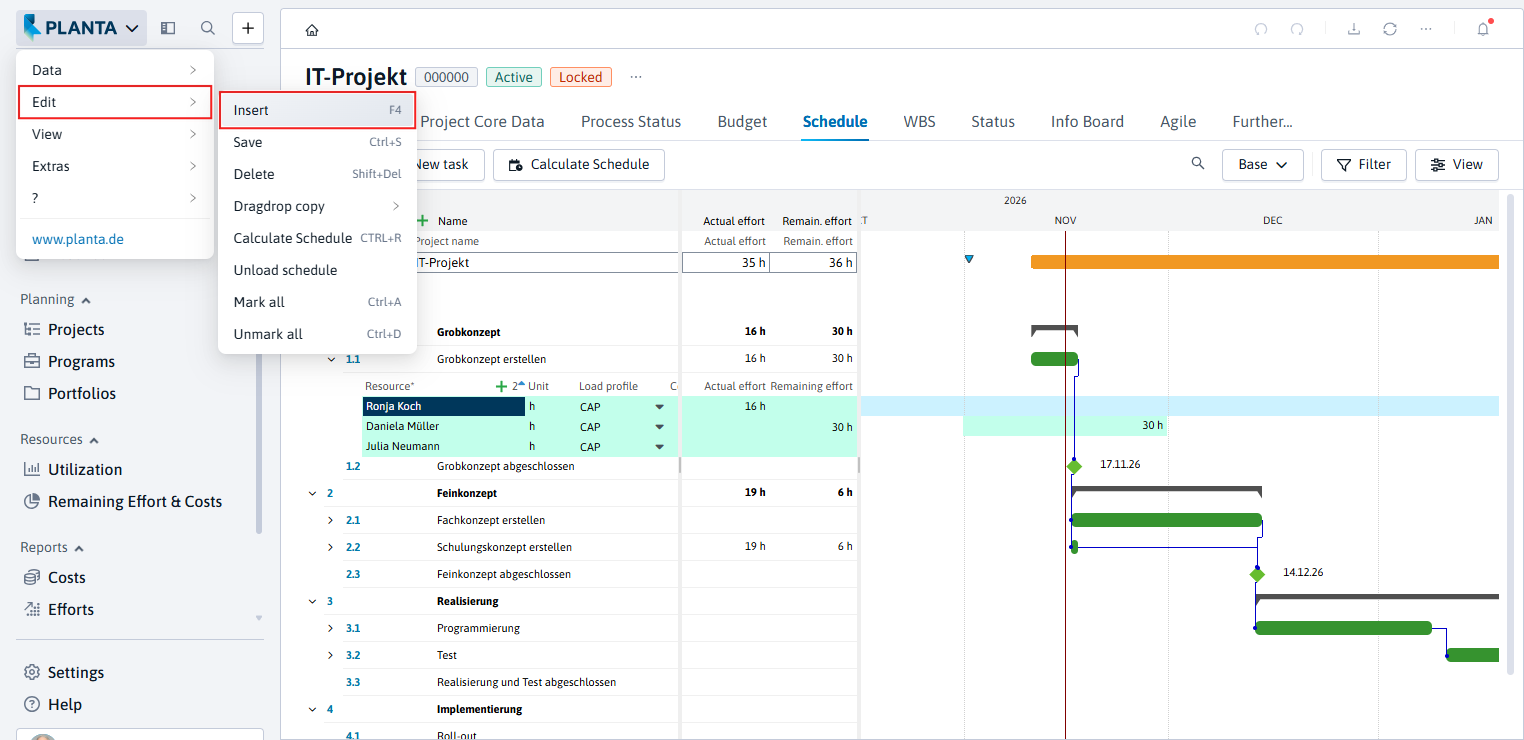
Inserting with F4 or via menu items
-
Focus the record under which a new record is to be inserted and
-
select the Insert menu item (as shown in the figure below).
-
The new record is inserted directly under the focused one.
Summary
|
Insertion options |
Coequal |
Subordinate |
Particularities |
|---|---|---|---|
|
Plus symbol when hovering |
x |
x |
- |
|
Plus symbol in the heading line |
x |
- |
- |
|
Context menu on a focused field |
x |
x |
- |
|
Plus symbol directly in the record/data area heading |
- |
x |
Not available in all modules |