
Information
-
In the PLANTA software, a module, also called view, is a unit which allows you to display and edit data from the database (e.g. project data). For example:
-
The Project Core Data module allows you to define the basic data of a project or shows the project basic data already defined and saved in the database.
-
The Schedule module allows you to define work packages, to schedule and link them, etc.
-
Module Structure: Interface
Components of a module
-
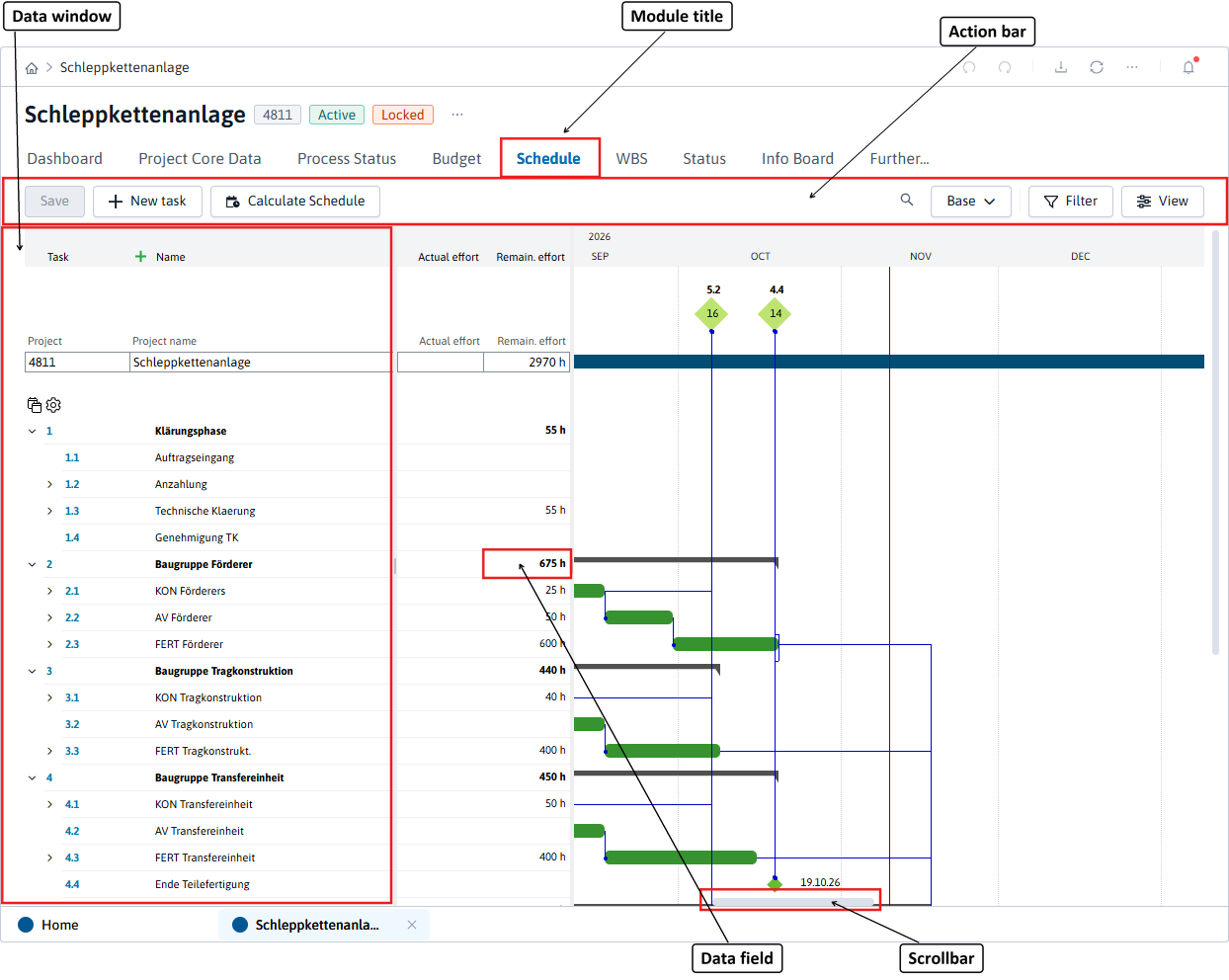
Module title
-
contains the title of the module (active module is highlighted in blue).
-
-
Action Bar
-
contains the menu items that are often used in the module context, as buttons. More to this in the section with the same name below.
-
-
Data Fields
-
contain data
-
can come with different data field behavior.
-
-
Data windows
-
subdivide module data for the sake of clarity. As a result, data fields can be contained in one or several windows (maximum 3).
-
Data fields can be unhidden/hidden per data window or be moved between the windows
-
-
Scrollbar
-
As soon as the data cannot be displayed completely, vertical or horizontal scroll bars are displayed.
-
Example
Action Bar
Information
-
Menu items and relevant features that are often used in the context of a specific module, are displayed as buttons in the action bar.
-
The action bar is beneath the module tab in every module.
-
Button group (left): Shows the buttons for the most important actions in the module, e. g. Save, New Task, or Recalculate.
-
View Controls (right): Contains control elements for adjusting the module view.
-
Which actions are displayed is dependent on the current module, the object status, and the user rights. Actions that lack the necessary authorization are hidden. The Action Bar can be adapted to project-specific requirements in Customizing.
The description of the actions (menu items) displayed on the buttons can be found in the respective sections in the Menu and Menu Items module.
Details
-
The first button is visually highlighted and assigned to the most frequently used action in the respective module.
-
By default, some buttons are always displayed. Others are only displayed once a data field or record is selected, such as the Delete Selected button.
-
Hovering the mouse pointer over a button highlights it.
Module Structure: Technology + Logic
Information
-
From a technical point of view, a module consists of data areas which in turn contain data fields from data tables.
-
From a user’s point of view, a module consists of records.
-
A record summarizes attributes/parameters of an object with their corresponding values.
-
Values are displayed in separate data fields.
-
What data fields belong to a record (record structure) is defined by the customizing of the corresponding data area.
-
-
-
A record can be displayed differently on the interface: in the form of a line (horizontal layout), in the form of a column (vertical layout), or arranged arbitrarily (in forms).
-
A horizontal record can extend over several windows.
-
The same data field over several records forms a data logical column.
-
Depending on the layout, a data logical column can consist of the visualization of a column (horizontal layout), a line (vertical layout) or a form from the field which is always at the same position across all records.
-
If there is only one record in a data area, one column = one data field.
-
Example
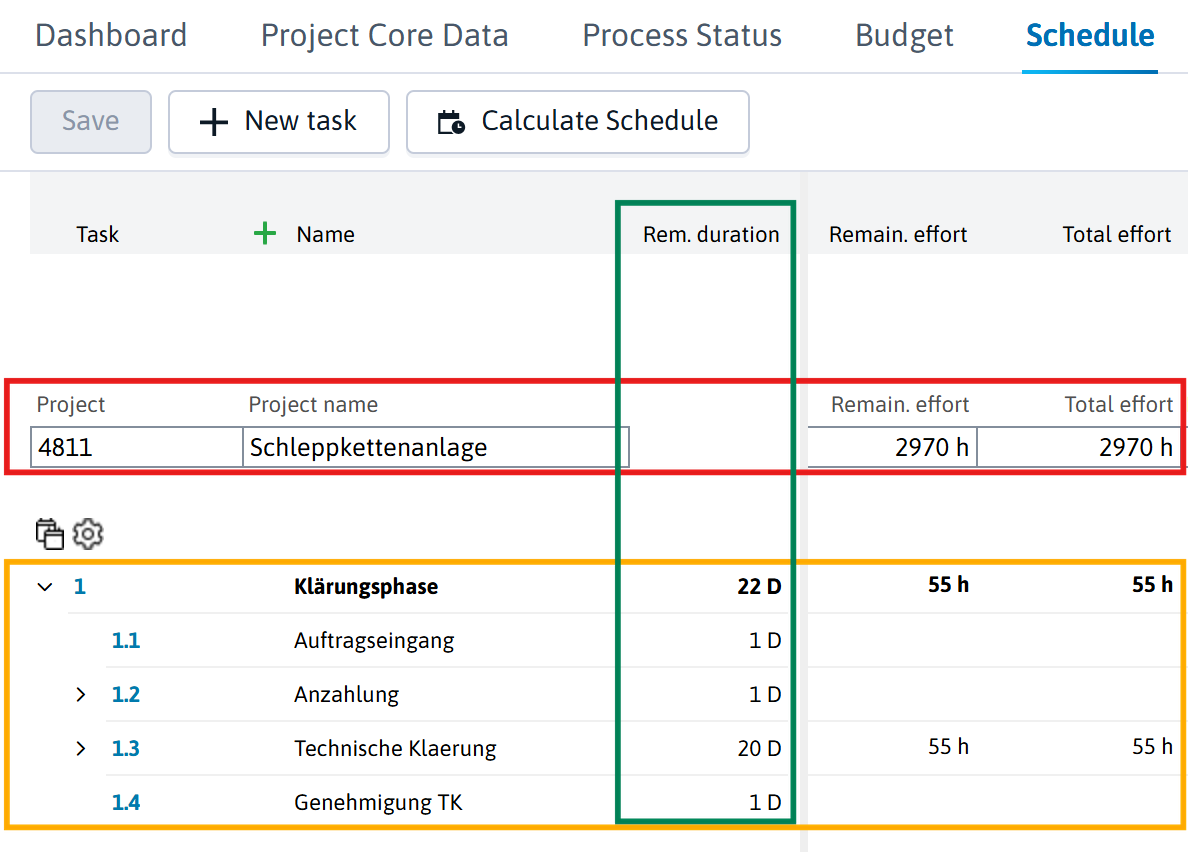
The image above shows two data areas: Project data area consisting of a record and of a task data area consisting of five records.
-
The record of the project data area has four columns (Project, Project name, Remaining effort, and Total effort), consisting of one data field of the same name each with the corresponding values.
-
The records of the task data area have five columns (Task, Name, Remaining duration, Remaining effort, and Total effort) with the corresponding values.
-
Each of these columns consists of 5 data fields which correspond to 5 records.
-
-
The Remaining duration layout column contains a data logical Remaining duration column in the Task area. The Remaining effort layout column, in contrast, consists of two data logical columns: The Remaining effort column of the project record and the Remaining effort column of the task records.
In some PLANTA standard modules, a fixed heading line is used for data areas with numerous records which is fixed at the very top of the module, just like the heading line for task columns in the example above in contrast to the heading line for project columns which are positioned directly above the record. When scrolling in an area of a module with numerous records, the fixed heading line is not scrolled, so that the column names remain visible.