
Information
-
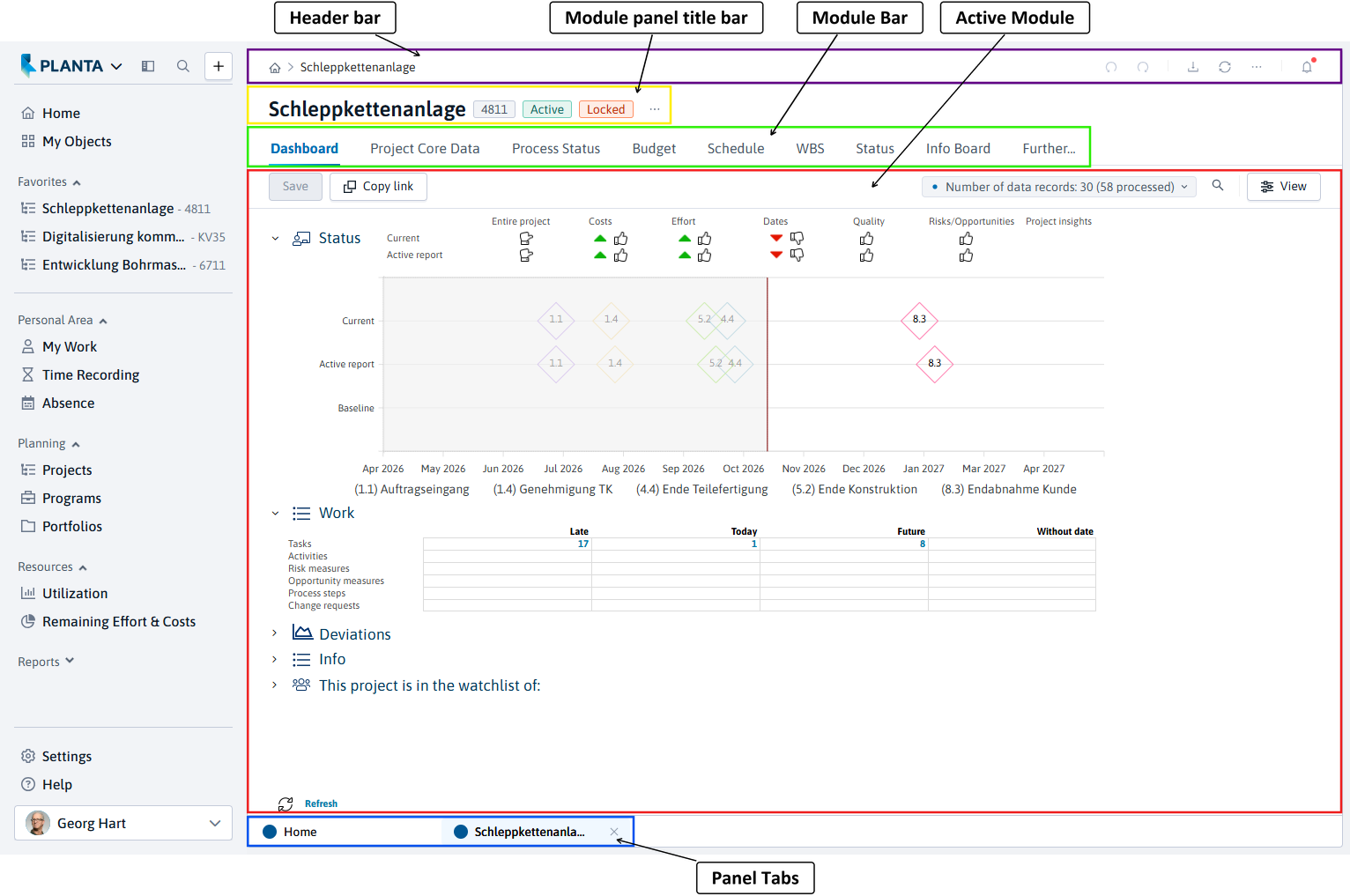
Module panels are used to summarize several, mostly functionally interrelated modules in PLANTA which are opened at the same time when the panel link is clicked on. E.g. in the Project panel, all modules required for the creation and editing of a project are summarized: Dashboard, Project Core Data, Schedule, Status, etc.
Structure
-
Header bar
-
Home button for navigating to the startup module
-
Breadcrumbs navigation
-
Icons for cross-panel and cross-module menu items (Export, Refresh/Reset) and notifications
-
-
Module panel title bar
-
contains the panel title or the title of the currently opened planning object. It is always displayed in the title bar of the panel and no matter which module of the panel is currently activated. Can be adjusted in Customizing if required.
-
depending on the panel, badges displaying important status information
-
depending on the panel, the options menu for planning object or portfolio actions, such as deleting a planning object or portfolio
-
-
Module Bar
-
shows all modules loaded when the module panel was opened as tabs.
-
The tab of the active module is highlighted in blue.
-
-
Active Module
-
shows the content of the active module. The module you last clicked is the active module.
-
-
Panel Tabs
-
once two or more module panels are open, they appear as tabs at the bottom of the window. Each additional module panel that is opened gets its own tab.
-
Operation
Opening Module Panels/Modules
Procedure
-
Module panels can be opened in the following ways:
-
Via links in the user menu
-
Via links within modules, e.g. links on the project ID open the corresponding project panels
-
Via buttons or context menus (right-click on a record)
-
-
Modules that are a fixed part of a module panel are loaded at the same time the module panel is opened and are activated by clicking the corresponding module tab.
-
In some module panels, additional individual modules can be opened later, e.g., by clicking links, buttons, or context menus, or via the dedicated More… function.
Closing Module Panels/Modules
Procedure
-
A module panel is closed by clicking on the x button at the bottom of the required panel tab.
-
The module panel that is currently open can also be closed via the Data → Close Panel/Module.
-
Modules that are a fixed part of a module panel and are loaded at the same time cannot be closed individually.
-
Modules that are loaded individually in the module panel afterwards can also be closed individually by clicking on the x button in the module tab.
Position Modules in the Panel
BETA
Information
-
The position of the modules in the panel can be changed by pulling the module tab or the title bar.
-
They can be positioned as a full window within the module bar,
-
at various positions within the panel or at the panel edge, as well as
-
within another module window or at its edge.
-
-
Available positions and areas for module windows are highlighted in blue.
Procedure
-
Click on the title bar of the required module (or on the required module tab) and move it to the desired position by pressing and holding the left mouse button.
-
When you release the mouse button, the module is placed exactly at the position at which you released the mouse button.
Examples
-
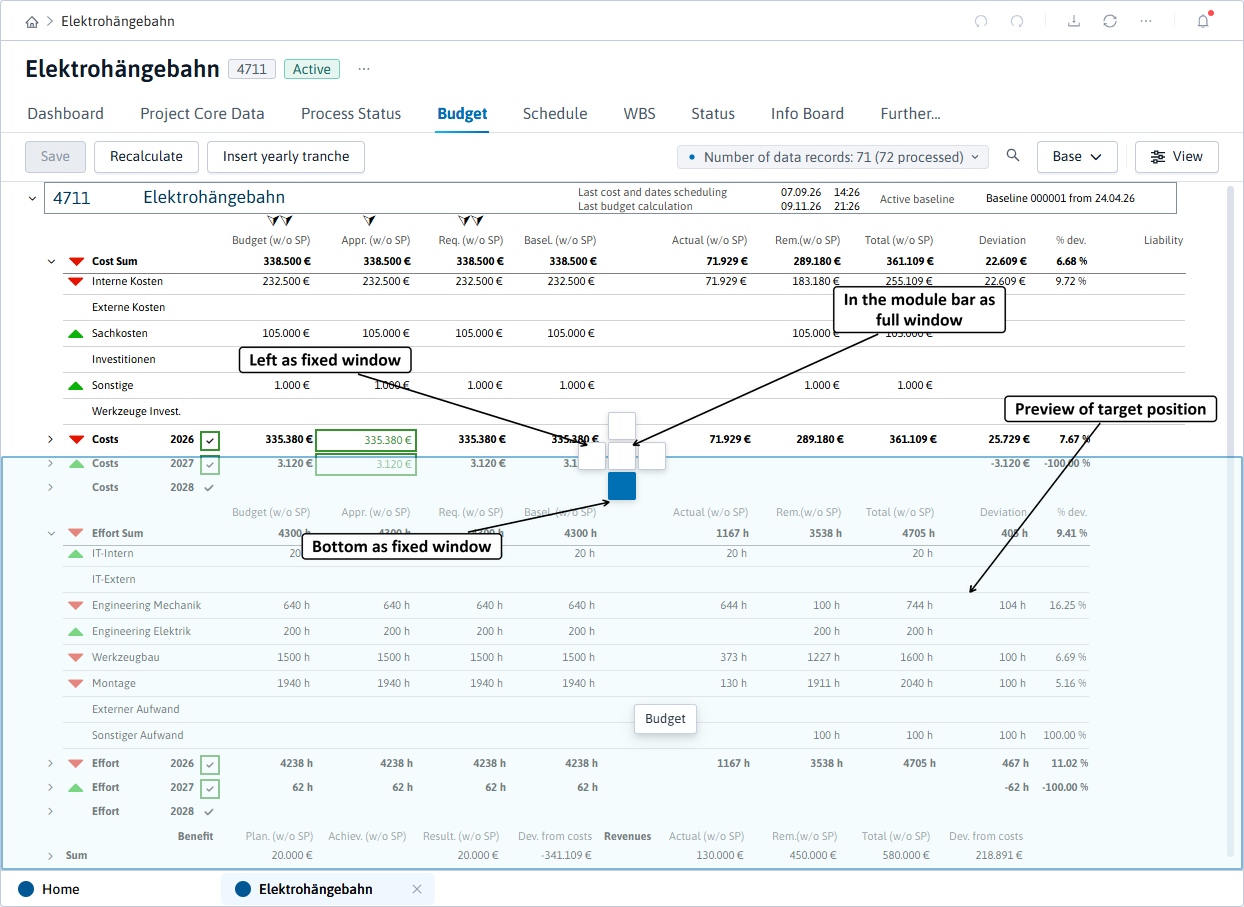
In the following examples the Budget module is relocated.
Positions Within the Panel
-
Navigation symbols appear at the center of the panel. Available areas onto which a module window can be moved are highlighted in blue.
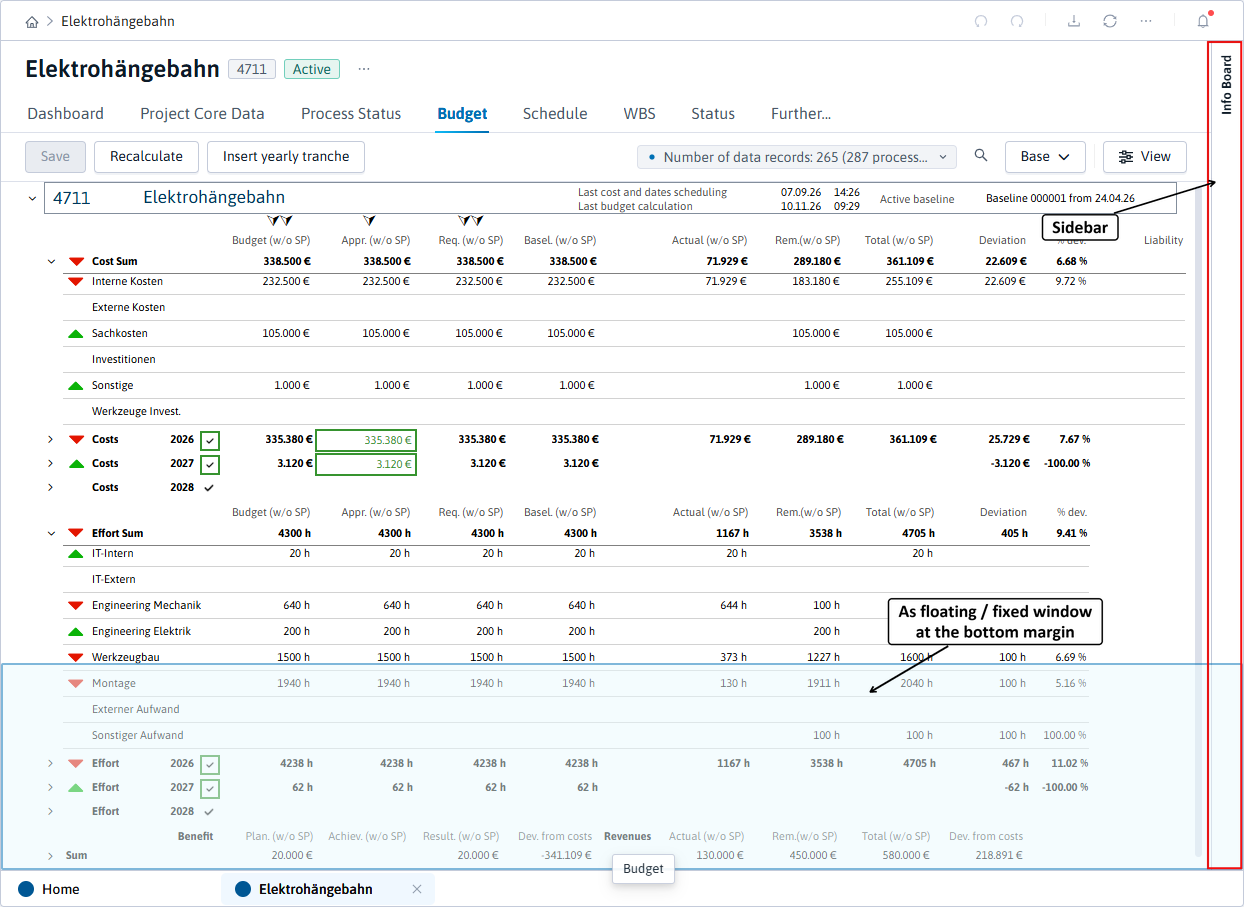
Positions at the Margin of the Panel
-
At the margins of a panel, available areas are highlighted in blue. Floating module windows are displayed in sidebars.
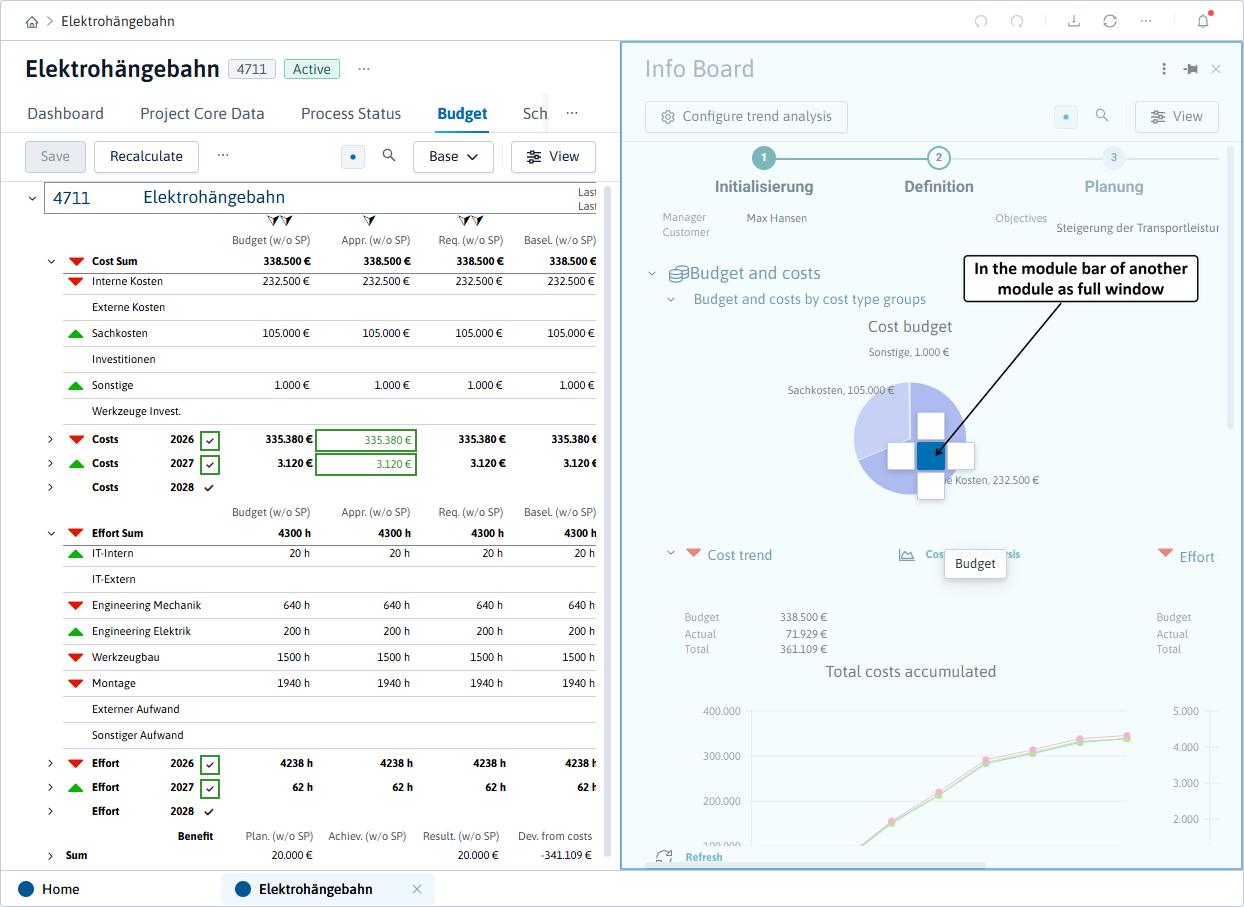
Positions within another module window
-
The behavior corresponds to the positioning within a panel.
Details
-
Alternatively a menu symbol is displayed in the title bar of a module window via which various positions can be chosen in the panel.
-
Modules that are positioned as floating windows at the outer margin of the panel are displayed in a sidebar. They can be fixed as described in the Module behavior (Floating/Fixed) section.
-
In the full screen window mode, the appropriate module tab is moved to the end of module bar.
Module Behavior (Floating/Fix)
Information
-
Modules that are positioned at the panel margins can be docked as floating (floating) or fixed (fixed) module windows.
-
By clicking on the required module title on the sidebar the corresponding floating module window is displayed.
-
With a second click inside of the module itself it is focused.
-
The module window is hidden again, once clicking outside of the module window or clicking into another module.
-
Change Behavior
-
Click on the module title in the sidebar.
-
Click on the pin symbol in the module title bar: The module tab is fixed.
-
To change back to the floating mode, click on the pin symbol once more.
Dialog Modules/Dialog Messages
-
Dialog modules are auxiliary modules which do not have any stand-alone function. They are opened from another module and have an immediate functional relation to the source module.
-
Dialog modules are closed:
-
by pressing Escape (Esc),
-
if customized accordingly, by clicking the x in the title bar of the dialog module,
-
by clicking outside the dialog module into the panel.
-
Dialog modules are to be distinguished from dialog messages.
-
Dialog messages show information, notes or simple queries to the user which the user must then confirm or answer. They are panel-independent. Without having confirmed a dialog message, you will not be able to continue to work with the program. In the header bar of a dialog message, the system title is displayed.
-
Dialog modules, in contrast, are real modules. They do, however, not have a stand-alone function but they provide options for more complex actions or selection operations. They are panel-independent and can be closed or clicked away without having carried out the necessary actions or operations. In the header bar of a dialog module, the name of the dialog module is displayed.