
Information
-
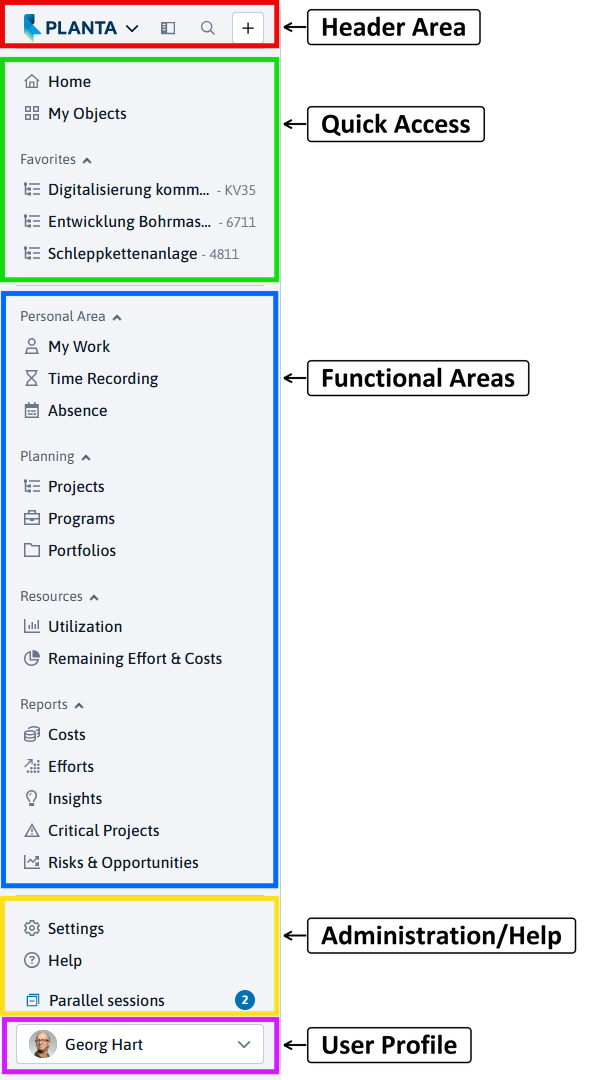
The user menu that is positioned on the left side of the monitor by default, consists of the following elements:
-
Header Area with the PLANTA logo, search symbol, and plus button
-
Quick Access with links to overview modules and favorites
-
Functional Areas/Work Areas with links to module panels/modules
-
Administration/Help with links to the menu with configuration modules and help
-
User Profile at the bottom
-
Header Area
Details
-
By clicking on the PLANTA logo a dropdown menu with all available menus and menu items, opens.
-
The user menu can be folded by clicking on this icon

-
In the folded state it appears when it is hovered over.
-
-
Clicking the search symbol

-
It enables searching for planning objects, portfolios, and modules.
-
-
The plus button

-
The rights of the logged-in user determine which options are available.
-
Quick Access
Details
-
Contains links to the modules
-
Home: A type of start dashboard with the most important information and overviews in the form of flexible widgets that can be put together related to the user roles.
-
My Objects, that provides a list of all planning objects and portfolios, to which the user either holds a manager role or is a stakeholder.
-
and the Favorites area.
-
-
This area of the user menu is fixed and visible to all users.
Favorites
Details
-
Favorites are planning objects and portfolios, that have been marked as favorite in the respective core data module (Portfolio, Project, Program, Proposal, and Idea).
-
A maximum of 5 favorites are displayed.
-
By clicking on “...More” the hidden favorites are also displayed.
-
-
If the user has no favorites yet, the area is not displayed.
Functional Areas
Details
-
Modules are summarized into thematically and functionally related module groups, that are displayed grouped into related functional areas (for example Planning, Resources)
-
The rights of the logged-in user determine which functional areas and module groups are available.
-
Administration/Help
Details
-
The first link Settings navigates to the so-called secondary user menu. There, all administrative modules are contained and among other things, core data is entered, user rights are configured, or project settings are made.
-
Both the Settings menu item and the secondary user menu are only visible to authorized users (Users that the Admin (ADM) person group is assigned to).
-
Via the To Application link you switch back from the secondary user menu with setting modules to the primary user menu.
-
-
The second link opens the Help dialog module, which, among other things, provides access to
-
the AI Assistant for questions concerning the topics project management and PLANTA project,
-
useful information for new users, and
-
video tutorials on the PLANTA software.
-
User Profile
Details
-
At the bottom of the user menu the avatar and name of the logged on user are displayed.
-
By clicking on the user profile a dropdown menu containing the User Settings and Logout functions, opens.
-
User Settings opens a dialog with the following areas:
-
Profile: Here, the user can upload, edit, or remove a profile picture (JPG or PNG format, max. 2 MB). The profile picture is visible to other users in projects, activities, and comments. If no profile picture is uploaded, the user’s initials are displayed instead.
-
The personal data (first name, surname, e-mail, user ID) is read-only. They are maintained centrally in the user management and can only be changed by an administrator.
-
-
Password: Here, the logged on user can change their password. The new password must comply with the password guidelines. Which requirements have already been fulfilled is displayed during the entry.
-
Status Messages: Personal settings for the display of status messages, saved in the used browser.
-
Microsoft-365 Integration
-
-
The Status Messages and Microsoft-365 Integration areas are only displayed if the respective function has been configured.
-
-
This area of the user menu is fixed and visible to all users.