
Start Program
Procedure
-
Enter the PLANTA software URL in the address bar and confirm.
-
Request the URL from your system administrator.
-
Caution: The PLANTA software is optimized for the Chrome browser.
-
Tip: You can also install the PLANTA software as an app (progressive web app) on your device. In Chrome, Edge, and other modern browsers, you will find the “Install app” icon (e.g., in Chrome:📥) in the address bar. On smartphones you can usually select "Add to home screen" in the browser menu.
Logging In to the PLANTA Software
The following description is intended for PLANTA software users. If you are a PLANTA software administrator who installed the PLANTA system, please click here to get information on the first login after installation.
Information
-
After opening the PLANTA software in the browser, a login screen appears with two fields for entering the user name (user ID) and the password.
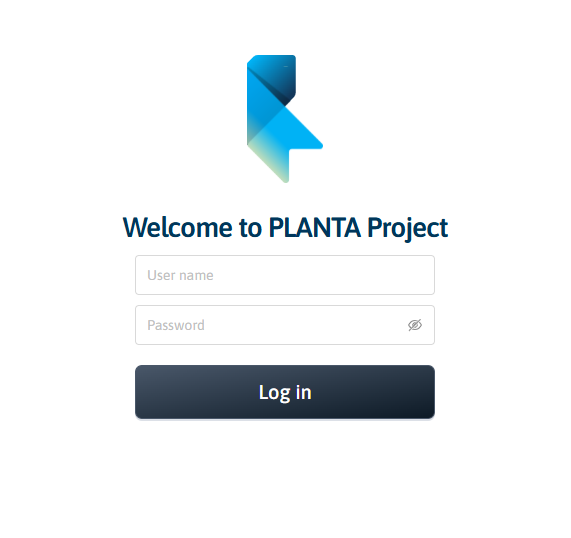
Procedure for first time login
-
Enter the user ID (user code) in the upper input field.
-
The user name (user ID) and initial password are provided to the user by the PLANTA project administrator (or a person authorized to enter master data in PLANTA project-systems).
-
-
Click on Log in.
-
Confirm the Please change the password! dialog with OK.
-
An input window is opened.
-
Enter the initial password into the Old password field.
-
Enter a new password in the New password and Confirm new password fields.
-
-
Click on OK.
-
Confirm the Your password has been changed successfully message with OK.
-
If a particular Panel is defined as a startup panel for the respective user, it will be loaded.
-
If no startup panel has been defined, only the user menu of the corresponding user will be loaded.
Procedure after next login
-
Enter the user name (user ID) in the upper input field.
-
Enter the password in the lower input field.
-
Confirm by clicking on Log in.
Notes
-
If a wrong user ID or password are entered, the User and/or password are unknown error message will be displayed and the input fields will be emptied. New input can be made.
-
If the maximum number of parallel sessions of the user or of the system has been reached, Sign-in was refused. is displayed together with the server message. Sign in again starts a new login attempt. If a separate session per tab is configured, the sessions of this browser are listed as well. Use Take over or End and sign in here to continue working in the current tab.
Logging in to another browser tab (parallel session)
Information
-
By default, all tabs of a browser share one session. When you switch back to a previously used tab, it shows the message Click to continue working here. As soon as the tab is clicked or brought to the foreground, it takes over the session again.
-
If a separate session per tab is set in the configuration, users can work in several tabs at the same time. In each further tab, the login screen appears with the note You are already signed in in another tab. Sign in to start a parallel session in this tab. The user name is already entered.
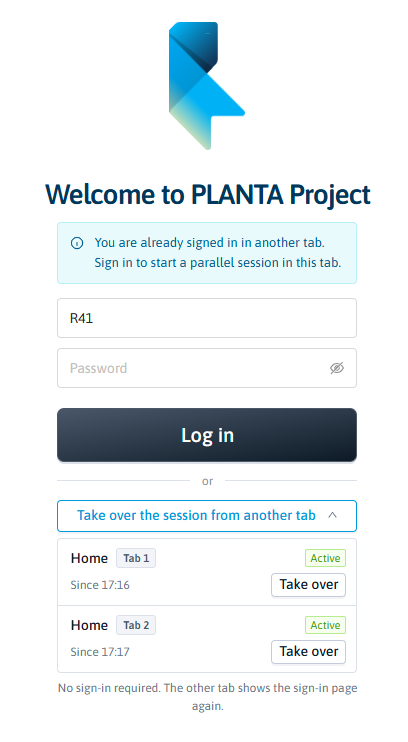
Procedure: Start a parallel session
-
If necessary, enter the password and click on Log in.
Procedure: Take over a session from another tab
-
Click on Take over the session from another tab.
-
If a session is open in only one other tab, it is taken over directly.
-
If several sessions are open, a list of the sessions of this browser appears. Click on Take over in the required row.
-
-
The session is taken over without a new login. The other tab shows the login screen again.
Note
-
The tab number in the list corresponds to the number in the title of the browser tab.
Login with Single Sign-On (Credential Manager)
For the corresponding procedure, please see the Technology/Installation/Update online help area.
Logging in with demo data (standard users)
Information
-
As long as PLANTA demo data is installed, the standard users with PLANTA standard roles which it contains, can be used to get to know the program or for testing.
-
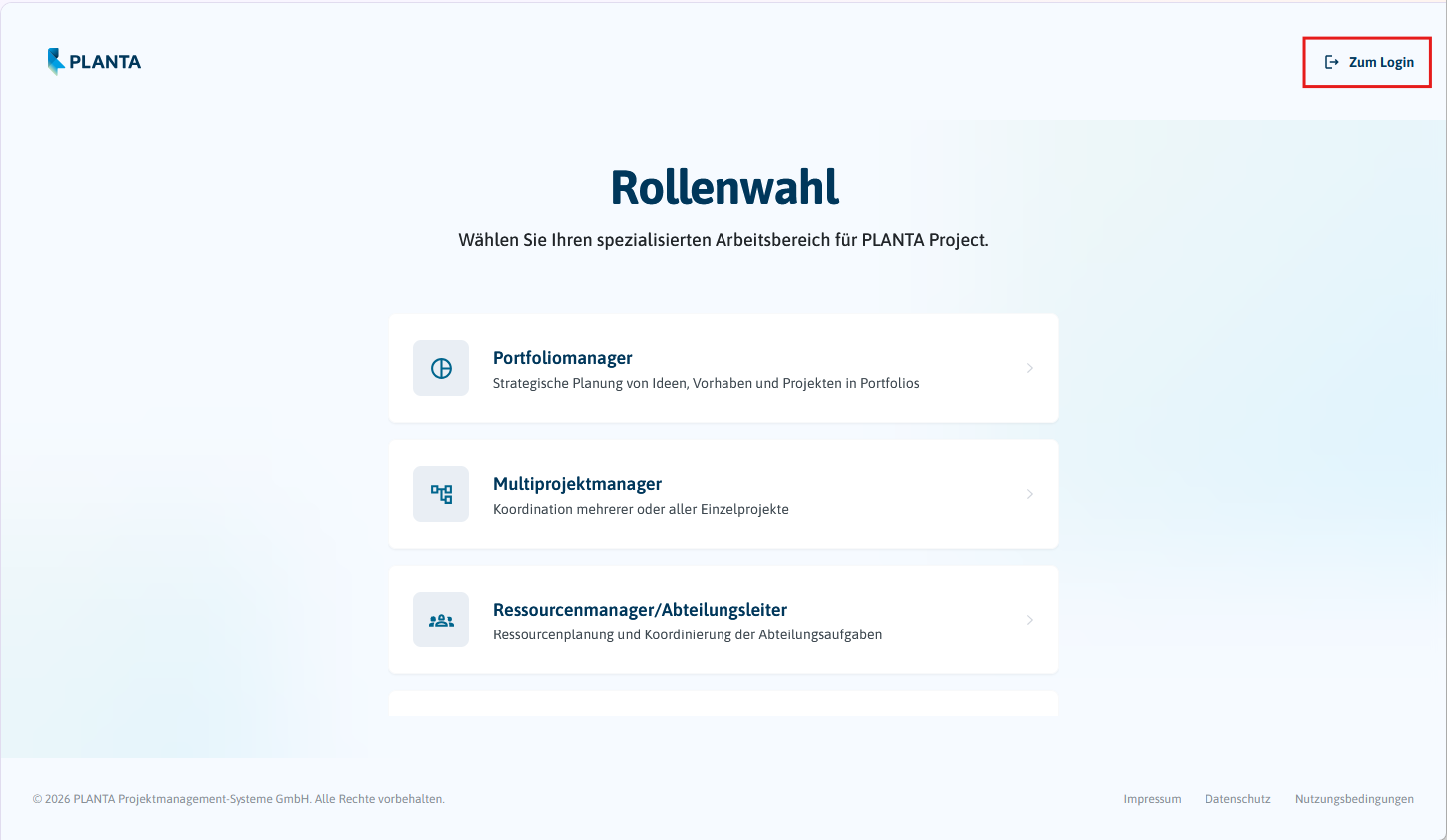
After opening the PLANTA software in the browser, a screen appears with an overview of the PLANTA standard roles and a short description of the tasks and functions of each standard user.
-
Use the To Login button

Details
-
The PLANTA standard users are used for demo purposes.
-
The PLANTA standard users are only available if PLANTA demo data is installed.
-
PLANTA standard roles are already assigned to these standard users. A role gives the users to whom it is assigned access to one or more groups of modules and/or menu items.
-
PLANTA standard users are used without passwords.
-
This does not apply to the P20 and R90 users. Ask your PLANTA consultant for the password for this user.
-
-
Exit Program
Procedure
-
On the lower area of the user menu, click on the button with the user name and then of log off.
-
If several sessions are open in the browser, the Log out dialog appears. Select Only in this tab or In all tabs and click on Log out.
-
-
Alternatively, click on the PLANTA logo in the header area of the user menu and then on the Data → Exit Program menu item.
-
If there are any unsaved changes, the following message will be displayed: Save? Some data has been changed. After the message has been confirmed, the program is closed.
-
If all changes have already been saved, the program will be closed (without further prompts) and the view will switch to the login screen.
-
Ending sessions in other browser tabs
Information
-
If a separate session per tab is set, each session counts toward the maximum number of parallel sessions.
-
Parallel sessions in the user menu shows all sessions of the current browser. Sessions that are no longer required can be ended there.
-
Sessions in other browsers or on other devices also count toward the maximum number but do not appear in the Parallel sessions dialog. If the maximum number has been reached, these sessions can be ended in the respective browser via Parallel sessions. A new session can then be started in the current browser.
-
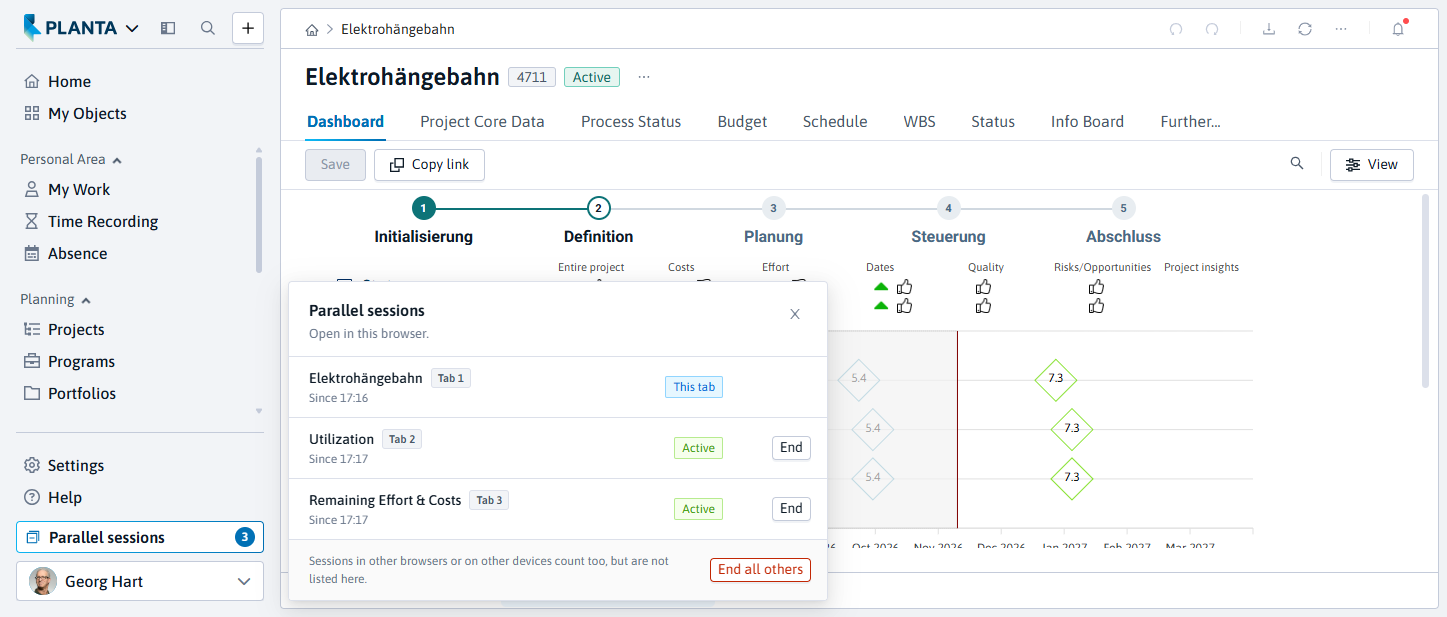
Procedure
-
In the user menu, click on Parallel sessions.
-
The entry appears as soon as several sessions are open in the browser.
-
-
Click on End in the row of the required session.
-
Alternatively, click on End all others to end all sessions in this browser except the one of the current tab.
Notes
-
Unsaved changes of an ended session are lost.
-
The meaning of the statuses in the Parallel sessions dialog is described on the User Menu page.