
Information
-
The menus and menu items can be opened through the PLANTA logo in the header area of the user menu.
-
In order to facilitate the access to relevant functions, menu items (and other relevant functions) are partly also displayed in the action bar and on the upper right of the module panel (see example figure below).
-
-
The PLANTA documentation distinguishes between user and customizer menu items, whereas the former are described on this page and the menu items of the customizer are described in the PLANTA customizer help area.
-
The composition of the menu items is generally configurable and can be compiled individually by the administrator for individual users or user groups.
Distribution of the menu items (and further functions) in the module panel
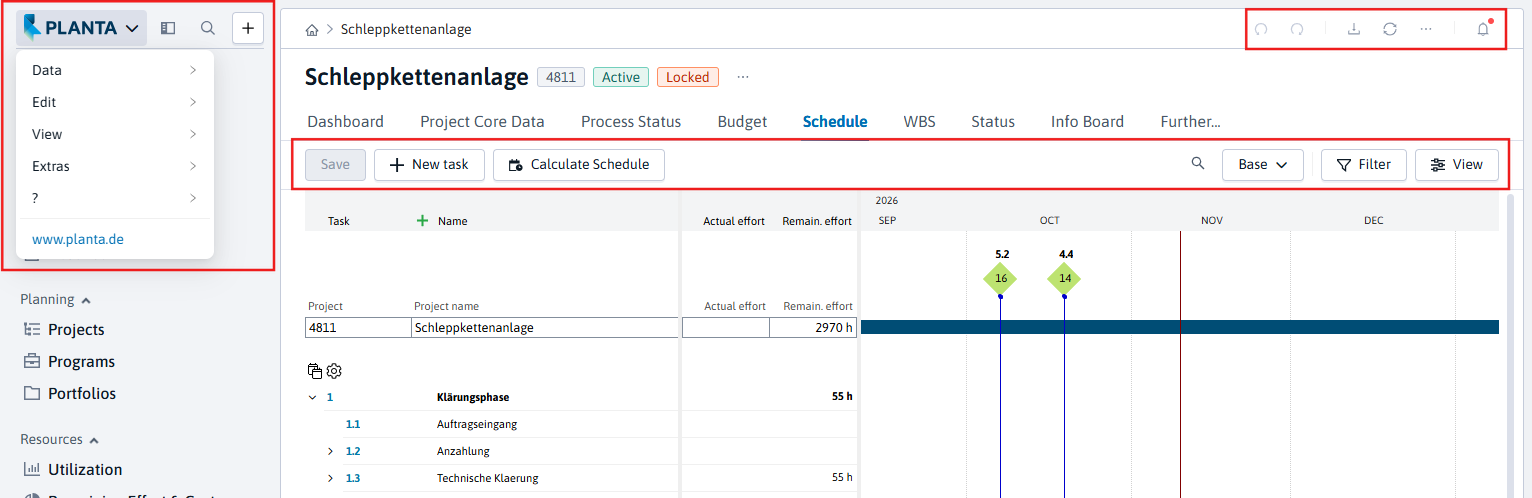
Menus
Menu: Data
|
Menu item |
Sub-menu item |
Icon |
Shortcut |
Description |
|---|---|---|---|---|
|
Filter |
|
|
CTRL + Q |
Starts a filtering process. See also: Filter |
|
Cancel filtering |
|
|
ESC |
Cancels the filtering process. |
|
Refresh/reset |
|
|
F7/ F5 |
Refreshes the display in accordance with the last changes or resets the current selection without closing the module. |
|
Sort |
|
|
|
If the sort order has been changed in the module, the sort order predefined in customizing can be reestablished. See also: Change the sort order |
|
Search in module |
|
|
CTRL + F |
Opens the search bar in which you can enter the string to be searched for in the module. When pressing the key combination again, the search bar is closed again. See also: Search in module |
|
Close panel/module |
|
|
CTRL + F4 |
Closes the active panel/module Notes for customizers: Once a module/panel is closed, it must no longer be used by Python in any way. Each method/attribute call to a closed module/panel may lead to program instabilities and crashes! |
|
Exit Program |
|
|
ALT + F4 |
Closes the program. |


Menu: Edit
|
Menu item |
Sub-menu item |
Icon |
Shortcut |
Description |
|---|---|---|---|---|
|
Insert |
|
|
F4 |
Inserts a new record of equal rank. Procedure |
|
Save |
|
|
CTRL + S |
Saves the data including performed changes in the database. |
|
Delete |
|
|
SHIFT + DEL |
Deletes the marked records from the database. You will be asked whether you really want to delete the data. See also: Delete |
|
Copy via Drag&Drop |
|
|
|
Definition of a copy type for Drag&Drop copying |
|
|
Field to Field |
|
CTRL + 1 |
|
|
|
Field to Column |
|
CTRL + 2 |
|
|
|
Column to Column |
|
CTRL + 3 |
|
|
|
Record(s) |
|
CTRL + 4 |
|
|
Calculate Schedule |
|
|
CTRL + R |
Carries out the entire calculation of the schedule including dates, resources (capacity loading), and, if the required settings are made, costs as well.
|
|
Unload schedule |
|
|
|
The project will be unloaded with regard to dates, the resources will be approved. Further information. |
|
Mark all |
|
|
CTRL + A |
Marks all records in the module. |
|
Unmark all |
|
|
CTRL + D |
Unmarks all records in the module. |


Menu: View
|
Menu item |
Sub-menu item |
Icon |
Shortcut |
Description |
|---|---|---|---|---|
|
Show child area + |
|
|
CTRL + + |
Unhides the data of the child data area for the activated record. |
|
Show child area ++ |
|
|
CTRL + * |
Unhides the data of the child data area for all records. |
|
Hide child area - |
|
|
CTRL + - |
Hides the data of all child data areas for the activated record. |
|
Hide child area - - |
|
|
CTRL + / |
Hides the data of all child data areas for all records. |
|
Bar mimic |
|
|
|
If you select one of the following bar mimic types, a scroll will be performed in the module when you click in a data field of a record outside a scale (e.g. window 1 or 2) the corresponding bar/today line of which is not in the visible area. |
Menu: Extras
|
Menu item |
Sub-menu item |
Icon |
Shortcut |
Description |
|---|---|---|---|---|
|
Filter criteria |
|
|
CTRL + ALT + F |
Opens the Filter criteria module for the respective active module. See also: Filter and Set Filter Criteria |
|
Export to Microsoft Excel |
|
|
|
|
|
Home |
|
|
CTRL + H |
Opens the module or panel stored for the current user in the Startup macro data field. |
|
Change Load Startup Modules |
|
|
|
Opens the Load Startup Module module, in which the user can define which of the startup modules of the role assigned to him/her is to be opened upon program start or when clicking on the Extras → Home menu item and which startup modules are not to be opened. |
|
Change password |
|
|
|
Opens a dialog for changing the password |
|
Synchronize with PLANTA pulse |
|
|
|
|
|
Synchronize with Jira Server |
|
|
|
|
|
Export as PDF |
|
|
|
Creates a PDF file which contains the content of the selected module.
|


Menu: ? (Help)
|
Menu item |
Sub-menu item |
Icon |
Shortcut |
Description |
|---|---|---|---|---|
|
Data field description |
|
|
F1 |
Opens the description of the activated data field in the PLANTA Online Help. |
|
Module description |
|
|
F2 |
Opens the description of the active module in the PLANTA Online Help. |
|
Open Online Help |
|
|
CTRL + M |
Opens the start page of the PLANTA Online Help. |
|
Data field information |
|
|
CTRL + F1 |
Opens the Data Field Information module in which important customizing information is displayed, like, e.g., exits or value ranges. |
|
Module information |
|
|
CTRL + F2 |
Opens the Module Information module in which important customizing information is displayed, like, e.g., module ID or data areas. |
|
System information |
|
|
CTRL + B |
Opens the System Information module in which information like, e.g. logged-on user and license are displayed. |
|
Evaluate us! |
|
|
|
Link to the Trusted and Capterra software evaluation portals |
|
Session Logs |
|
|
|
Logs of the logged-in user’s sessions, with the option to download the log files. Users with customizing rights can see the sessions of all users. The administrator determines whether, and for whom, this menu item appears. An XML recording of a session can also be started and downloaded here, if the administrator permits this. |
|
Status Messages BETA |
|
|
|
Opens the Status Messages dialog with an overview of the status messages of the current session. Personal settings for the status displays can be reached via the
This menu item is only available if the parameter configuration permits personal settings.
|


Search Bars
Global Search Bar
Information
-
The search bar is used to search for planning objects, portfolios, and modules.
-
You can open and close the search dialog box by clicking the search bar icon

Details
-
As search terms for planning objects and portfolios, you can enter the functional ID, name, and manager.
-
As a search term for modules, ID and name can be entered.
-
Only users with customizer rights can search for modules in the search bar.
-
-
Search results are displayed in a window directly below the search bar.
-
Archived planning objects are displayed in a separate Archived group. The group is hidden by default and can be unhidden via the arrow before the group name. For archived planning objects, the type of planning object (e.g., project, proposal) is displayed instead of the phase and assessment.
Notes on the search
-
To achieve optimum search results, please pay attention to the search terms you enter:
-
For exact hits, put the search term in quotation marks.
-
Search terms in quotation marks must be entered correctly and in upper and lower case, otherwise no search results will be displayed.
-
-
If the exact search term is not known, enter the substring to be searched for without quotation marks.
-
The use of placeholders allows you, a.o., to search for patterns or partial terms.
-
Example for search terms
|
Exact search |
Search results |
|---|---|
|
"Elektrohängebahn" |
Project with the name "Elektrohängebahn" |
|
"Georg Hart" "Ronja Koch" |
All projects in which Georg Hart and Ronja Koch are assigned as project managers |
|
Partial string search |
|
|
proj |
Hits such as “Bauprojekt - Hochbau,” “Gemeinkostenprojekt 2019,” or “Standardplan IT-Projekt” |
|
Ha Ron |
Projects in which Georg Hart, Max Hansen, or Ronja Koch are assigned as project managers, as well as projects with names containing the strings "Ha" and/or "Ron". |
|
Partial string search with placeholder |
|
|
4_11 |
Hits in which the place between 4 and 11 is completed by a character, e.g. 4711, 4811 |
Search in module
The search bar can be opened via the search symbol 
|
Name |
Icon |
Shortcut |
Description |
|---|---|---|---|
|
Search in module |
|
CTRL + F |
|
|
Search: |
|
|
Field in which the search term is entered. |
|
Down |
|
F3 |
Move to the next hit (down). The first hit will be highlighted in green. |
|
Up |
|
SHIFT + F3 |
Move to the previous hit (up). The first hit will be highlighted in green. |
|
Capitalization |
|
ALT + G |
Defines whether case sensitivity is to be considered. |
|
Highlight |
|
ALT + H |
Defines whether all hits are to be highlighted in yellow. |
|
Use regular expressions |
|
ALT + R |
Defines that the search term is analyzed as regular expression. |
|
|
|
ESC |
If the search bar is focused, it is closed. |


Standard shortcuts
|
Key combination |
Explanation |
|---|---|
|
CTRL + Pos1 |
Go to start |
|
CTRL + End |
Go to end |
|
CTRL + Print |
Copy an image to the clipboard |
|
ALT + Arrow down |
Opens the corresponding listbox in a listbox data field |