
Information
-
This topic is aimed at project management administrators and describes how the new authorization and navigation concept is configured. People who are to perform administration tasks must be assigned to the Admin (ADM) person group.
-
A general introduction from the user's perspective can be found in the topic User Rights.
From Release 27 onward, the navigation structure and rights control are separated from each other.
Navigation Structure
The navigation is structured in two levels, navigation area (work area) → navigation point (module), and is structured independently of the rights assignment. Structure and visibility can be configured separately.
The navigation structure itself, i.e. which navigation areas and modules exist at all, continues to be determined by the previous system of roles and work areas (modules Roles (old) and Work Areas (old)). Three new navigation roles are provided for this:
-
01100062 New Navigation: User
-
01100063 New Navigation: Customizer
-
01100064 New Navigation: Settings
Work areas are assigned to each of these roles, and these become visible as navigation areas in the user menu. The modules contained within them are visible as navigation points in the user menu. The roles themselves are not visible in the user menu. Which navigation areas and which navigation points are visible is controlled via new person groups. See below.
Rights Management
Rights control in PLANTA Project takes place on three levels:
|
Level |
Name |
What is configured? |
Setting Location |
|---|---|---|---|
|
Level 1 |
Module Visibility and System-Wide Authorizations |
Which modules are visible in the user menu and what system-wide authorizations exist |
Settings → Master Data → Users, Roles, Resources → Person Groups Settings → Master Data → Users, Roles, Resources → Configure User Menu Settings → Master Data → Users, Roles, Resources → Configure Authorizations Settings → Master Data → Users, Roles, User → Users |
|
Level 2 |
Object Access and Multi-Client Capability |
Which projects, portfolios, and resources are accessible |
Settings → Master Data → Users, Roles, User → Users
|
|
Level 3 |
Object Roles |
Which actions are allowed within a specific project or portfolio |
Core Data of the respective object or assignment as a resource in the schedule |
Level 1: Person Groups and Module Visibility
Person groups control which navigation areas and modules are visible to a user, as well as which system-wide rights they have. Configuration takes place in the modules Person Groups, Configure User Menu, Configure Authorizations, and Users under Settings → Master Data → Users, Roles, Resources.
-
Person groups do not change the navigation structure – they only control the visibility of individual points.
Define Person Groups
Person groups are recorded in the Person Groups module under Settings → Master Data → Users, Roles, Resources. The following standard person groups are available:
|
Person Groups |
Purpose |
|---|---|
|
Multi-portfolio manager (MPFM) |
Cross-portfolio management |
|
Multi-project manager (MPM) |
Cross-project and program management |
|
Portfolio manager (PFM) |
Managing individual portfolios |
|
Project manager (PM) |
Managing individual projects |
|
Program Manager (PGM) |
Managing individual programs |
|
Employee (EM) |
Basic access with own work and the ability to record hours worked |
|
Admin (ADM) |
System configuration, user management, rights management |
|
Department Manager |
Resource management on department level |
|
Customizer (CU) |
Customizing and adjusting the system |
Define module visibility for person groups
Which navigation areas (work areas) and navigation points (modules) are visible to each person group is defined as follows:
-
All work areas and modules of the New Navigation role: Customizer (01100063) are displayed to users with the person group Customizer (CU). (Caution: For this, the user parameter Customizer must also be activated.)
-
All work areas and modules of the New Navigation role: Settings (01100064) are displayed to users with the person group Admin (ADM).
-
The visibility of the work areas and modules of the New Navigation role: User (01100062) can be configured per person group via a matrix in the Configure User Menu module.
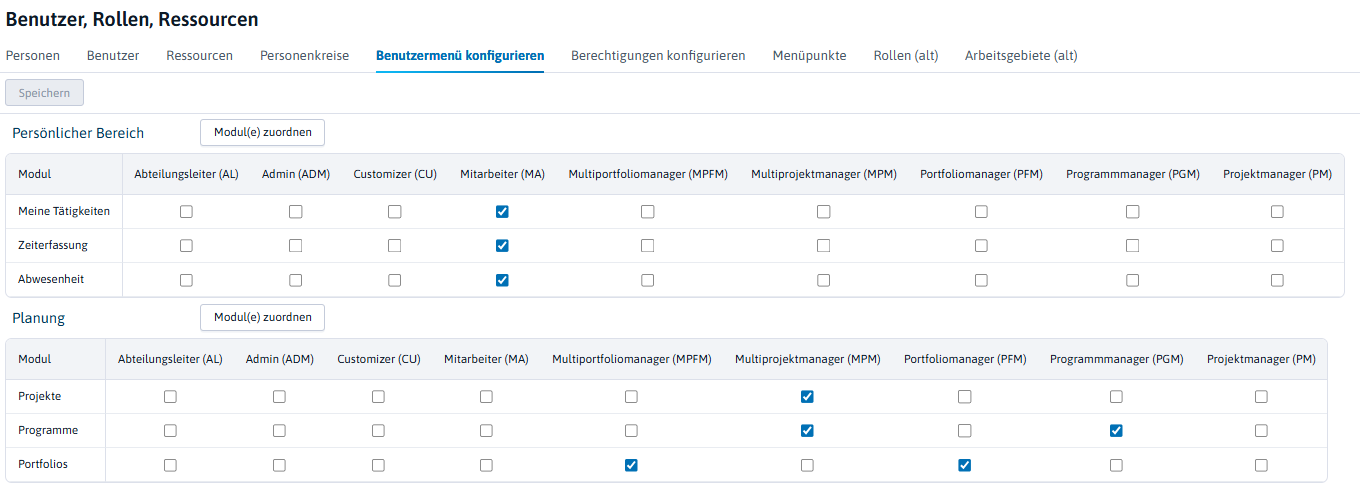
Define Module Visibility for Users
The visibility of the modules for individual users is achieved through the assignment of person groups to users. This is done via the Assign Person Groups button in the Users module under Settings → Master Data → Users, Roles, Resources. One or more person groups can be assigned to a user.
When assigned to multiple person groups, navigation access results additively from the sum of all assigned person groups. Each navigation point appears exactly once in this process.
Configure System-Wide Rights
In addition to the visibility of the modules in the user menu, the system-wide authorizations can be defined via the person groups.
Authorization to create new planning objects
The rights matrix in the Configure Authorizations module under Settings → Master Data → Users, Roles, Resources determines which person groups are allowed to create which object types.
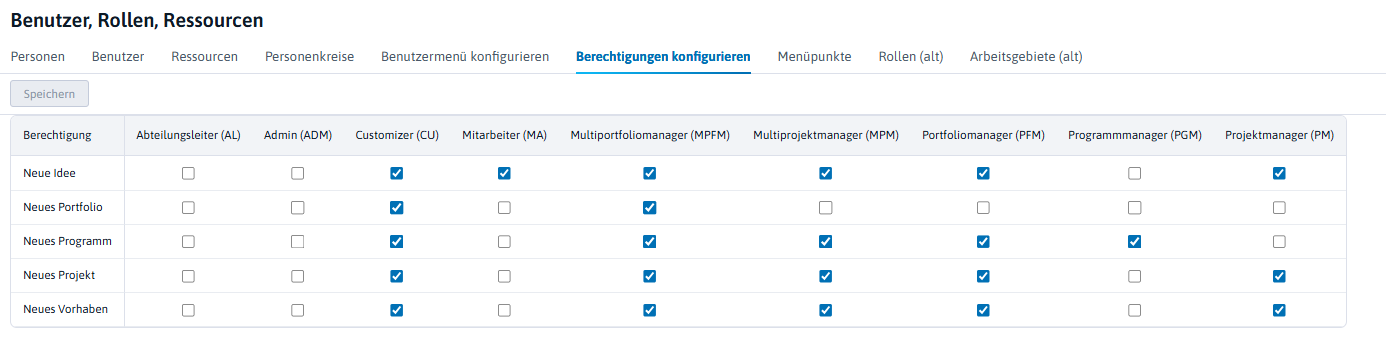
In the future, more system-wide rights for the person groups will also be configurable via the rights matrix. In this version, additional system-wide rights are initially defined via user parameters.
Authorization to Edit, Delete Projects
Certain users are to be given the ability to make changes to any project or to delete any project. This is controlled via the Object Authorization user parameter in the User module under Settings → Master Data → Users, Roles, Resources.
|
Action |
No Multi-Project Manager |
Multi-Project Manager |
Multi-Portfolio Manager |
|---|---|---|---|
|
Create resources |
|
X |
X |
|
Edit ideas, proposals, projects, programs |
|
X |
X |
|
Edit portfolios |
|
|
X |
|
Delete ideas, proposals, projects, programs |
|
X |
X |
|
Delete portfolios |
|
|
X |
|
Delete resources |
|
X |
X |
Authorization for the deletion of actual postings
For the user which is to be granted the right to delete actual postings, the Can delete actual postings checkbox must be activated in the User module.
PLANTA strongly advises against deleting actual postings. Instead, reverse bookings should be recorded. Deleting can lead to inconsistencies in the schedule calculation and in system integrations. If actual actual postings are to be deleted anyway, remaining effort, remaining costs, remaining revenues, and actual start date entries must be checked and corrected manually if neccessary.
Customizer Rights
Customizer rights are assigned by activating the Customizer parameter in the Users module. These rights entitle the user to change customizing parameters or to even delete the entire module customizing to which he/she has access. This is the case regardless of whether the user has modification rights for project data.
Caution: Via the functions of the customizer, a user with customizer rights can edit and delete any record (including entire planning objects).
Level 2: Object Access
Certain user parameters control which specific data records (projects, portfolios, resources, skills) are visible to a user.
The system must be able to control access to resources/skills, planning objects (ideas, proposals, projects, programs), and portfolios, e.g. to make sure
-
that an employee from department A cannot simply see projects or information from department B, or
-
that a project manager only uses resources for his/her project which are from his/her own department.
This way, the multi-client capability of the system is guaranteed.
Access to Planning Objects (Cost Center Structure Code)
Procedure
-
Creating cost centers with structure codes: Settings → Master Data → Costs → Cost Centers
-
Assigning cost centers to planning objects: In the Cost Center field in the project / portfolio core data.
-
Store a structure code area in the user profile: Settings → Master Data → User, Roles, Resources → User → Access to Objects field.
|
Input |
Example |
Effect |
|---|---|---|
|
Exact code |
0112 |
Access only to objects with structure code 0112. |
|
With wildcard |
0112* |
Access to all codes that start with 0112 (e.g. 01121, 01122). |
|
All objects |
* or empty |
Access to all planning objects in the system. |
|
No access |
e. g. “x” |
No access (no valid structure code). |
Access to resources and skills (resource structure code)
Analogous to planning object access, the resource structure code controls which resources and skills are shown to a user during planning.
-
Configuration is done under Settings → Master Data → Users, Roles, Resources → User → Access to Resources field.
-
The resource structure code is assigned manually according to the resource structure/company structure in the Resource structure code field in the following modules:
-
The skill structure code is allocated manually in accordance with the skill structure in the Skill structure code field in the following modules:
Since access to resources and skills is controlled via the same parameter, the structure codes for resources and skills must be assigned consistently so that the user can access both types.
Department manager parameter
For users assigned to the person group Department Manager (DM), the corresponding department must also be stored in the Department parameter in the user profile.
The Department parameter does not necessarily have to be the department to which the user belongs. You can also enter a superordinate department if the user is to be responsible for all subordinate departments. In such a case, please make sure that the correct structure code is entered in the Resource access field, so that it does not contradict the entry made here and possibly restricts resource access.
-
Example: If the structure code of the entered department is 1.4.1, the entry in the Resource access field must be 1.4.1, 1.4.1*, 1.4* or 1*.
Level 3: Object Roles
Object roles control a user's authorizations within a specific object (project, program, initiative) and apply only to that one object.
|
Object Role |
Description |
How and where is it defined |
|---|---|---|
|
Project Manager |
Read, edit, assign object roles. Exception: Only multi-project managers are authorized to change the ID, lock/unlock, and delete. |
The Manager field in the core data module of the planning object (Project Core Data, Program Core Data, Proposal Core Data) |
|
Project Staff |
Read and record own hours worked. No further changes possible. |
Allocation as a resource to a task in the schedule of the planning object. |
|
Stakeholder Area |
Read only. No changes possible. |
Entry in the Stakeholder area of the planning object's Core Data (Project Core Data, Program Core Data, Proposal Core Data) |
|
Stakeholder with Modification Rights |
Read and edit Corresponds to a deputy project manager. |
Change access checkbox in the Stakeholder area in the core data of the planning object.
|
Only the object roles Portfolio Manager and Stakeholder are available in portfolios, and can be defined in the portfolio core data.
Migration Rights Concept
When updating to version 27, person groups for existing users are automatically derived from their previous roles:
-
Standard Roles: The person group is set automatically based on the user's previous roles. For the following person groups, additional parameters are also checked:
-
For the new person group Customizer (CU): the Customizer parameter.
-
For the person group Multi-Portfolio Manager (MPFM): the Object Authorization parameter.
-
-
Individual Roles: A separate new person group is automatically created for each individual role. All users with this role receive this person group and can therefore automatically see all modules in all work areas of this role (module visibility is activated across the board, not selectively). It is recommended to review these after migration and, if necessary, restrict them more specifically to the modules actually needed.
-
Individual Modules in Standard Work Areas: The individual modules end up in the new work area From Migration (work area 01100311) and are configurable there for the person groups.
-
Individual Work Areas (in Standard Roles): The individual modules contained within them are also added to the From Migration work area. In addition, the individual work areas are added to the navigation role 01100062 (New Navigation User), so that they continue to appear in the user menu.
The migrated modules can then be assigned by the customer customizer to one of the four new standard work areas (01100277 "Personal Area", 01100278 "Planning", 01100279 "Resources", 01100280 "Reports") and removed from From Migration.
The new rights and navigation concept is active for a user as soon as the new skin 000017 "PLANTA Standard Skin (New)" is assigned to them. After an update, the new design can be rolled out globally for all users by running the helper package ActivateNewDesign.