Information
-
The card menu can be opened in the detail view of the card via the button in the symbol area of the card header and contains further options for the selected card.
Add to Watch List/Remove from Watch List
Information
-
A card can be added to the watch list, so that the user will be notified when there are changes on the card.
-
Which notifications (e-mail, in-app or Telegram) will be sent, can be configured in the Notification Settings for the watch list.
-
Procedure
-
Open board → Select list → Open detail view of the card → Open card menu via
-
In the card menu, select the option Add to Watch List.
Details
-
Cards on the watch list are marked with in the card header in the detail view of the card and in the preview of the card.
-
If the user does not want to receive notifications on changes on the card anymore, he/she can select Remove from Watch List in the card menu.
-
If a card is on the watch list, the user will receive notifications about changes in the card.
-
If needed, individual lists or entire boards can be added to the watch list as well.
Note
-
Cards cannot be on the watch list and muted at the same time.
Mute Card/Unmute
Information
-
A card can be muted, meaning that the user will not receive notifications about changes on this card anymore.
Procedure
-
Open board → Select list → Open detail view of the card → Open card menu via
-
In the card menu, select the option Mute Card.
Details
-
Muted cards are marked with in the card header in the detail view of the card and in the preview of the card.
-
To unmute a card, the Unmute option can be selected via the card menu.
-
Cards can also be muted directly in the in-app notifications.
Note
-
Cards cannot be on the watch list and muted at the same time.
Add Attachment
See Attachments
Custom Fields
Information
-
Further individual fields can be added to cards.
-
Custom fields first need to be created by a board admin via the board menu or by the project admin in the Projects panel.
-
-
Further information on the various custom fields can also be found here.
Add custom field
-
Open board → Select list → Open detail view of the card → Open card menu via
-
In the card menu, select the option Custom Fields.
-
Click on the field to add it to the card. By clicking on it again, the field can be removed from the card again.
-
Only board admins can add custom fields to the card or remove custom fields from the card.
-
Custom fields can be created globally in the Administration panel, per project in the Projects panel or per board via the board menu. More Information
Move to Top
Information
-
A card can be moved to the beginning of a list.
Procedure
-
Open board → Select list → Open detail view of the card → Open card menu via
-
In the card menu, select the option Move to Top.
-
The card is moved to the first position within the list.
Move to Bottom
Information
-
A card can be moved to the end of a list.
Procedure
-
Open board → Select list → Open detail view of the card → Open card menu via
-
In the card menu, select the option Move to Bottom.
-
The card is moved to the last position within the list.
Copy Card
Information
-
A card can be copied on the original board and to another board. In both cases, the original card stays on the original board.
Procedure
-
Open board → Select list → Open detail view of the card → Open card menu via
-
In the card menu, select the option Copy Card.
-
If needed, enter a new title for the copy of the card.
-
Via the listboxes Boards, Swimlanes, Lists, select where to copy the card.
-
Current Board means the board the user has opened at this moment.
-
If the parameter Allow Moving and Copying of Cards to Other Projects has been activated in the Administration panel, cards can also be copied to boards of other projects.
-
-
Select whether card comments are to be copied. PREMIUM
-
OK.
-
The detail view of the copied card is opened at the previously defined position.
Details
-
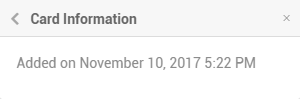
On the new card, the date when the card was copied is displayed as the Added on date in the Functions in the Card Menu | id (42 en)FunctionsintheCardMenu Karteninformation .
Move Card
Information
-
Cards can be moved to other boards.
Procedure
-
Open board → Select list → Open detail view of the card → Open card menu via
-
In the card menu, select the option Move Card.
-
Via the listboxes Boards, Swimlanes, Lists, select where to move the card.
-
Current Board means the board the user has opened at this moment.
-
-
OK.
-
The detail view of the moved card is opened at the previously defined position.
-
If the target board is not to be opened, this setting can be changed in the User Settings → Board Settings .
-
Notes
-
The option to move cards to another board is only available for board admins. Other board members can move cards only within the current board to other lists or swimlanes. They can also use Drag&Drop to do so.
-
If the parameter Allow Moving and Copying of Cards to Other Projects has been activated in the Administration panel, cards can also be moved to boards of other projects.
Archive Card
Information
-
A card can be archived so that it will not be displayed in PLANTA pulse anymore, but the related data and information will not be lost.
Procedure
-
Open board → Select list → Open detail view of the card → Open card menu via
-
In the card menu, select the option Archive Card.
Details
-
Via the board menu → Board Archive , archived cards can be accessed and restored, if needed.
Delete Card
Information
-
A card can be deleted, which will also delete all related objects (e.g. attachments) and information (e.g. comments).
Procedure
-
Open board → Select list → Open detail view of the card → Open card menu via
-
In the card menu, select the option Delete Card.
-
In the dialog box, click Delete.
Details
-
If a card in PLANTA pulse is only to be hidden instead of deleted, so that the related data will be kept, it can also be archived.
Notes
-
A deleted card and all related data cannot be restored anymore.
-
Cards on which working hours have been recorded cannot be deleted anymore but only archived.
Card Information
Open board → Select list → Open detail view of the card → Open card menu via → Card Information
Information
-
The time when a card was added to a board can be seen in the card information.
Example