
Login Requirements
Information
-
You need a PLANTA account. To be more precise, you have to use an account that was invited by PLANTA (AzureAD).
-
One of the AAD_Sec_App_Registry_* groups is required. After assignment it may take a few minutes until access becomes possible.
Procedure: Log in on the Interface (Web Browser)
-
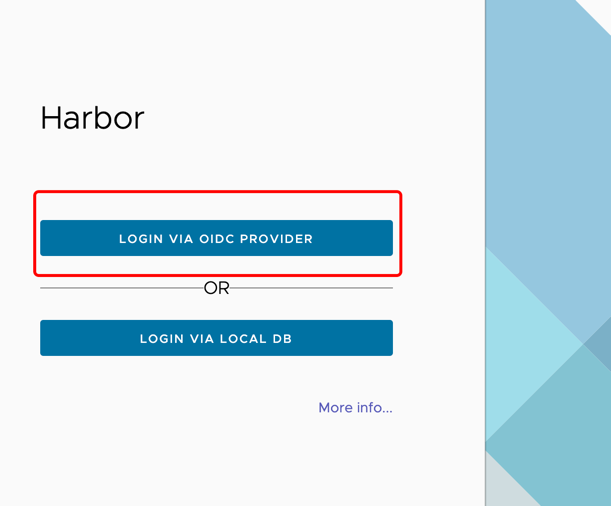
Click on login via OICD provider.
-
Enter the login data for the account that was approved by PLANTA (invitation via e-mail).
Procedure: Login on the Command Line
-
Carry out the steps described above to log on to the interface.
-
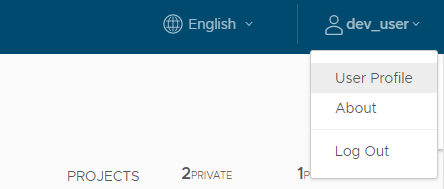
Click on your user name which is displayed at the top to open the user menu.
-
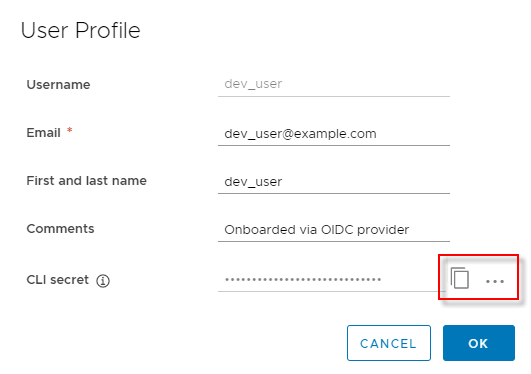
At the bottom of the user menu you will find the CLI secret which is used for authentication via Docker or Helm. Click on the clipboard symbol to copy the secret.
-
Optionally, you can also generate a new secret or create it manually by clicking on the ... symbol.
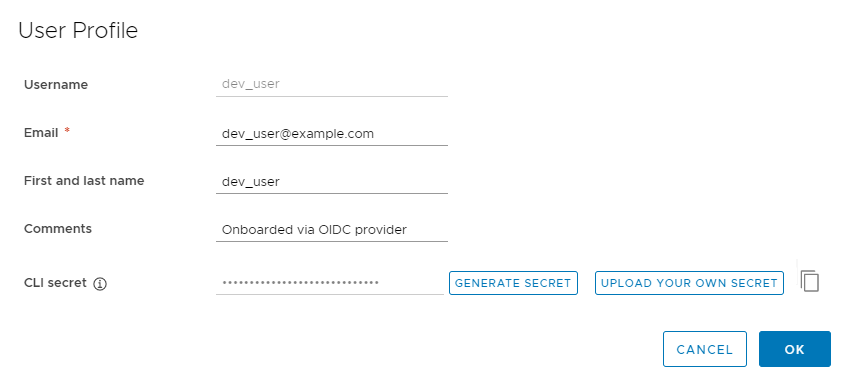
There can only be one CLI secret per user at a time. When generating a new secret, the previous secret is deleted. -
This secret allows you to log in via Docker or Helm:
docker login registry.planta.services
Specify the user name displayed in the profile asusername(not the e-mail address), in our exampledev_user