
Access
-
Customizer → Chart Customizer → Chart Configurations → Chart Configurations by Work Area → Open the required chart →

-
Customizer → Chart Customizer → Chart Configurations → Chart Configurations Direct Editing → Open the required chart →
-
Open the required user module → Click on the button on a chart →
Information
-
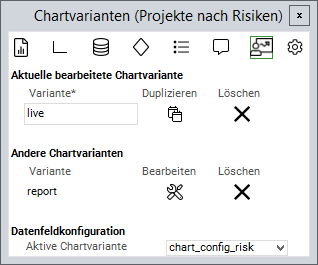
In this module, chart variants of a chart can be copied, deleted, or edited.
-
Chart variants are different chart configurations for the same data field.
Details
-
A chart variant can be defined as active variant in the Active chart variant field, so that it will be displayed in case there are several variants.
-
If no chart variant has been defined as active variant, the chart variant which is currently edited will be defined as active variant.
-
For the active chart variant you can either enter the name of a variant or the Python ID of a data field from the chart area.
-
If a data field is referenced, it must contain the name of a variant as a value in order to define which variant is to be displayed.
-
-
Example
- Tutorial: Chart-Customizing
- Tutorial: Chart Customizing
- Chart-Customizer
- Tutorial: Chart Customizing
- Tutorial: Chart Customizing
- Chart-Customizer
- Tutorial: Chart Customizing
- Tutorial: Chart Customizing
- Charts customizen
- Tutorial: Chart Customizing
- Customize Charts
- Tutorial: Chart-Customizing
- Tutorial: Chart Customizing
- Tutorial: Chart-Customizing
- Customize Charts
- Tutorial: Chart-Customizing
- Charts customizen
- Tutorial: Chart-Customizing
- Tutorial: Chart-Customizing
- Chart Customizer
- Chart-Customizer
- Tutorial: Chart-Customizing
- Tutorial: Chart Customizing
- Customize Charts
- Charts customizen
- Charts customizen
- Customize Charts
- Tutorial: Chart-Customizing
- Charts customizen
- Charts customizen
- Tutorial: Chart-Customizing
- Customize Charts
- Charts customizen
- Chart Customizer
- Customize Charts
- Tutorial: Chart Customizing
- Chart Customizer
- Tutorial: Chart-Customizing