Information
-
There are three different types of preview fields:
-
for colors
-
for symbols
-
for formats
-
-
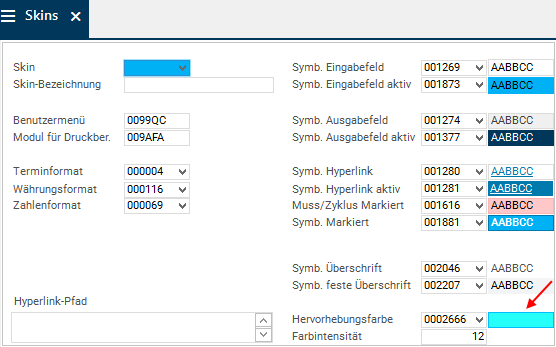
Preview fields show the color, the symbol, or the format of the corresponding color, symbol, or format DI.
Details
-
Preview fields are virtual DIs which contain the actual color, symbol, or format DIs as sub-DIs.
-
They are created in the same data table as color, symbol, or format DIs.
-
The preview field class is Incarnation (class 4).
Create preview DI
-
Open Customizer → System Customizer → Data Dictionary
-
Create a traffic light DI in the same data table as the DI to be checked and define the following parameters:
-
DI Python ID = the Python name of the color, symbol, or format DIs and the _incarnation name extension.
-
Class = 4
-
virtual =
-
Column type = Alpha
-
This column type is only required for the creation of the DI ID. It can be deleted again afterwards..
-
-
Symbol ID = 000188
-
-
Save.
-
Update system customizing (via the Tools → Restart PLANTA Service menu item).
-
Note: If you click on the menu item, all open client connections (sessions) are closed. New client connections are not possible during restart.
-
Assign sub-DI
-
Assign a sub-DI to the newly created DI in the Data Items module.
-
Enter the ID of the color DI in the SUBDI field.
-
-
Select
-
value F (color) for color preview fields.
-
value FT (format) for format preview fields.
-
value S (symbol) for symbol preview fields.
-
-
For symbol and format preview fields, the value that is displayed in the preview field must additionally be entered in the Value from parameter:
-
For symbol preview fields: AaBbCc
-
For format preview fields: @15
-
-
Save.
Example of a color preview field

Insert preview DI in data area
-
Assign the created DI to the required data area.
-
Set the DF behavior to o (output).
-
Save.
-
In a form, the following fields must be adjusted in addition:
Example: customize a color preview field
Objective
-
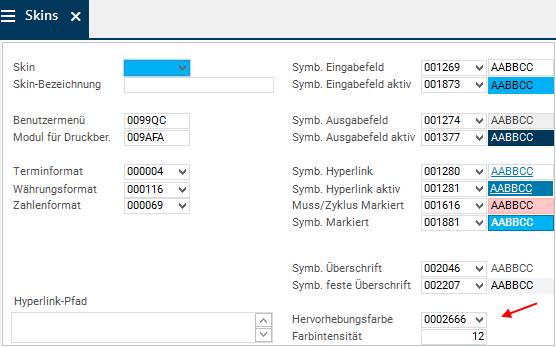
To customize a color preview field, here by the example of DI028197 Highlighting color in DT030 Skin
Create DI
-
Open DT 030 with source DI 028197 in the Data Dictionary.
-
Create a new DI and set the following parameters:
-
Data item = Highlighting color
-
DI Python ID = highlighting_color_incarnation
-
Class = 4
-
virtual =
-
Column type = Alpha
-
This column type is only required for the creation of the DI ID. It can be deleted again afterwards..
-
-
Symbol ID = 000188
-
-
Save.
-
Update system customizing (via the Tools → Restart PLANTA Service menu item).
-
Note: If you click on the menu item, all open client connections (sessions) are closed. New client connections are not possible during restart.
-
Assign subordinate data item
-
Right-click on the DI you have just created and select the Edit data item context menu command.
-
Right-click on DI → Insert → Subordinate data item.
-
Insert the ID of the source DI (028197) in the SUBDI field.
-
Select value C (color) from the Function listbox.
-
-
Save.
Insert DI in data area
-
Now, assign the created DI to the data area which contains the source DI.
-
Set the DF behavior to o (output).

-
Save.
-
In order for the data field to be displayable, the following fields must be adjusted: