
Information
-
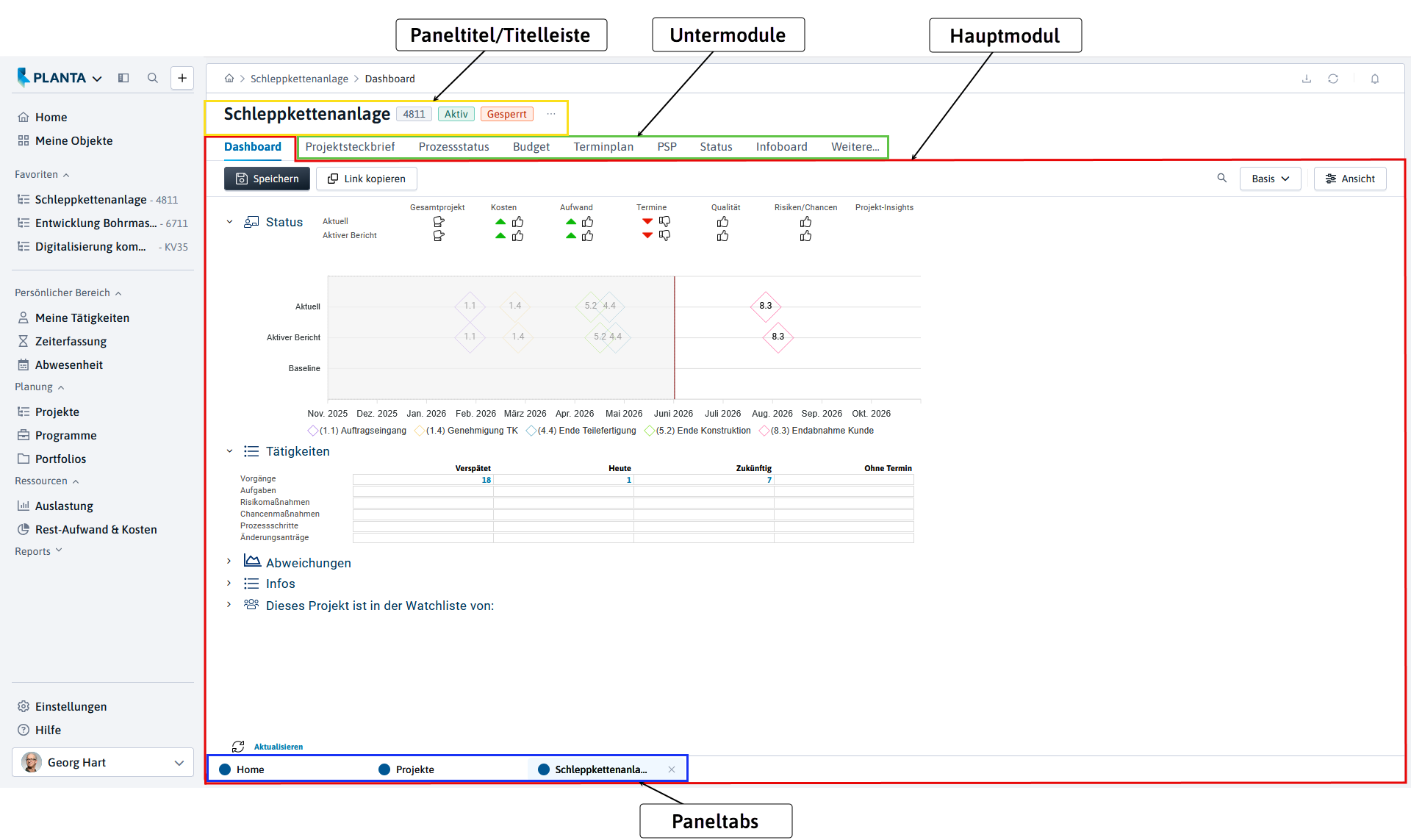
Panels are used to summarize several, mostly functionally interrelated modules in PLANTA which are opened at the same time when the panel link is clicked on. E.g. in the Project panel, all modules required for the creation and editing of a project are summarized: Dashboard, Project Core Data, Schedule, Status, etc.
Panel Structure
-
Each panel always contains the user menu and a main module as well as possibly one or more submodules.
-
The main module and the submodules can be arranged (docked) at different positions on the screen. They can be arranged one behind the other in the form of tabs or next to each other or one below another.
-
The active module is displayed differently depending on the client.
-
In the Desktop Client, the module tab of the active module is marked in blue.
-
In the Web Client, the module tab of the active module is marked in white.
-
-
-
Main module
-
is the primary module of the panel.
-
is usually displayed in the first position when the panel is opened.
-
Via customizing you can define which module is the main module of the panel.
-
-
Submodule
-
is any other module of the panel which is neither the main nor the user menu module.
-
Submodules can, but do not have to be, structural and/or contextual child modules of the main module.
-
Via customizing you can set which submodules are displayed in a panel.
-
If submodule tabs do not fit into the screen window, a blue triangle will be displayed in the tab bar indicating that the panel contains further modules.
-
By clicking on this triangle, a list of all modules of the panel will be opened.
-
By clicking on the module title, the corresponding module will be activated.
-
-
If a submodule is closed, it will no longer be available and will not be displayed in the panel. In order for the submodule to be displayed again, the panel must be opened.
-
-
User menu
-
is a module window which is aligned at the left side of the display and contains links which lead to the panels with editing and view modules. For further information, see here.
-
-
Panel title
-
is always displayed in the title bar of the screen, no matter which module of the panel is currently activated.
-
is the title of the main module, unless an extra panel title was defined by the customizer
-
-
Task bar
-
In the Desktop Client, each open panel gets its own taskbar entry. I.e. if another panel is opened, another entry in the taskbar is generated.
-
In the Web Client, open panels are displayed as tabs in the lower part of the window. I.e. if another panel is opened, another tab is generated.
-
Panel Operation
Open Panel/Modules
Procedure
-
There are several ways to open panels/modules:
-
by clicking on a link in the user menu
-
within a panel: Click on the corresponding tab (if the required tab is not visible, click on the blue triangle in the tab bar and select the name of the module from the list).
-
within a module: Click on a button
-
within a module: Click on a link
-
within a module: Right-clicking to have the Context Menu displayed and to select the required command.
-
Close Panel/Modules
Procedure
-
Closing
-
a panel:
-
by closing the main module:
-
click on the x button in the main module tab or
-
select the Data → Close panel/module menu item or press CTRL + F4.
-
-
by clicking on the x button in the title bar.
-
-
-
click on the x button in the submodule tab or
-
select the Data → Close panel/module menu item or press CTRL + F4.
-
-
Note
-
The user menu module cannot be closed.
Module Behavior (Floating/Fix)
Information
-
All modules (main and submodules) can be arranged in any order within a tab bar or docked at various positions within a panel as movable (floating) or frozen (fix) module windows.
-
If you click on the required module name on the bar at the margin of the panel, the corresponding module window is displayed.
-
If you click inside the module itself a second time, it is focused.
-
The module window is hidden again as soon as you click outside the module window or in another module.
-
Change Behavior
-
Display the module window.
-
Click on the pin symbol in the title bar of the module: The module window is frozen.
-
To set the behavior to floating again, click on the pin symbol once more.
Position Modules in the Panel
Information
-
The position of the modules in the panel can be changed by moving them.
-
They can be positioned as a full screen window as well as
-
at various positions within a panel or at the margin of the panel as well as
-
at various positions within another module window or at its margin.
-
-
Available positions and areas for module windows are marked in blue.
Procedure
-
Click on the title bar of the required module (or on the corresponding module tab) and drag it to the required position while holding down the left mouse button.
-
In doing so, navigation symbols are displayed in the middle of the panel and areas to which a module window can be moved are marked.
-
-
Drag the module to a highlighted area.
-
When you release the mouse button, the module is positioned exactly at this place.
-
Alternatively, a menu symbol is displayed in the title bar of a module window next to the pin symbol, via which various positions in the panel can be selected.
Details
-
Modules which are positioned as movable windows at the outer margin of the panel can be frozen as described in the Module Behavior (Floating/Fix) section.
-
The navigation symbols indicate positions at which the modules can be placed as frozen windows in the right, left, upper or bottom half of the panel or as a full screen window.
-
In the full screen window mode, the corresponding module tab is moved to the end of the tab bar.
-
Example
Unknown Attachment
Dialog Modules/Dialog Messages
-
-
Dialog modules are auxiliary modules which do not have any stand-alone function. They are opened from another module and have an immediate functional relation to the source module.
-
Dialog modules are closed:
-
by pressing Escape (Esc),
-
by clicking on the x in the title bar of the dialog module (if it has been customized accordingly),
-
by clicking in the panel from the dialog module.
-
-
Dialog modules are to be distinguished from dialog messages.
-
Dialog messages show information, notes or simple queries to the user which the user must then confirm or answer. They are panel-independent. Without having confirmed a dialog message, you will not be able to continue to work with the program. In the header bar of a dialog message, the system title is displayed.
-
Dialog modules, in contrast, are real modules. They do, however, not have a stand-alone function but they provide options for more complex actions or selection operations. They are panel-dependent and can be closed or clicked away without having carried out the necessary actions or operations. In the header bar of a dialog module, the name of the dialog module is displayed.